

Offer tests and templates
Run an A/B test between two versions of a segment's follow-up sequence and keep the winner, and write, preview and test-send the message templates your follow-ups use.
Two screens help you improve your abandoned-cart follow-ups. With A/B tests you compare two versions of a segment's follow-up sequence on new carts and see which one recovered more. With Templates you write the subject lines and messages your follow-ups send, so a change to the words is made once.
A/B tests come with customer segments, which SureBright switches on per store (see Customer segments).
Test two versions of a sequence#
Follow-ups → A/B tests lists tests in four groups: Running, Drafts (built by you, not started), Suggested (built by SureBright from your numbers, each saying what it expects and why) and Past tests. Nothing changes for your shoppers until you start a test.
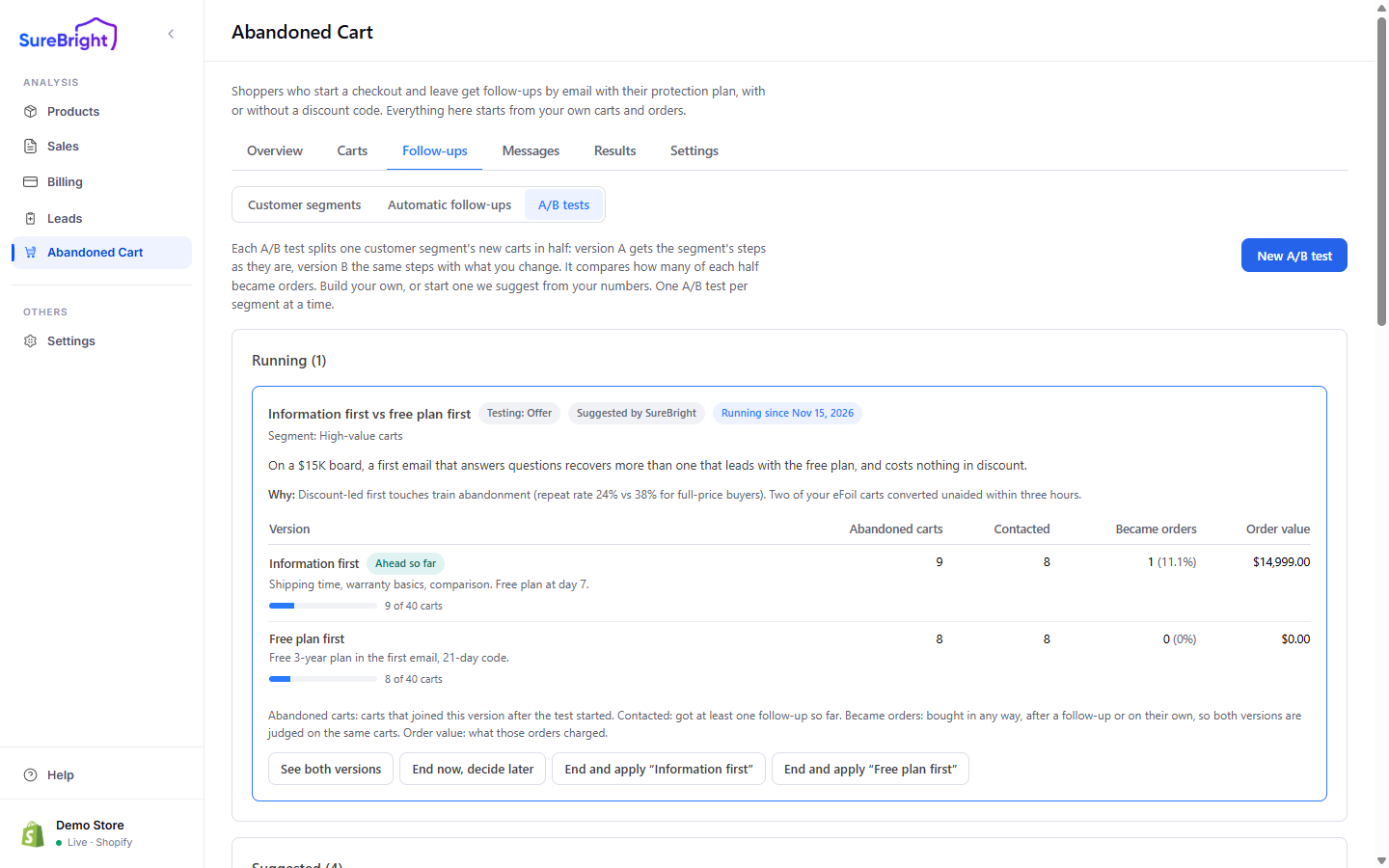
How an A/B test works#
A test runs on one segment. Version A is the segment's steps as they are. Version B is the same steps with what you change. From the moment you start, new carts in the segment are split half and half between the two versions; carts already in a sequence carry on as they were. One test runs per segment at a time.
Build an A/B test#
Which segment
Choose the segment. A test on a segment with a running test is refused.
What version B changes
Choose One thing, so the result tells you exactly what made the difference, or A few things together, for changes you think work best as a set. Then pick what changes: Offer, Send time, Subject line, Message or Add or remove a step.
Version B
Each step shows what version A sends now. Only the things you ticked can change; a step added in version B is marked New step, only in version B. The editor checks version B against your choice and says what is different, or what you ticked but have not changed yet.
When it ends
End when each version has a number of carts, End on a date, or both, whichever comes first. Once each version has its carts, no new carts join and the test waits for those carts to finish their steps; on the date it ends at once. Then the numbers freeze and you choose which version to keep.
Name and start
Name it, then Start A/B test, or Save as draft to keep it as a draft.
New A/B test opens the editor. Below, version B changes only the Offer, so each step shows what version A sends now and lets you pick a different offer for version B.
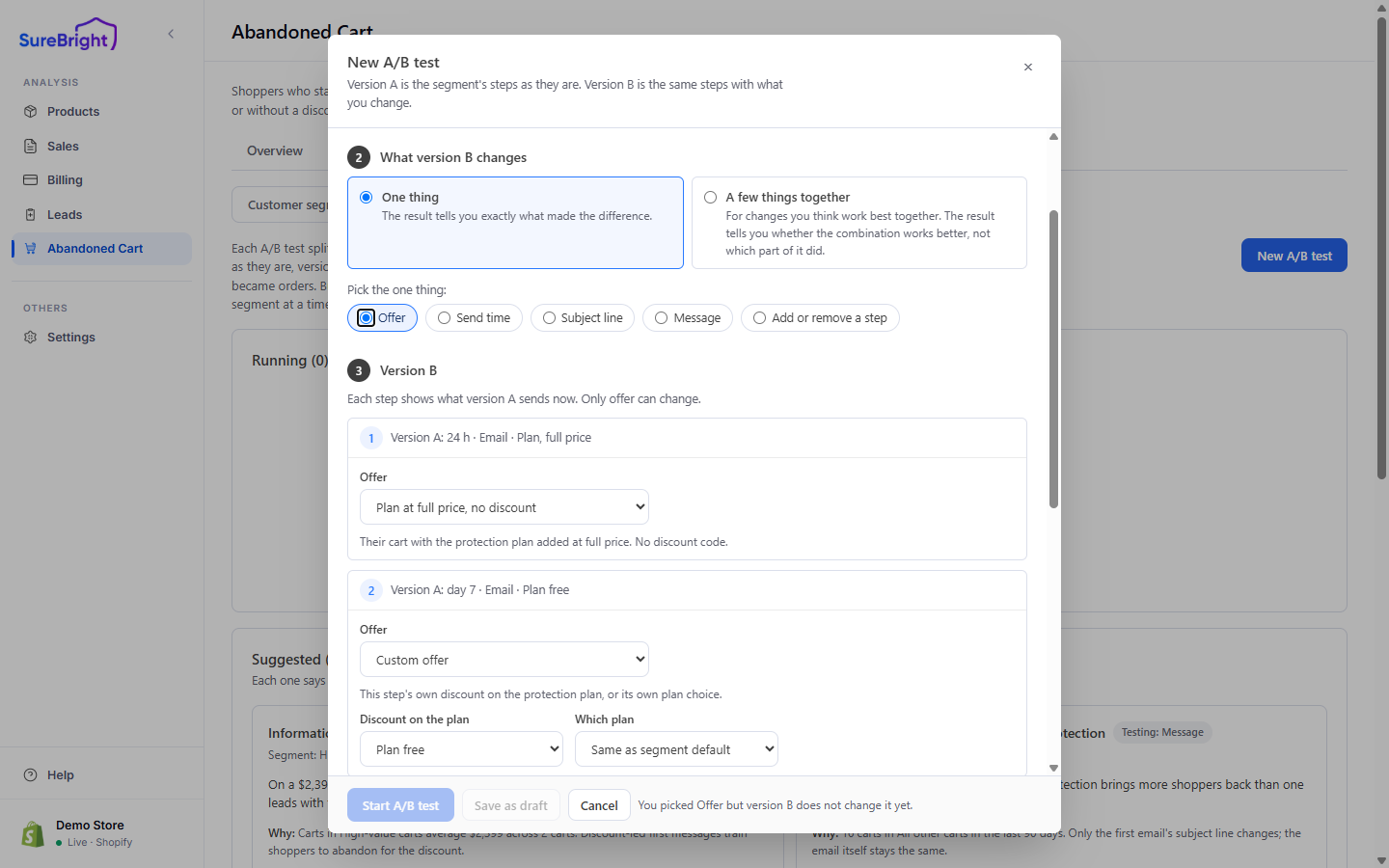
The line beside the buttons tells you what still needs doing, for example You picked Offer but version B does not change it yet. Start A/B test stays unavailable until version B is really different from version A.
Read a running test and keep the winner#
Each running test shows Running since its start date, then one row per version, with how many carts each version has toward its finish line, with Abandoned carts, Contacted, Became orders and Order value. The version with the higher share of orders is marked Ahead so far. When the test ends, it says which version won, or No clear winner and that keeping version A is the safe choice.
While it runs you can end it now and decide later (End now, decide later), or end it and decide at once (End and apply "Version B", End and keep Version A (no change)). After it ends, Apply "Version B" makes it the segment's follow-up steps, and Keep Version A (no change) leaves them as they are. The chosen version is marked Kept in Past tests, and the numbers stay there. A test you built can be copied with Duplicate and edit.
Start from a suggested test#
SureBright proposes tests from your own carts and orders, for example sending the first step inside your store's buying hours instead of a fixed number of hours after abandonment. Each says what it expects and Why (N% of your abandoned carts were left outside that window). Start test opens it to check and start; Dismiss removes it for good.
With automatic follow-ups off, a test's steps go out only when you send them from each cart, so its results build slowly. Turn them on under Follow-ups → Automatic follow-ups. A/B tests are off when Omnisend gets offers by Write to contact properties.
Write and test your message templates#
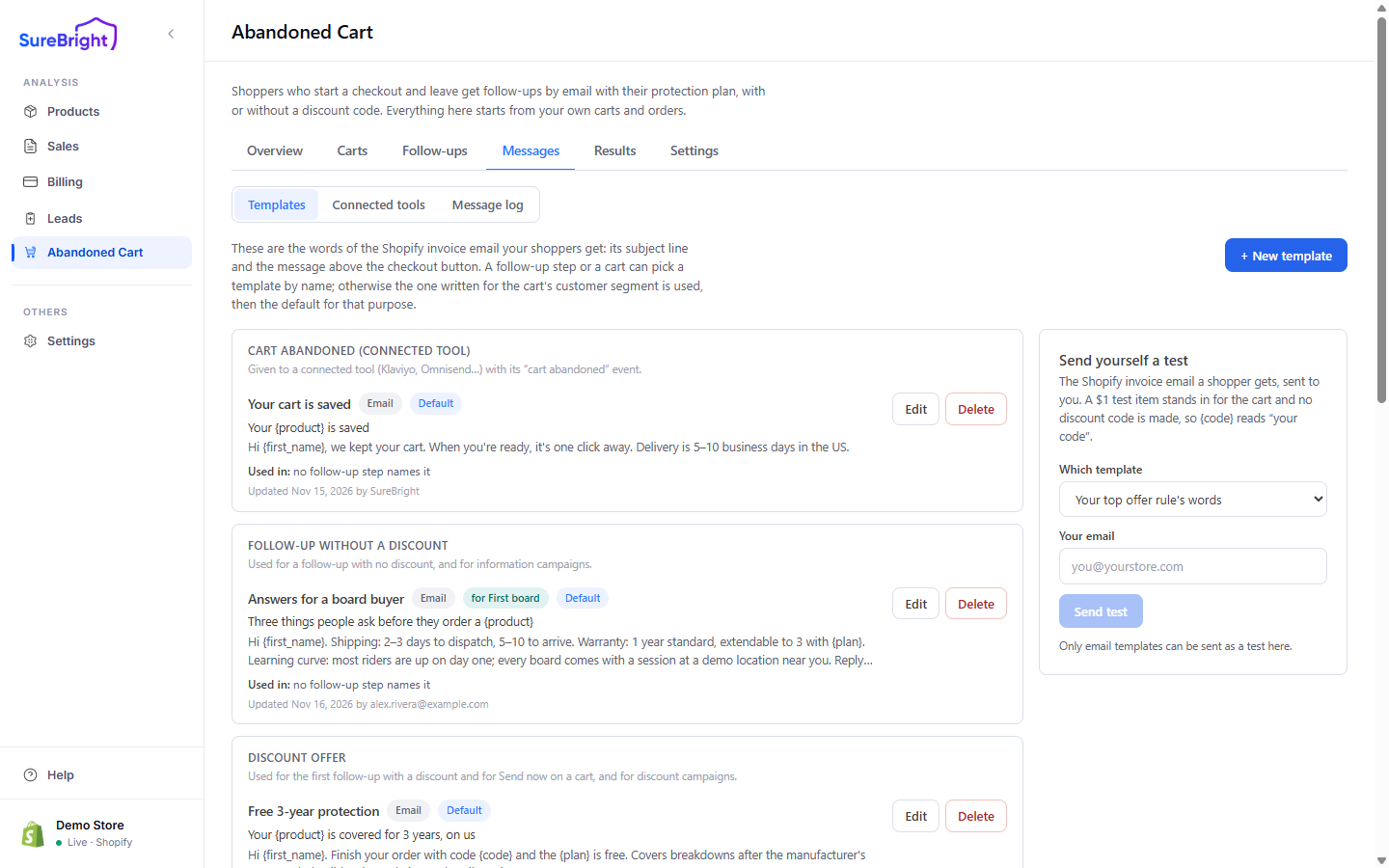
Messages → Templates holds the words each follow-up sends. A follow-up step or a cart can pick a template by name; otherwise SureBright uses the template written for the cart's customer segment, then the default for that purpose.
What each template purpose is for#
Write a template#
New template, or Edit on a template card, opens the editor.
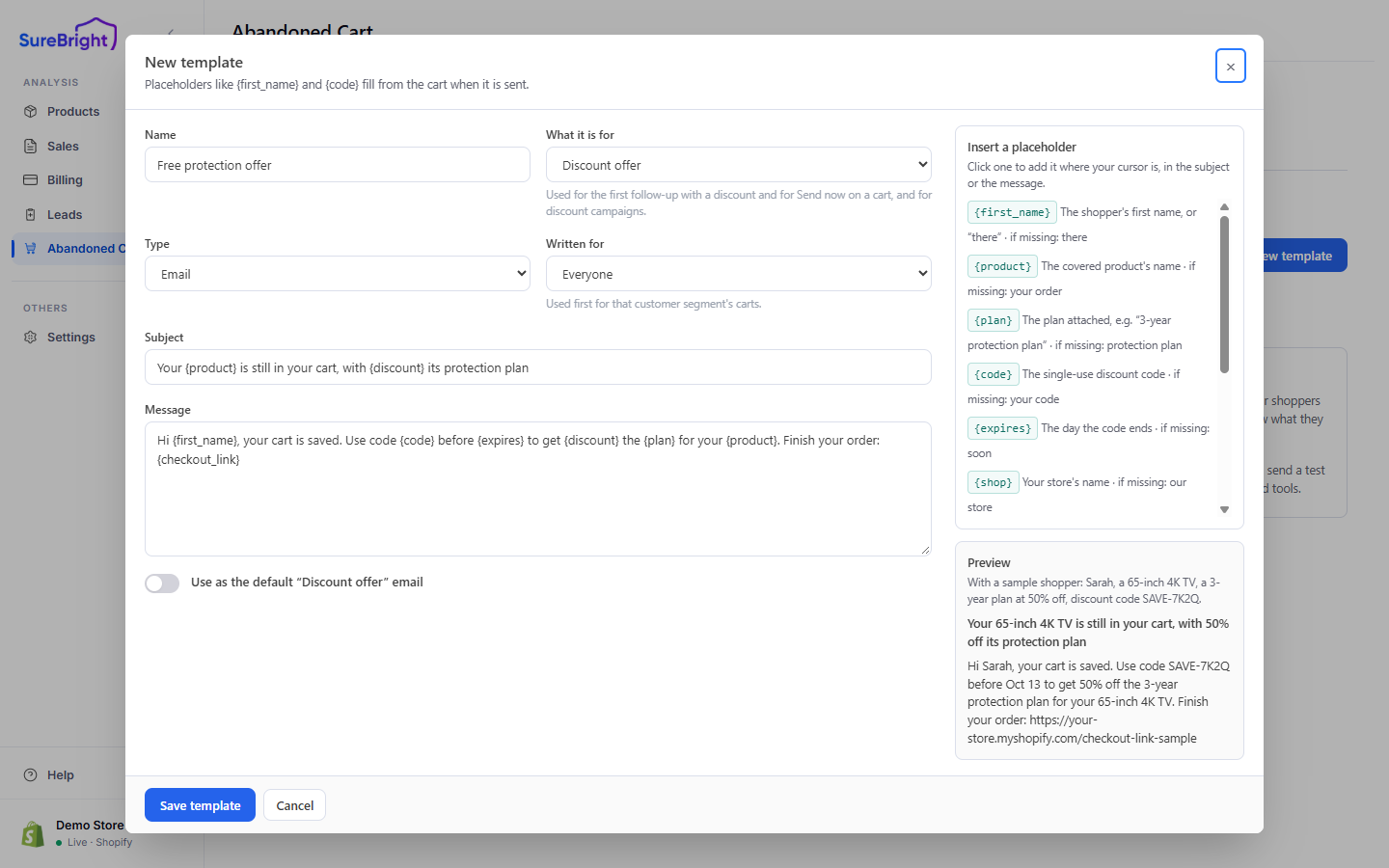
Insert a placeholder on the right adds one where your cursor is, in the subject or the message, and says what each one shows when the cart has no value for it, for example there for a missing first name. The Preview below it fills the template with a sample shopper, product and plan so you can read it as the customer would. Each template card lists where it is Used in. A template named by a segment step or by a draft or running A/B test cannot be deleted.
Placeholders you can use in a template#
When a step sends no discount, {code}, {expires}, {discount} and {plan_price} cannot be filled (and {plan} too on a Cart items only, no plan step). The template card says so, and SureBright sends its built-in words for that step instead.
Send yourself a test email#
The Send yourself a test card sends the Shopify invoice email a shopper would get to your own address, using the template you pick under Which template or your top offer rule's words. A $1 test item stands in for the cart and no discount code is made, so {code} reads your code. The draft order it creates in Shopify is tagged Test and safe to delete. Only email templates can be test-sent here.
If Omnisend gets the offer by Write to contact properties, SureBright's templates are not used and Templates is hidden. If your Klaviyo flow or Omnisend automation sends the emails from SureBright: Offer sent, the template's subject and message travel with that event, and your email shows them only where its template uses those event properties. Test from the tool's window under Connected tools; see Channels.