

Customer segments: who gets which follow-up
SureBright sorts your abandoned carts into customer segments and gives each one its own offer, message and timing. See who falls into each segment, what it sends by default, and how to change it or create your own.
Not every shopper who leaves a cart needs the same email. Someone weighing a large purchase wants answers before a discount. Someone with a small accessory cart only needs a reminder. Customer segments sort your abandoned carts into groups like these, and SureBright gives each group its own offer, message and timing.
Every abandoned cart with an email lands in exactly one segment: the first switched-on segment it matches, counted from the top of the list.
SureBright gives your store a starting set of segments, built from your own carts. They are examples, not fixed rules. You can change any of them, delete the ones you don't need, and create your own with New segment: you decide who is in it, which offer they get, which follow-ups go out and when. See Create or edit a segment.
Customer segments are available on request. SureBright switches them on per store. Without them, every cart follows your offer rules and the store-wide follow-up.
The starting segments at a glance#
You find them in the Merchant Portal under Abandoned Cart → Follow-ups → Customer segments. The first time you open it, Set up customer segments creates the three value segments from your own carts and orders of the last 90 days, and All other carts is added below them. The tables below show what each starting segment does until you change it.
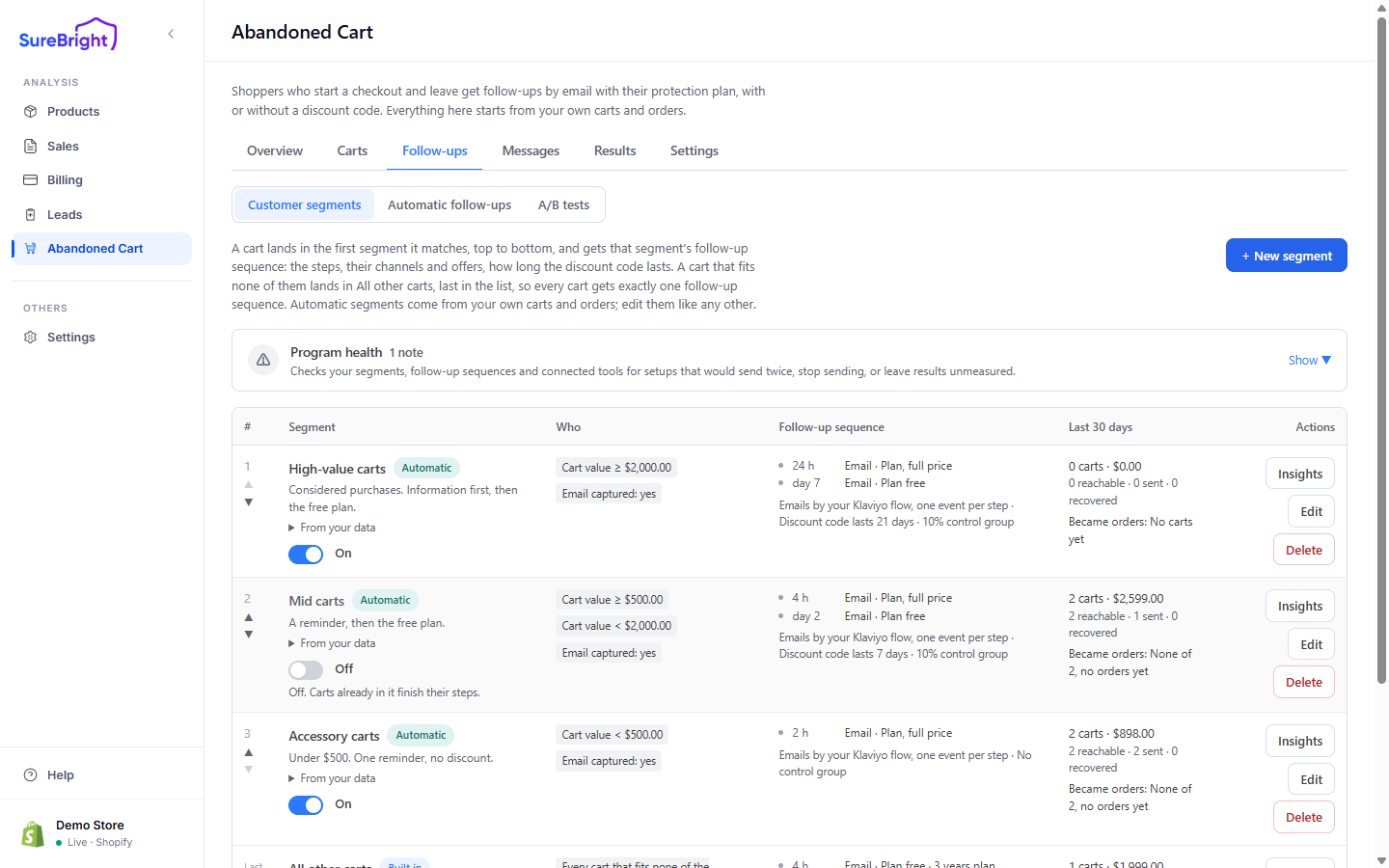
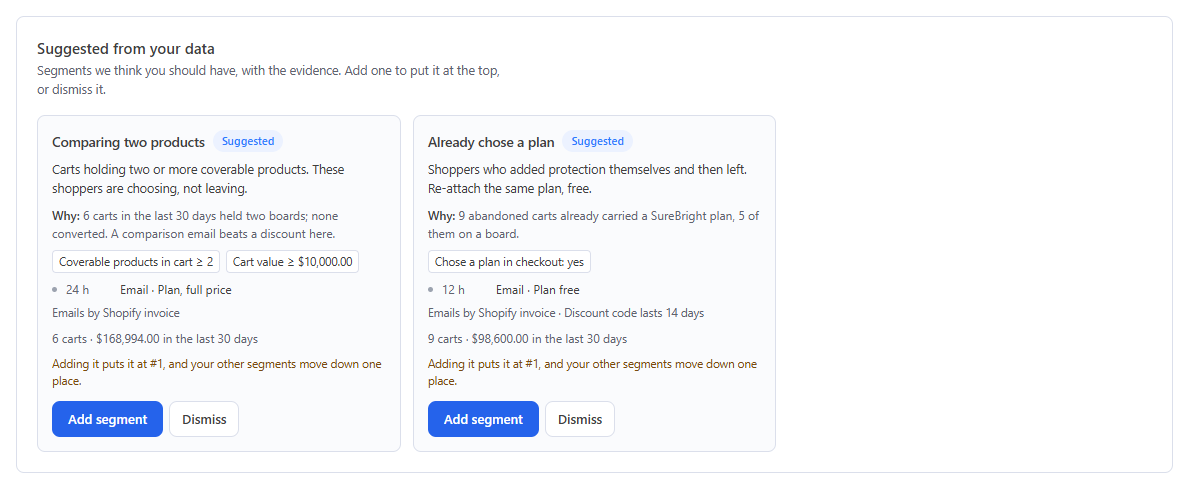
SureBright also suggests segments when your carts show a group worth its own follow-up. Each suggestion appears under Suggested from your data only when enough of your recent carts fit it.
Carts without an email are not in any segment, because nothing can reach them. They still count on the Overview, as Left before an email.
These are starting points. Change any timing, offer or message, delete the segments you don't need, or replace them with your own. Only All other carts stays, because it catches every cart that fits no other segment; switch it off if you don't want those carts followed up. See What you can change in any segment.
How SureBright tailors each segment#
Each segment differs in four ways.
The offer. Some steps carry a single-use code that makes the plan free or cheaper. Others send the plan at full price, so the shopper gets information without you paying for a discount.
The message. A step with no discount uses your Follow-up without a discount template. The first step uses your Discount offer template, and later steps use your Reminder (later follow-ups) template. Where you have written a template for that segment, its carts get that one first. See What each template purpose is for.
The timing. Each step is counted from the moment the cart counts as abandoned, which you set on Settings. A considered purchase gets more time between emails than a small one.
The control group. Some segments hold back a share of their carts and never contact them, so you can measure what the follow-ups add.
The channel is the same for every segment: email steps go out through whoever sends your follow-up emails: a Shopify invoice email by default, or your own Klaviyo flow or Omnisend automation. See Channels and tools.
With Send follow-ups automatically on, SureBright sends each segment's steps when they are due, through whoever sends your follow-up emails. With it off, each cart's timeline shows Send step N now so you send each step yourself. See Automatic follow-ups.
High-value carts#
For: considered purchases, where the shopper wants answers before they buy.
Why it is set up this way: on a large cart, a free plan costs you little next to the order. But a discount sent too soon pays for sales that were going to close anyway. Information first gives the shopper time to decide.
Mid carts#
For: everyday purchases, where a nudge is often enough.
Accessory carts#
For: small carts, where a discount would cost more than it earns.
All other carts#
For: every cart with an email that no segment above catches, so no cart goes without a follow-up.
This segment is built in. You cannot delete it, rename it, move it or give it conditions. You can edit its steps and offer, or switch it off. Switched off, the carts that reach it get nothing.
Already chose a plan#
For: shoppers who put a protection plan in their cart and then left. They already wanted protection, so the offer makes a plan free. The plan comes from the segment's offer or Settings → Store default plan, and replaces the one they picked.
Comparing two products#
For: shoppers choosing between two models. They are deciding, not leaving, and a side-by-side comparison helps more than a discount.
How your value amounts are set#
The two amounts that divide High-value, Mid and Accessory carts come from your own carts. When you set up segments:
the lower amount is about where your smallest third of carts ends;
the high-value amount is about where your top fifth of carts begins.
Both are rounded to tidy figures. A store with fewer than 10 carts starts at $500 and $5,000. Once there are enough carts, SureBright moves the amounts to your own figures, as long as you have not changed them yourself. Open From your data under an automatic segment to see the numbers behind it.
You can change either amount by editing the segment's Cart value condition. Change the matching condition in the neighbouring segment too, so no cart range is left uncovered or caught twice. The editor warns you when two segments compete for the same carts.
Which segment wins when a cart fits several#
A cart joins the first switched-on segment it matches, from #1 down, and stays there. A suggestion you add goes to #1, above the three value segments. So once you add Already chose a plan, a high-value cart with a plan gets the free-plan email after 12 hours, not the High-value sequence. Use the ▲ and ▼ arrows to change the order. All other carts is always last.
Manage your segment list#
Follow-ups → Customer segments lists your segments in priority order.
A segment that can never get a cart, because a segment above it catches everything it would, is flagged Never gets a cart.
Add a suggested segment#
Suggested from your data lists segments SureBright thinks you should have, each with Why and the evidence behind it. Add segment puts the new segment at #1 and moves the others down one place. Dismiss removes the suggestion for good.
Switch a segment off#
Switching a segment off stops new carts joining it. They go to the next segment they fit. For carts already in the segment with steps to go, you choose:
Deleting a segment cannot be undone; its carts stop the segment's steps and get no further follow-up.
Create or edit a segment#
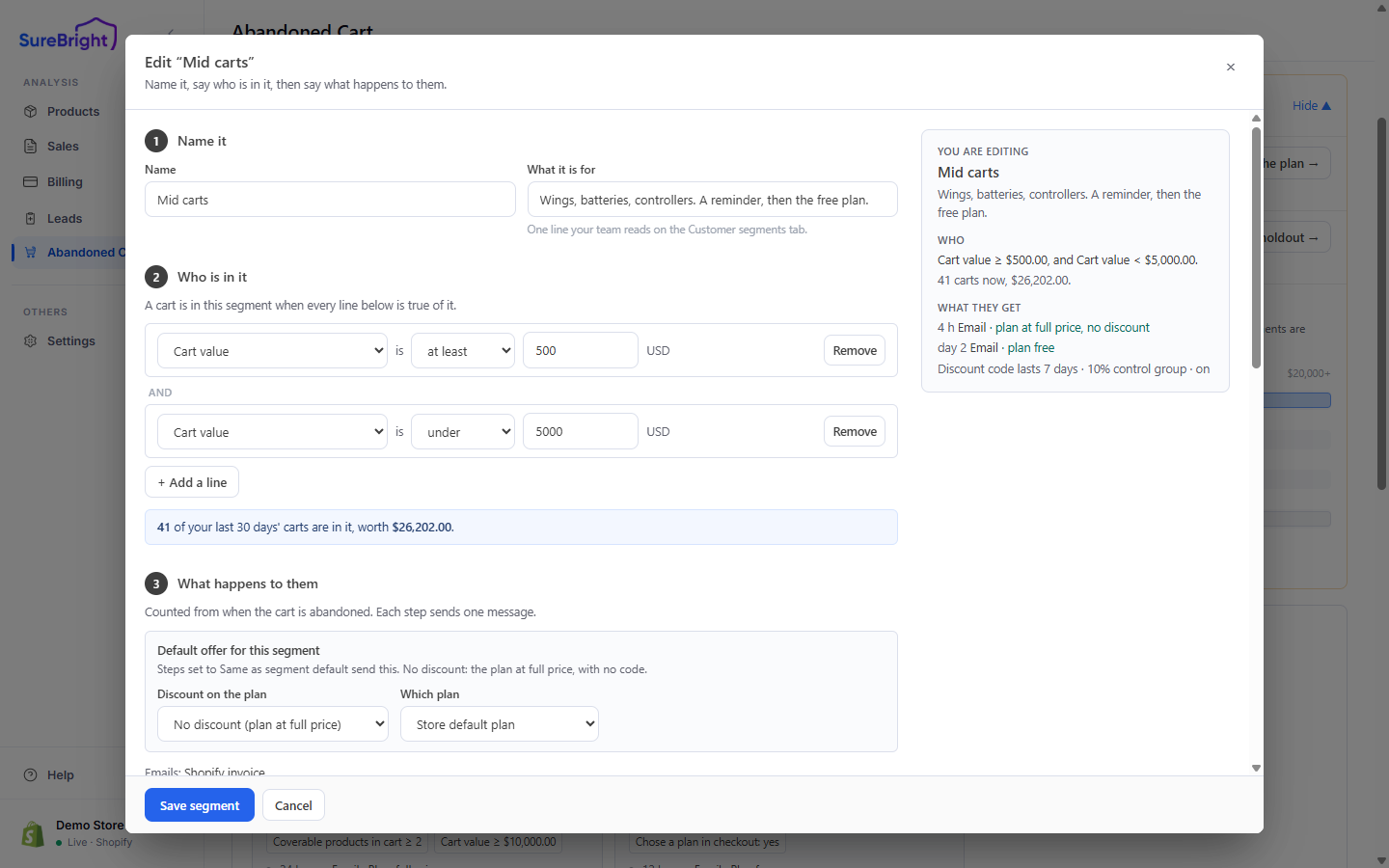
New segment or Edit opens the editor. You name the segment, say who is in it, then say what happens to them.
Choose who is in the segment#
A cart is in the segment when every condition is true. Conditions are built from:
As you build, the editor counts how many of your last 30 days' carts match and their value, warns Overlaps with other segments when a cart could fit more than one (the higher segment wins), and says This segment will never get a cart when a segment above catches all of them.
Build the follow-up sequence#
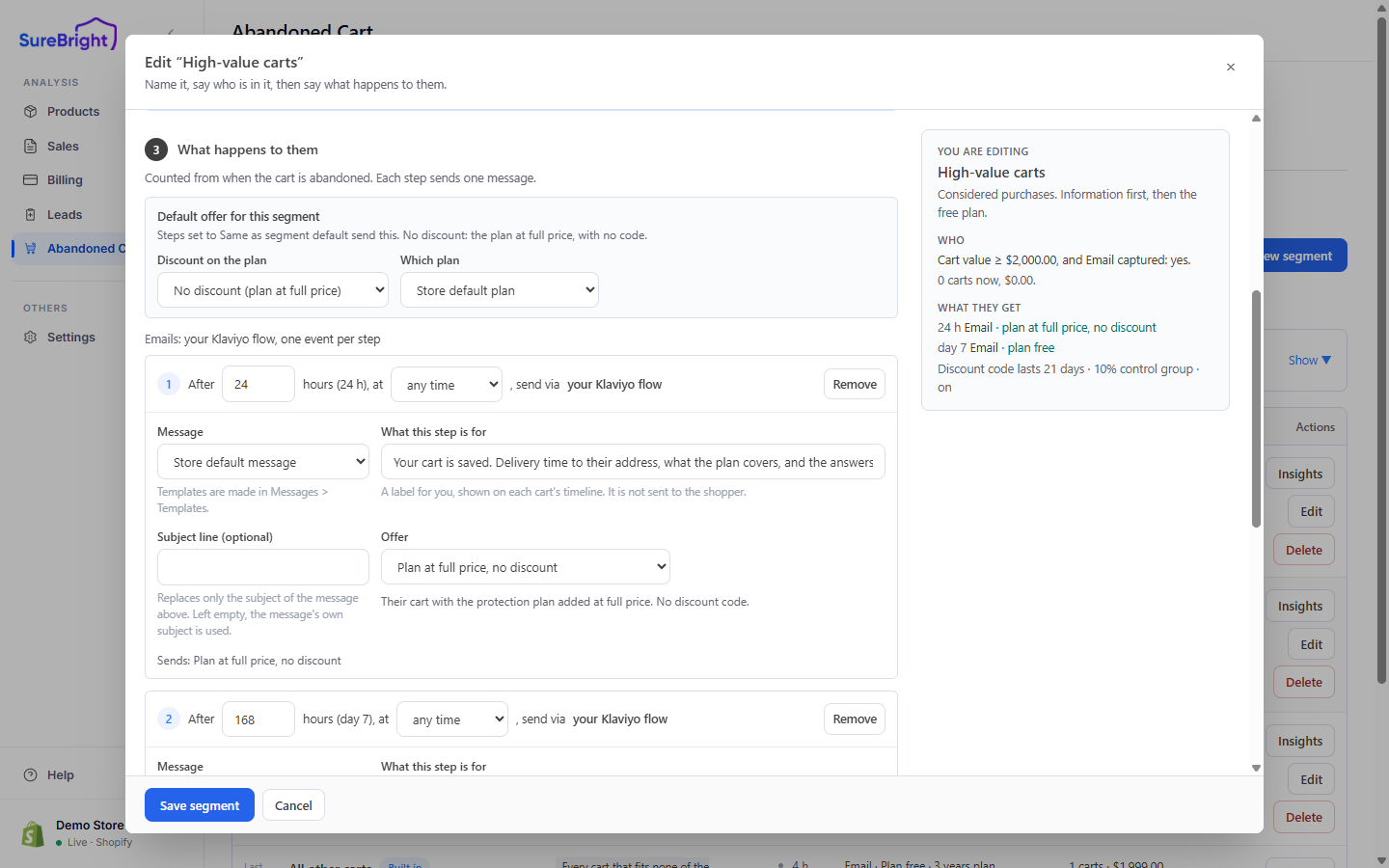
Under What happens to them you build the sequence: a list of steps counted from the moment the cart counts as abandoned. Steps go out in the order listed, so a step cannot be timed before the one above it.
The editor warns when a later step offers less than an earlier one, because the earlier email's checkout link would then show the smaller offer.
What you can change in any segment#
Every segment except All other carts can be edited, reordered, switched off or deleted. All other carts can be edited and switched off, but not deleted. A deleted segment cannot be brought back, and a deleted automatic segment does not come back on its own. A segment with an A/B test running cannot be deleted until the test ends, and its steps cannot be changed meanwhile; its name, who is in it and its place in the list still can.
A new segment starts with one condition (cart value at least 500), one email after 24 hours with no discount, an offer that lasts 7 days and a 10% control group. Change any of it before you save.
Unless a segment sets its own plan, steps with an offer attach the plan chosen under Settings → Store default plan.
If Omnisend gets the offer by Write to contact properties (your existing Abandoned checkout automation sends the emails), each cart gets one offer on the shopper's contact instead of the email steps: the segment's Offer on the shopper's Omnisend contact. The three value segments start with no discount there, so set one if you want those shoppers to get a discount. See How Omnisend gets the offer.
See how one segment is doing#
Press Insights on a segment to open its panel. The arrows beside the name step through your other segments, and Edit the follow-up sequence takes you back to the segment list, where Edit opens the editor.
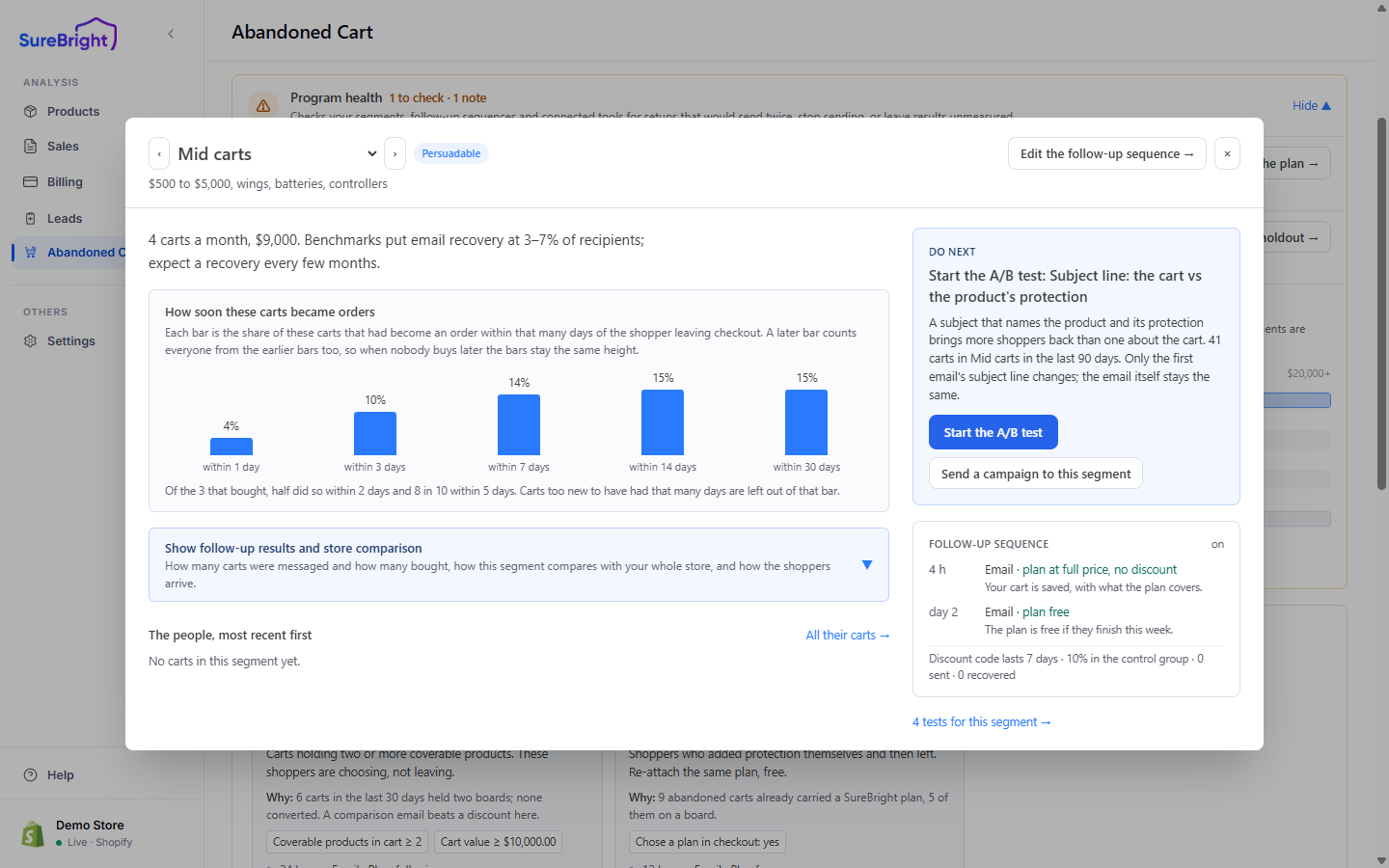
Campaigns to this segment sends one message to everyone in the segment at once through your Klaviyo account, on top of the sequence. See Send a campaign to a segment.
Related#
Send each segment's steps when they are due, within your limits.
A/B test a segment's sequence and write its messages.
See each segment's results week by week against its control group.
Choose who sends the emails: Shopify, Klaviyo or Omnisend.