
Abandoned Cart Recovery
Win back checkouts your shoppers left behind by offering them a protection plan, free or discounted, in a single-use code.
When a shopper fills a cart, starts checkout and leaves without paying, that checkout is an abandoned cart. SureBright captures it for you. Once the cart has been quiet long enough, you prepare an offer for it: your rules pick a protection plan for each product that can be covered, and a single-use discount code is created that makes that plan free or cheaper. You review the offer, change anything you want, then email it to the shopper as a Shopify invoice.
Nothing is sent without you. Every email is a button you press.
The discount code only ever applies to the protection plan, never to your own products. Your store funds the discount; SureBright still bills the plan at its normal price.
How it works#
The checkout is captured
A shopper starts checkout and leaves. SureBright records the cart automatically. It appears in the Carts tab as Watching.
It goes quiet
Once no activity has happened for the time you set in Settings, the cart becomes Ready to prepare.
You prepare the offer
Open the cart and press Prepare offer. Your rules choose the plan for each covered product and create the discount code. Nothing is emailed yet.
You review and send
Change the plan or the discount if you want, then press Send now. The shopper receives a Shopify invoice email with the code.
Before you start#
Two things must be in place, and your SureBright contact sets them up with you:
| What | Why it matters |
| Abandoned Cart switched on for your store | Without it the tab shows a message asking you to contact support |
| At least one active rule | A rule decides the discount and the plan. With none active, no cart can be prepared |
The five tabs#
| Tab | Use it to |
| Carts | See every captured checkout, prepare offers and send them |
| Rules | Decide who qualifies, how big the discount is and which plan is attached |
| Messages | See every email that went out, and retry any that failed |
| Settings | Set when a cart counts as abandoned, plan defaults, wording and recipients |
| Performance | See what recovery produced and what the discounts cost you |
1. Carts#
This is where you spend most of your time. Each row is one captured checkout.
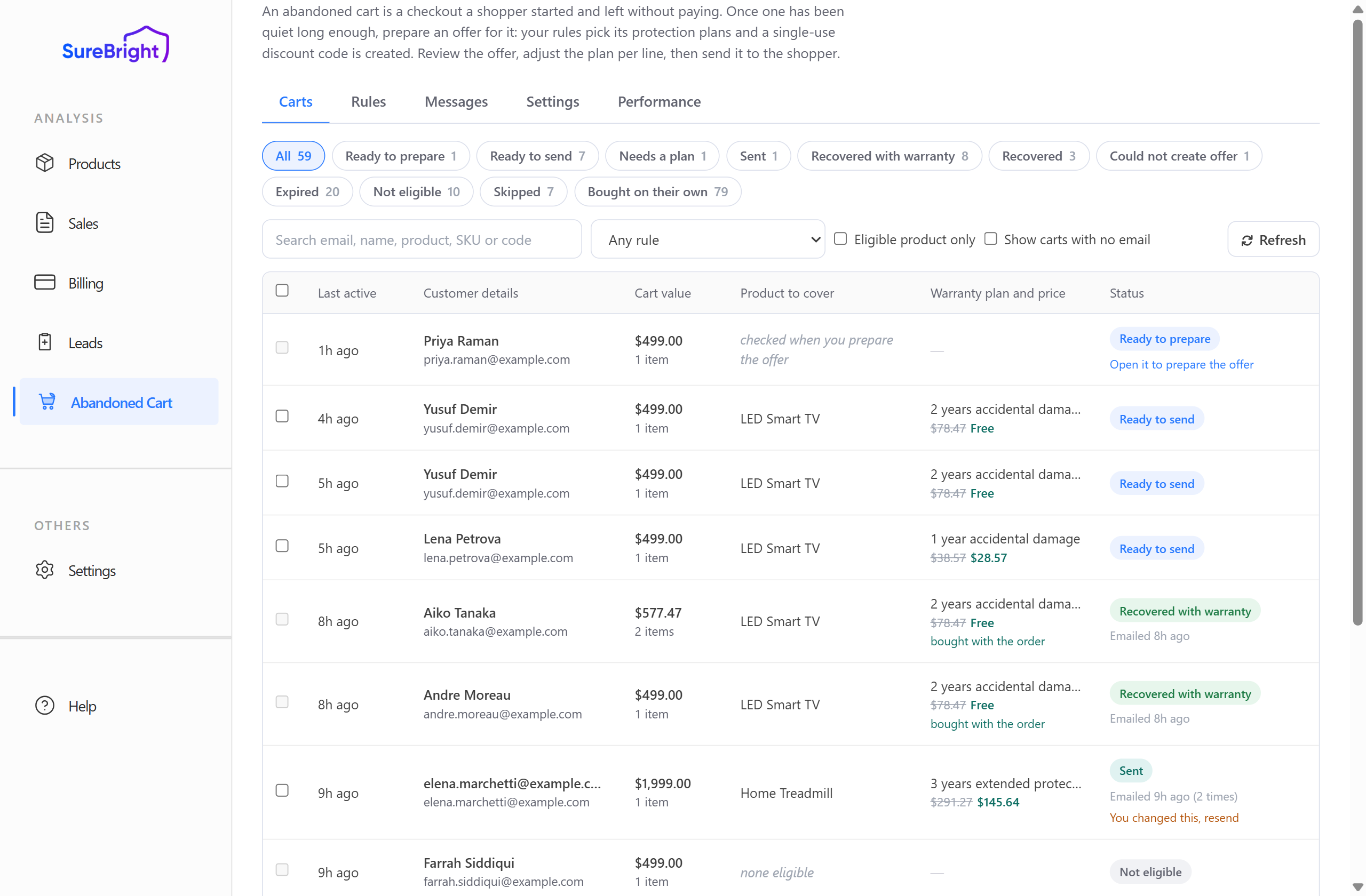
The columns tell you, left to right: when the shopper was last active, who they are, the cart value, the product that can be covered, the plan and price being offered, and the cart's current status.
Under Warranty plan and price you will see two figures, for example $78.47 Free. The struck-through figure is the plan's full price, which is what SureBright bills you. The bold figure is what the shopper pays after your offer.
What each status means#
The chips across the top filter the list. Click one to see only those carts.
| Status | What it means | What you should do |
| Watching | The checkout was captured but has not been quiet long enough yet | Nothing. Wait |
| Ready to prepare | The cart has gone quiet and can be worked on | Open it and press Prepare offer |
| Needs a plan | The offer was prepared but no plan was attached automatically | Open it, press Add plan on the product line, choose a plan, then press Create code |
| Ready to send | A plan and a discount code are ready | Review it and press Send now |
| Sent | The offer email has gone to the shopper | Wait. You can send again up to the limit your rule allows |
| Recovered with warranty | The shopper came back, paid, and kept the protection plan | Nothing. This is the win |
| Recovered | The shopper came back and paid, but without the plan | Nothing. The order is recovered, the plan was not taken |
| Bought on their own | They completed the purchase before you sent anything | Nothing. Recovery played no part |
| Expired | The code's validity period ran out before they used it | Open it and press Create code for a fresh one, then send again |
| Not eligible | Your rules found nothing that could be offered | Read the reason shown beside the status. Often nothing in the cart can be covered |
| Skipped | You chose to skip this cart | Nothing will be sent for it |
| Could not create offer | The discount code could not be created in Shopify | Open the cart, read the reason, fix it, then press Create code |
Bought on their own carts are hidden from the All list on purpose, because there are usually many of them and there is nothing to do. Click their own chip when you want to see them.
Finding a specific cart#
Search by shopper email, name, product, SKU or discount code.
Any rule narrows the list to carts matched by one rule.
Eligible product only hides carts where nothing can be covered.
Show carts with no email reveals carts captured before the shopper entered an email. They count in your reporting, but nothing can be sent to them.
Refresh#
Refresh checks your live carts against Shopify for new purchases and for codes that have run out, then reloads the list. Use it when you want today's numbers to be current — statuses do not update on their own while you watch the page.
2. Preparing and sending an offer#
Click any cart row to open it.
Before you prepare#
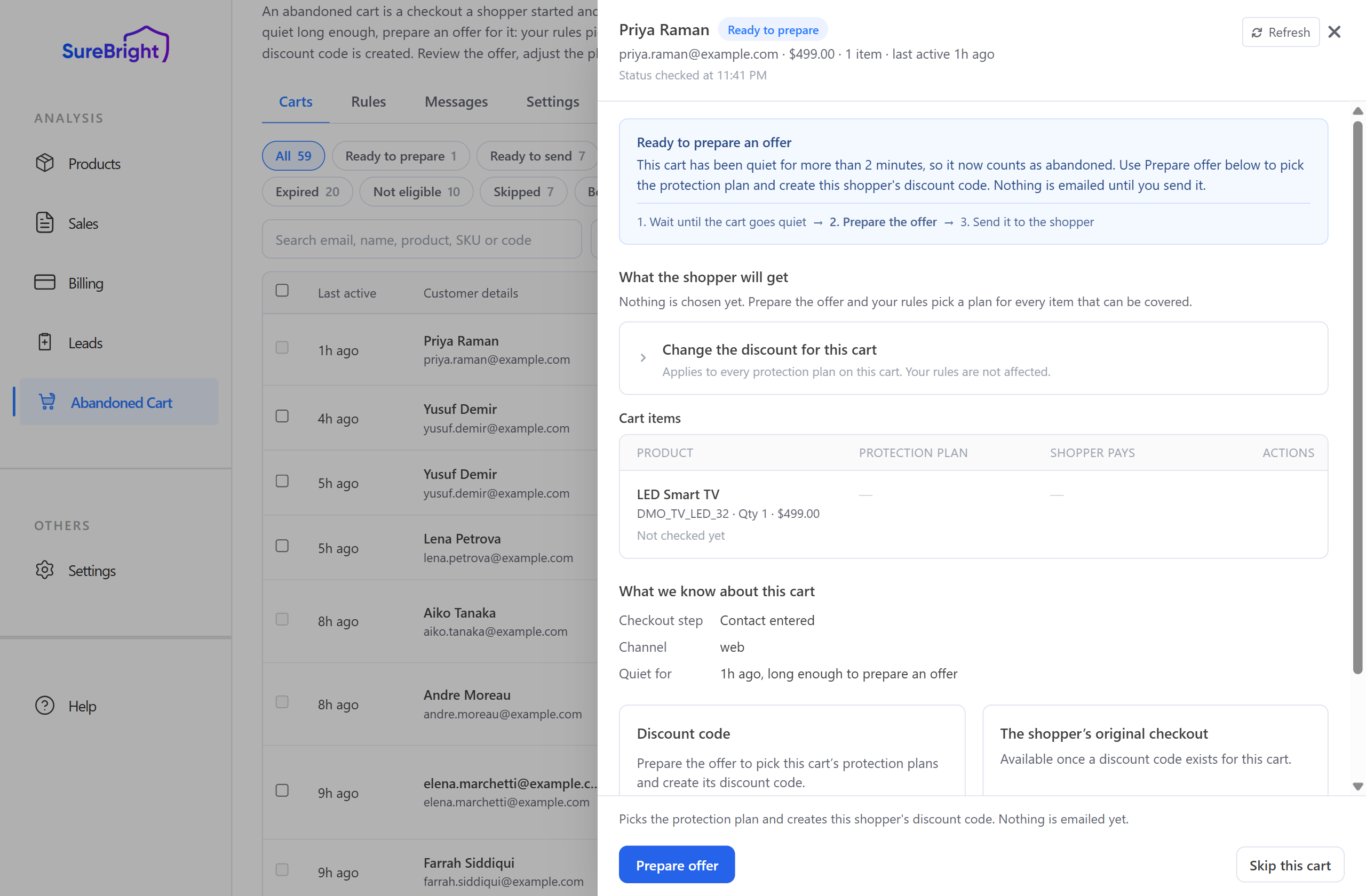
The panel tells you plainly where the cart stands and what the next step is. Nothing has been chosen and nothing has been emailed. Press Prepare offer.
After you prepare#
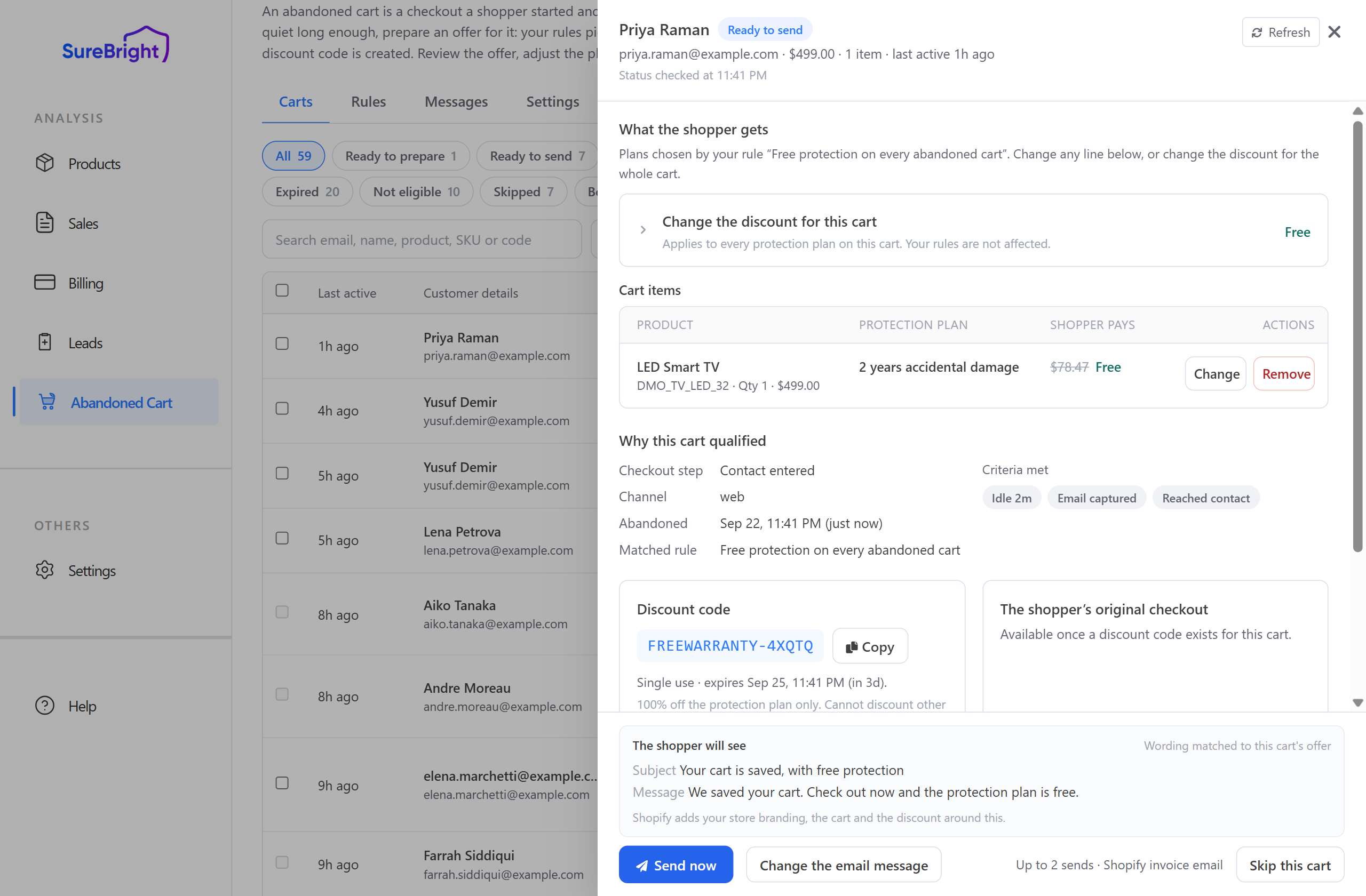
Now you can see everything the shopper will get:
Cart items — each product, the plan chosen for it, and what the shopper pays.
Why this cart qualified — how far the shopper got, when it was abandoned, and which rule matched.
Discount code — the single-use code, when it expires, and a Copy button.
The shopper will see — the exact subject and message of the email.
Changing the plan on a line#
Press Change on any line to see every plan available for that product.
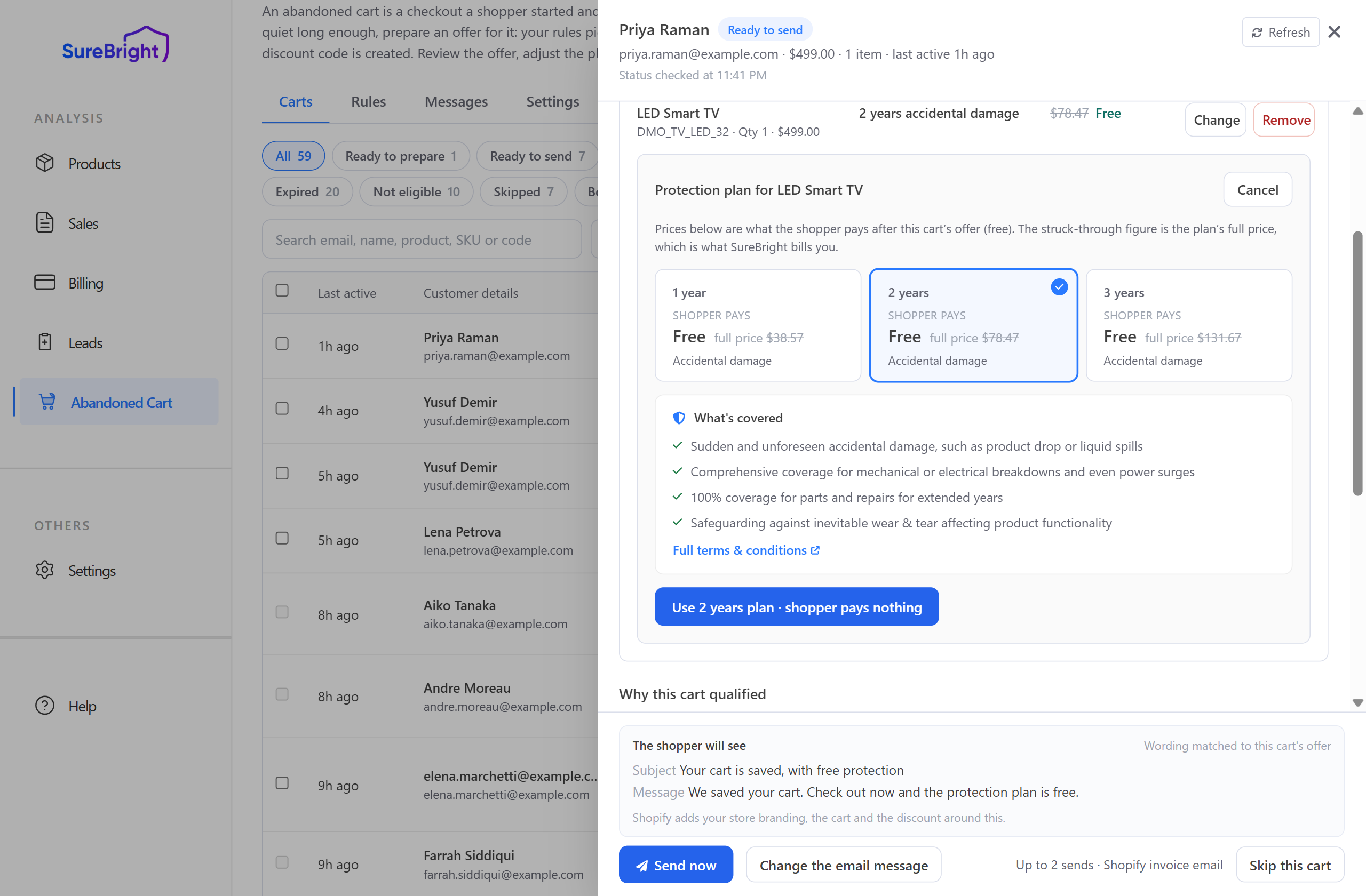
Each card shows what the shopper pays in bold and the plan's full price struck through beside it. Pick the one you want and confirm.
If your store offers both Accidental damage and Extended protection for a product, the picker shows a tab for each. Stores with only one kind of cover see no tabs.
Changing a plan after the offer was already emailed is allowed. The cart will show You changed this, resend so you know the shopper has the old version.
Changing the discount for one cart only#
Sometimes one shopper deserves a better offer than your rule gives everyone. Click Change the discount for this cart to open it.
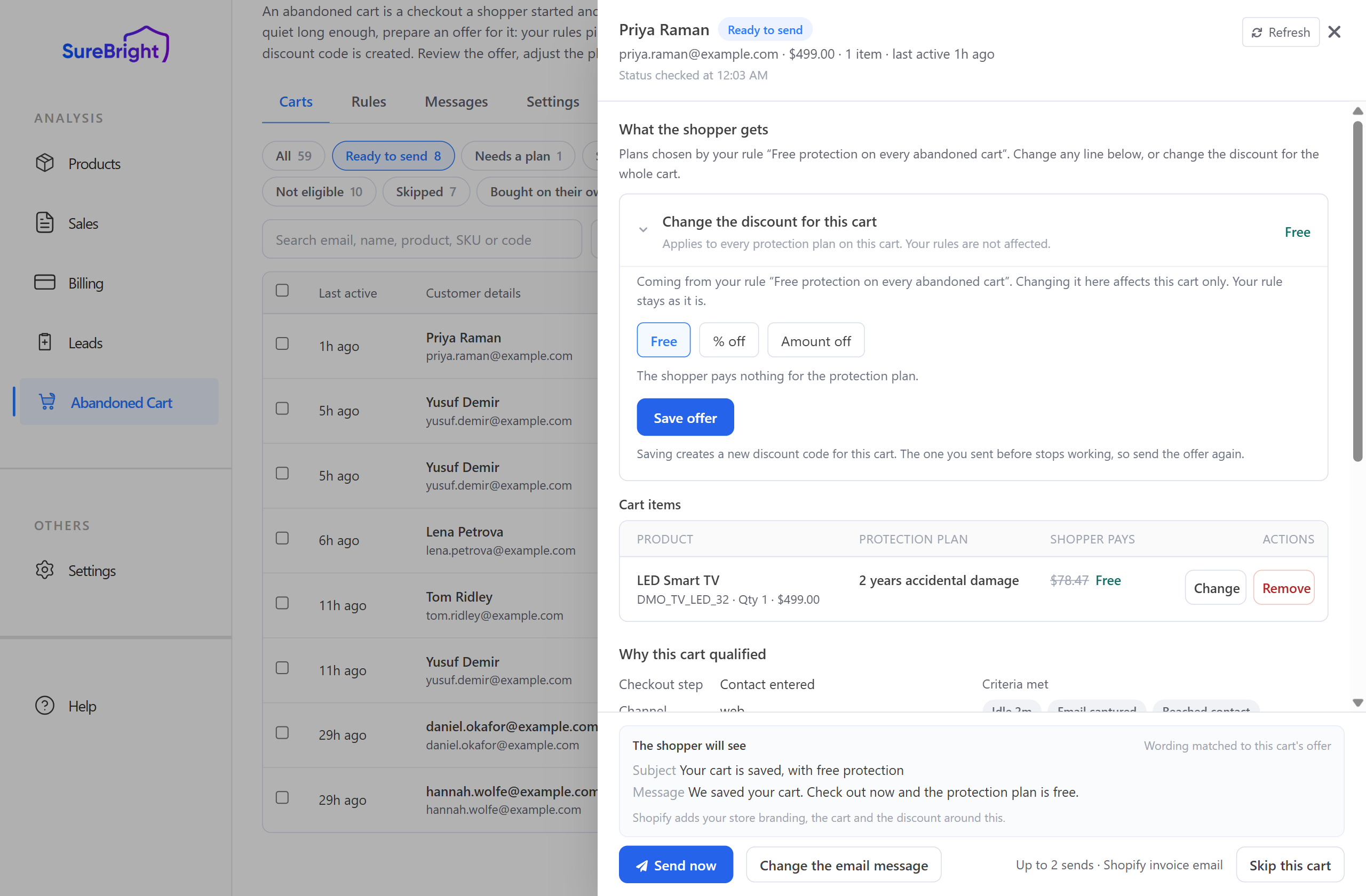
Choose one of three, then press Save offer:
| Choice | What the shopper gets |
| Free | Pays nothing for the protection plan |
| % off | A percentage off the plan's price |
| Amount off | A fixed amount off the plan's price |
This affects this cart only. Your rule is untouched and no other cart changes. The heading always shows the offer currently in force, so you can see it without opening the section.
Saving creates a new discount code for this cart. Any code you already sent stops working, so send the offer again afterwards.
Sending#
Press Send now. The shopper gets a Shopify invoice email carrying your branding, the cart and the code.
Change the email message lets you write a one-off subject and message for this cart.
The line beside the button tells you how many sends this cart is allowed, for example Up to 2 sends.
To send several at once, tick the carts in the list and press Send to N selected above the table.
Skip this cart marks it as deliberately left alone.
If Send now is unavailable, the panel says why in plain words: no email address on the checkout, no plan picked on any line, or no discount code created yet.
3. Rules#
A rule answers three questions, in this order:
Which carts qualify — does this rule apply to the cart at all?
How big the discount is — how much of the plan's price you pay for.
Which plan is attached — which plan each covered product gets.
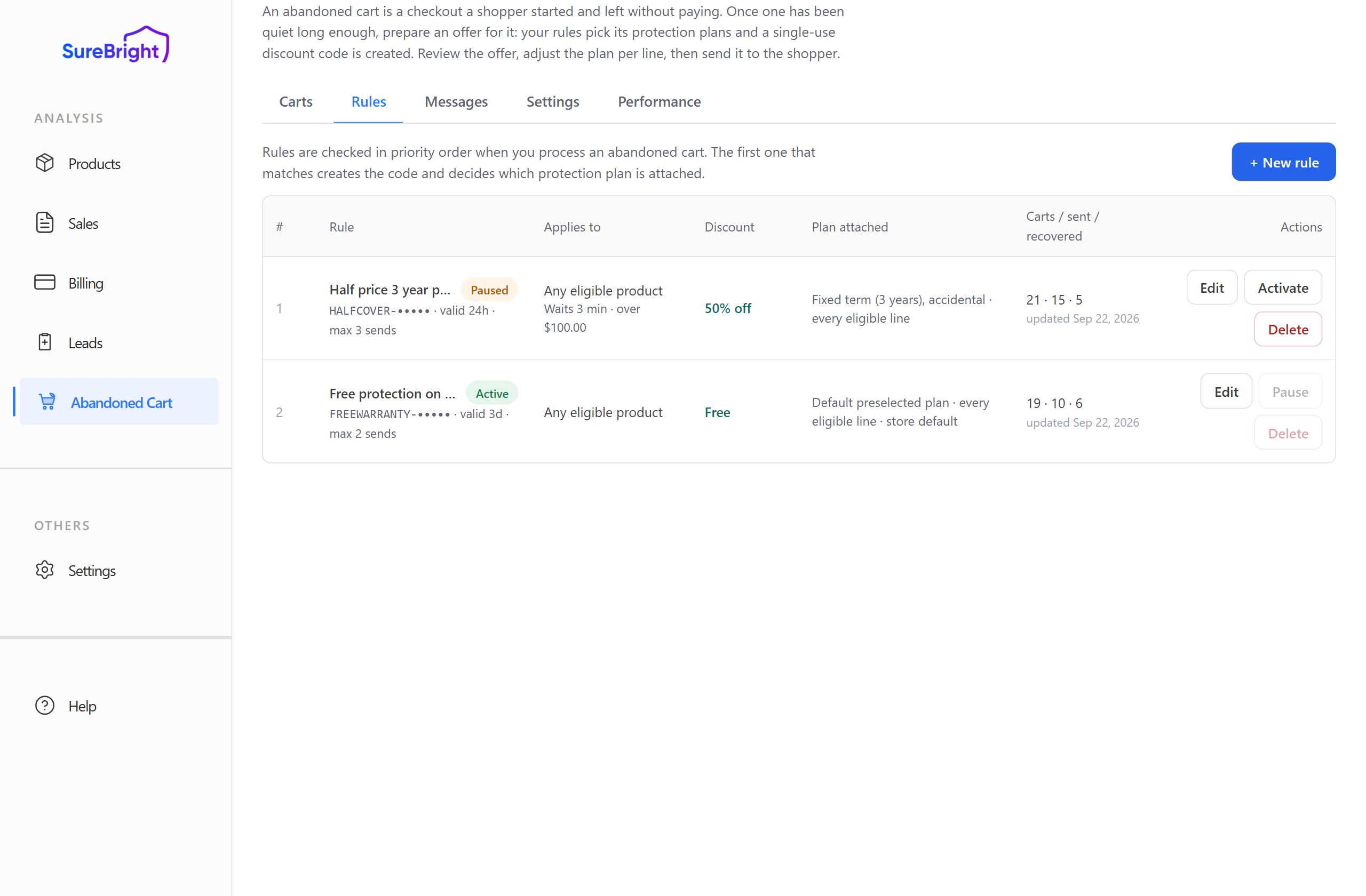
Rules are checked in priority order, lowest number first. The first rule that matches a cart wins, decides its whole offer, and no other rule is consulted. A cart matched by no rule ends up Not eligible.
Press Edit on a rule, or + New rule to add one.
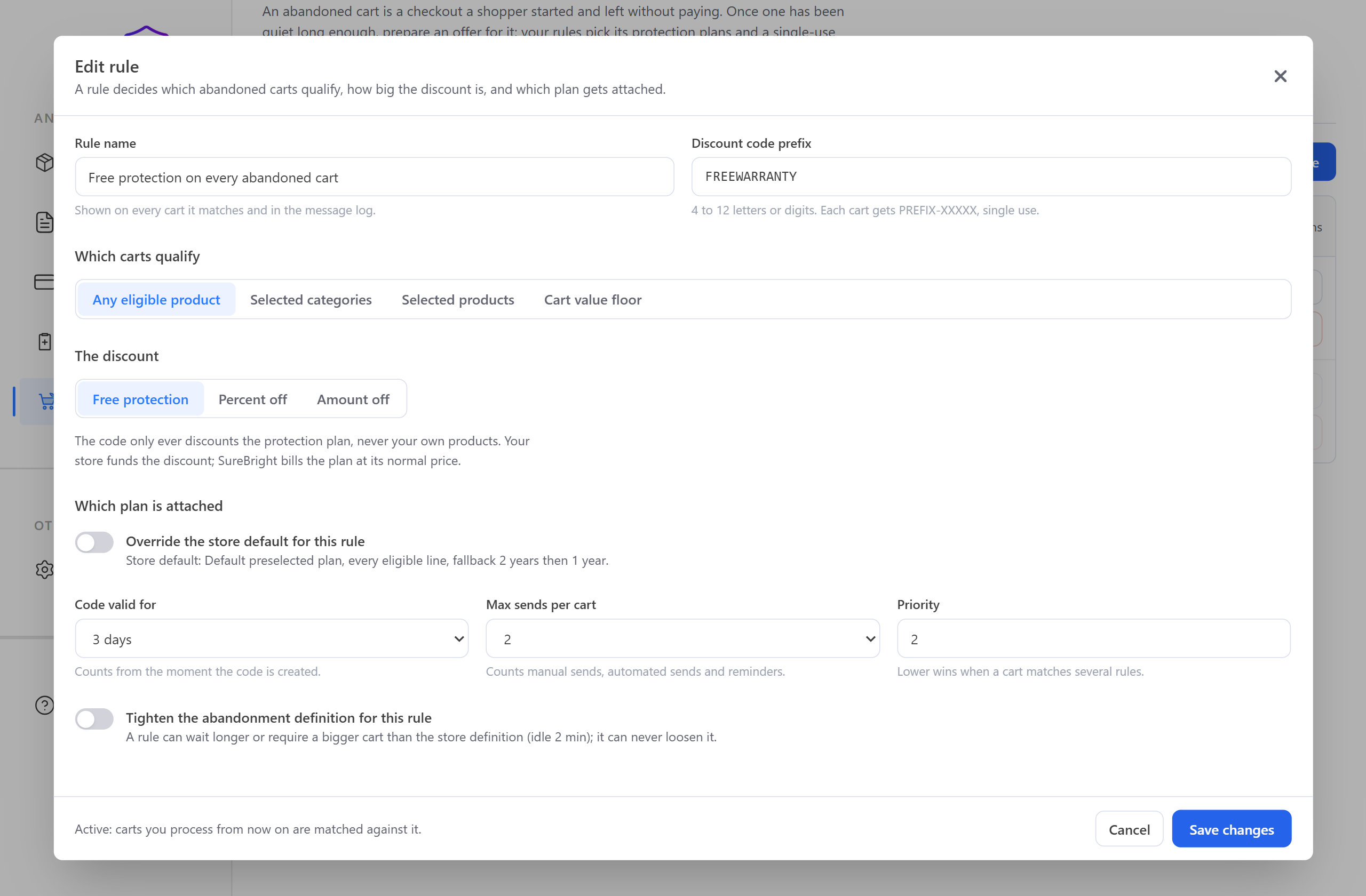
Name and code#
| Field | What it does |
| Rule name | Shown on every cart this rule matches and in the Messages log. Name it for what it does, for example "Free 3-year cover on TVs" |
| Discount code prefix | 4 to 12 letters or digits. Every cart gets its own code, PREFIX-XXXXX, which can be redeemed once. One shopper's code cannot be reused on another cart |
Which carts qualify#
Four choices. Pick the one that describes who the offer is for.
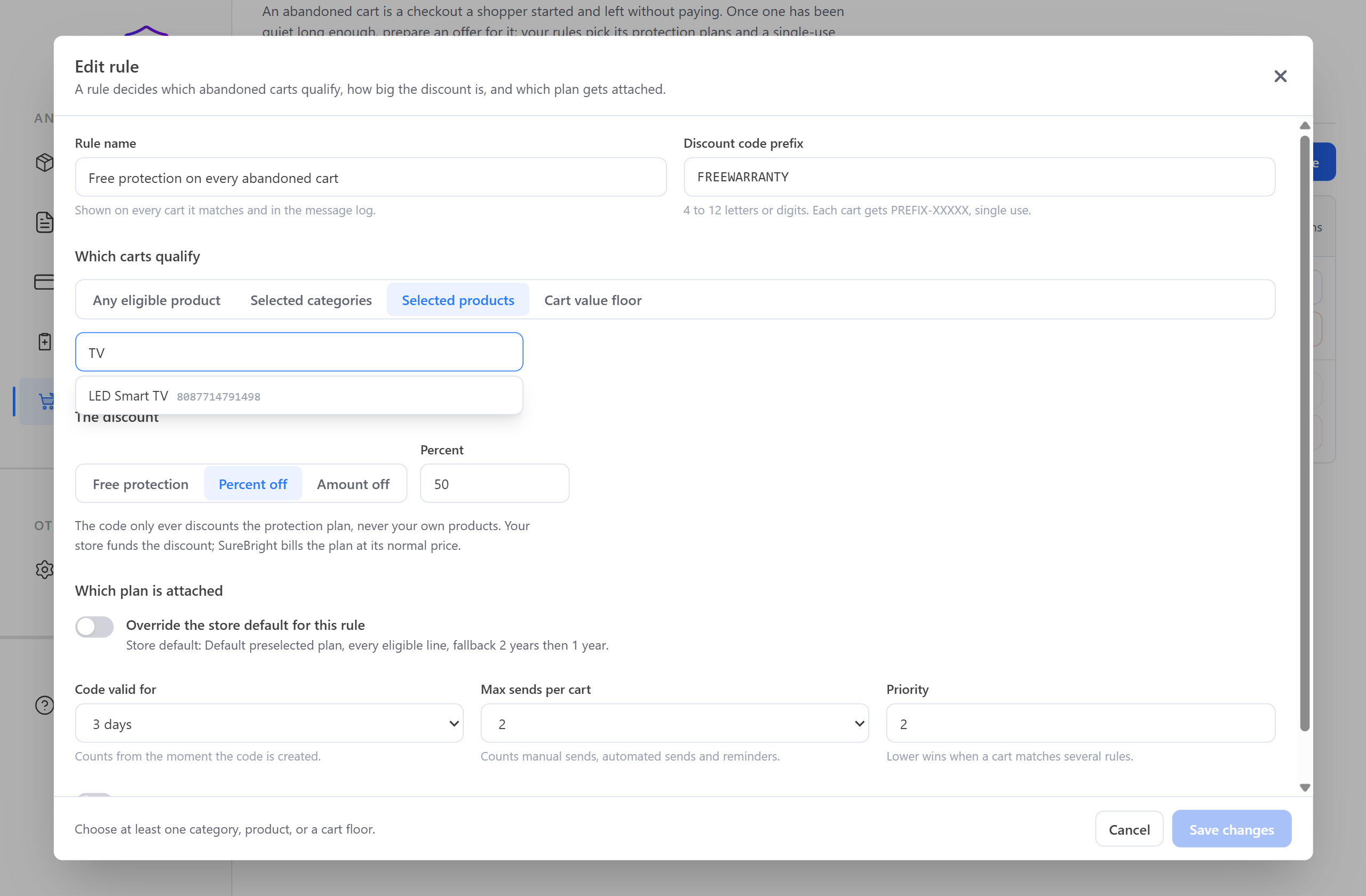
| Choice | The rule applies when… | Use it when |
| Any eligible product | The cart holds anything you can cover | You want one blanket offer across the store |
| Selected categories | The cart holds a product in one of the SureBright categories you tick | You want a campaign on a whole product family, such as all TVs |
| Selected products | The cart holds one of the exact products you search for and add | A campaign on specific items, such as one hero product |
| Cart value floor | The cart subtotal is at or above the amount you enter | You only want to fund a discount on baskets worth recovering |
Two things worth knowing about Selected products: you search by title or SKU, and the rule stores the product ID — the number shown beside each name — so renaming a product later does not break the rule. If you choose a targeted mode and add nothing, Save changes stays disabled and the footer tells you: "Choose at least one category, product, or a cart floor."
Selected categories needs SureBright categories set up for your store. If none are, the editor says so, and you should use Any eligible product or Selected products instead.
The discount#
This is how much of the protection plan's price you cover. It never touches your own products' prices.
| Choice | The shopper pays | You fund |
| Free protection | Nothing for the plan | The plan's full price |
| Percent off | The plan's price minus your percentage (1–100) | That percentage of the plan price |
| Amount off | The plan's price minus a fixed sum in your store currency | That fixed sum |
Whichever you pick, SureBright still bills you the plan's normal price. The discount is funded by your store — that is why the cart list shows the full price struck through beside what the shopper pays.
Which plan is attached#
Left alone, the rule uses your store default from Settings. The closed toggle tells you what that default currently is, for example "Default preselected plan, every eligible line, fallback 2 years then 1 year."
Turn on Override the store default for this rule when this campaign needs a different plan from the rest of the store.
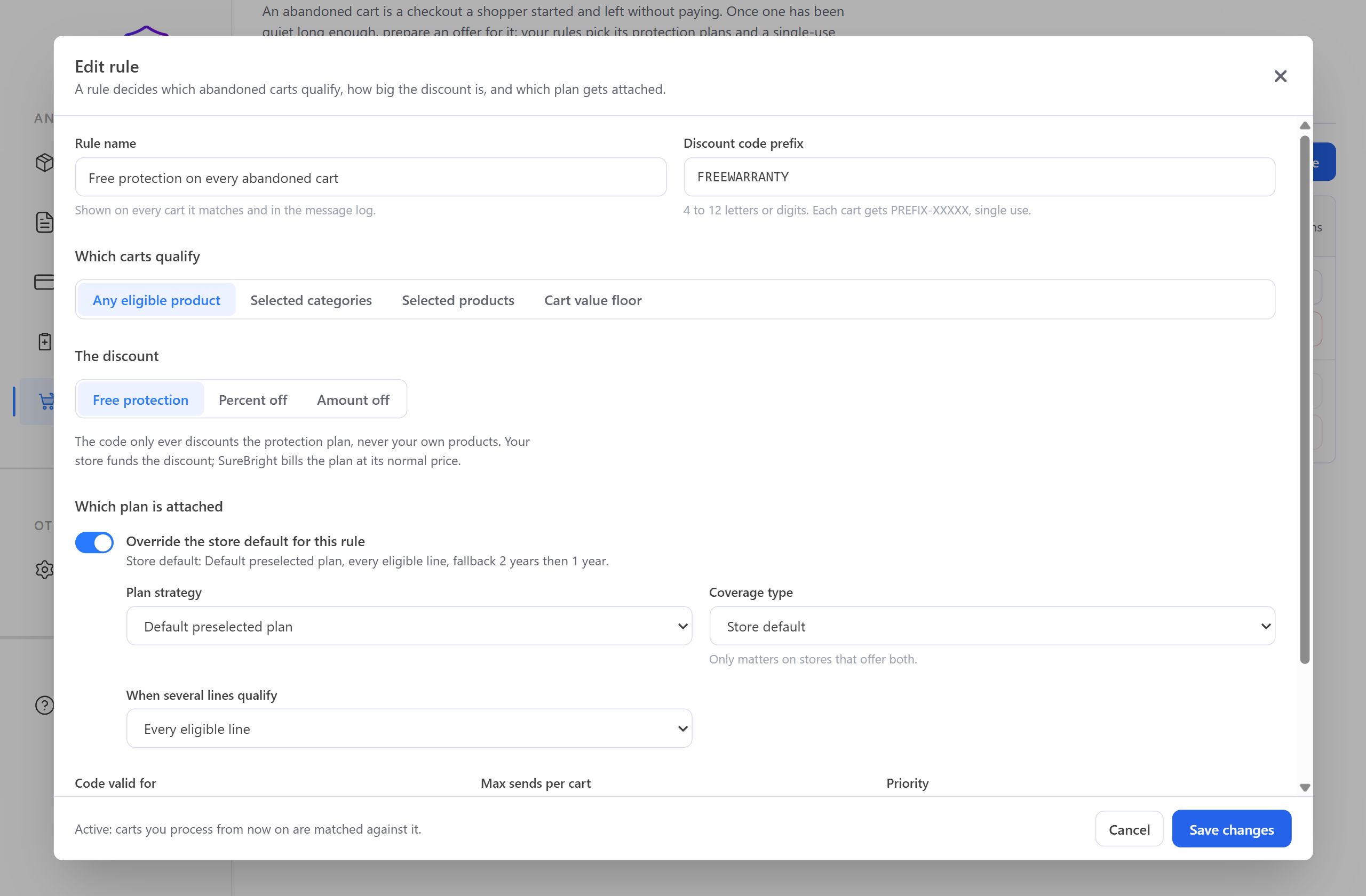
Plan strategy — how the warranty duration is chosen:
| Option | What it picks |
| Default preselected plan | The same term your product page preselects. When that is unknown, the middle term on offer |
| Fixed term | Exactly the term you choose. A Term dropdown appears: 1, 2, 3, 4 or 5 years |
| Cheapest plan | The lowest-priced plan available for that product |
| Longest plan | The longest term available for that product |
Coverage type — only matters if your store offers both kinds of cover for a product:
| Option | Meaning |
| Store default | Use whatever your store setting says |
| Extended protection | Covers mechanical and electrical breakdown |
| Accidental damage | Also covers drops, spills and similar accidents |
When several lines qualify — a cart can hold more than one coverable product:
| Option | Which lines get a plan |
| Every eligible line | All of them. The most generous, and the most discount you fund |
| Highest-value line only | Just the most expensive product in the cart |
| Only lines the rule names | Just the products or categories this rule targets. Other coverable items in the cart are left alone. If the rule uses Any eligible product it names nothing, so this behaves the same as Every eligible line |
A plan the shopper already chose beats your strategy. If they had put a 3-year plan in the cart themselves, the offer re-attaches 3 years even if your rule says "cheapest" — re-offering something shorter would be a worse deal than the one they walked away from.
Timing and limits#
| Field | What it does |
| Code valid for | How long the shopper has to use the code, from 24 hours to 30 days, counted from the moment the code is created — not from when you send it |
| Max sends per cart | 1, 2 or 3. Every email to that cart counts, including retries |
| Priority | Lower wins when a cart matches several rules |
| Tighten the abandonment definition for this rule | Lets this one rule wait longer, or demand a bigger cart, than your store setting. It can only be stricter, never looser |
You cannot pause or delete your only active rule. With none active, no new cart can be prepared. Add or activate another one first.
4. Settings#
Store-wide defaults. A rule can override most of them for the carts it matches.
When is a cart abandoned#
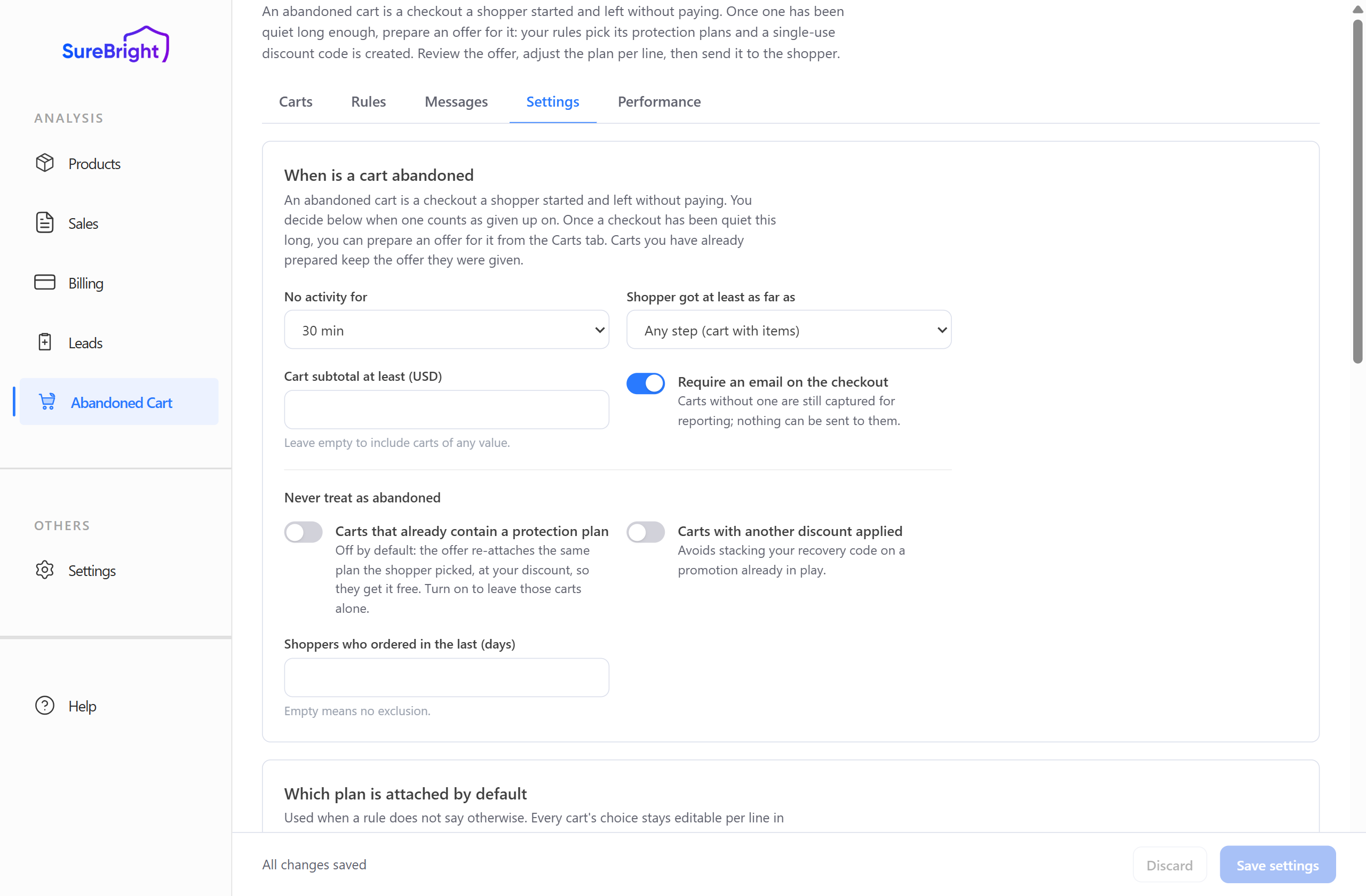
| Setting | What it does |
| No activity for | How long a checkout must be quiet before you can prepare an offer. From 30 minutes to 3 days |
| Shopper got at least as far as | Only count carts that reached a given step: any step (cart with items), contact details entered, shipping method chosen, or payment page reached. Later steps mean fewer carts but warmer ones |
| Cart subtotal at least | Ignore small carts. Leave empty to include every value |
| Require an email on the checkout | Carts without one are still captured for your reporting, but nothing can ever be sent to them |
| Carts that already contain a protection plan | Off by default, so the offer re-attaches the plan the shopper already chose, at your discount — they get what they wanted for less. Turn on to leave those carts alone |
| Carts with another discount applied | Turn on to avoid stacking your recovery code on a promotion already running |
| Shoppers who ordered in the last (days) | Exclude recent buyers. Empty means no exclusion |
Changing these affects carts from now on. Carts you have already prepared keep the offer they were given.
Which plan is attached by default#
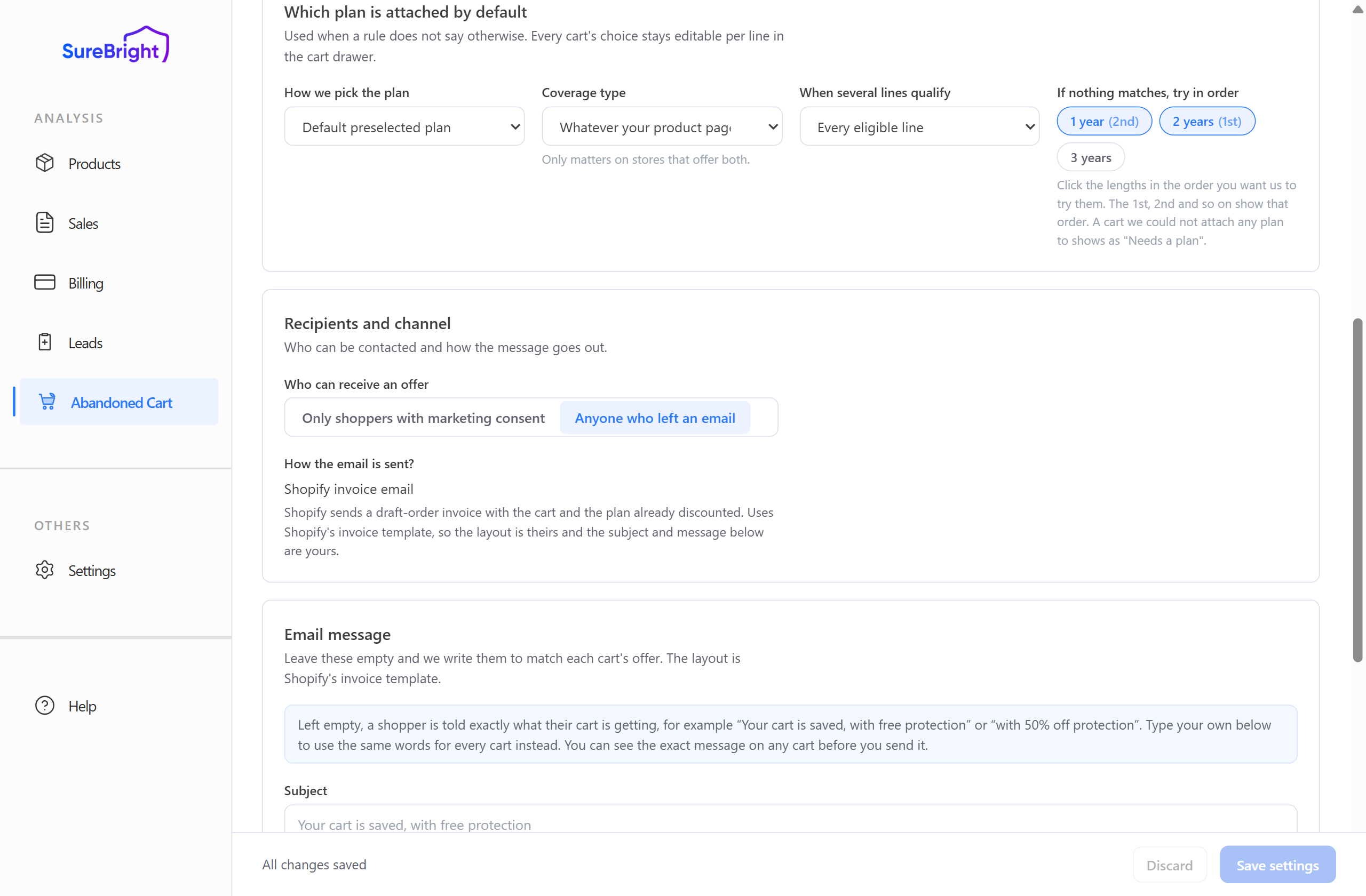
The same choices as in a rule — How we pick the plan (plus Term when you choose Fixed term), Coverage type and When several lines qualify — applied whenever a rule does not say otherwise. Every cart's plan still stays editable per line in the cart panel.
One control here has no equivalent inside a rule:
If nothing matches, try in order. Click the terms in the order you want them tried when your chosen strategy finds nothing — for example a 3-year plan that does not exist for a particular product. The chips show that order as (1st), (2nd) and so on. If none of them can be attached either, the cart shows as Needs a plan so you can pick one by hand.
Coverage type here reads "Whatever your product page offers first" rather than "Store default", because at store level there is no higher default to fall back to.
Recipients and channel#
| Setting | What it does |
| Who can receive an offer | Only shoppers with marketing consent, or anyone who left an email. Choose against your own marketing rules |
| How the email is sent | Shopify invoice email. Shopify sends a draft-order invoice carrying the cart and the already-discounted plan. The layout is Shopify's template; the subject and message are yours |
Email message#
Leave the subject and message empty and each cart gets wording matched to its own offer — a free cart is told "with free protection", a half-price cart "with 50% off protection". Type your own to use the same words on every cart instead. You can always see the exact message on a cart before you send it, and you can send yourself a test email first.
Suppression list#
Addresses that must never receive an offer, whatever their consent setting. Unsubscribes are added here automatically.
5. Messages#
Every send, reminder, retry and copied link, with its delivery status.
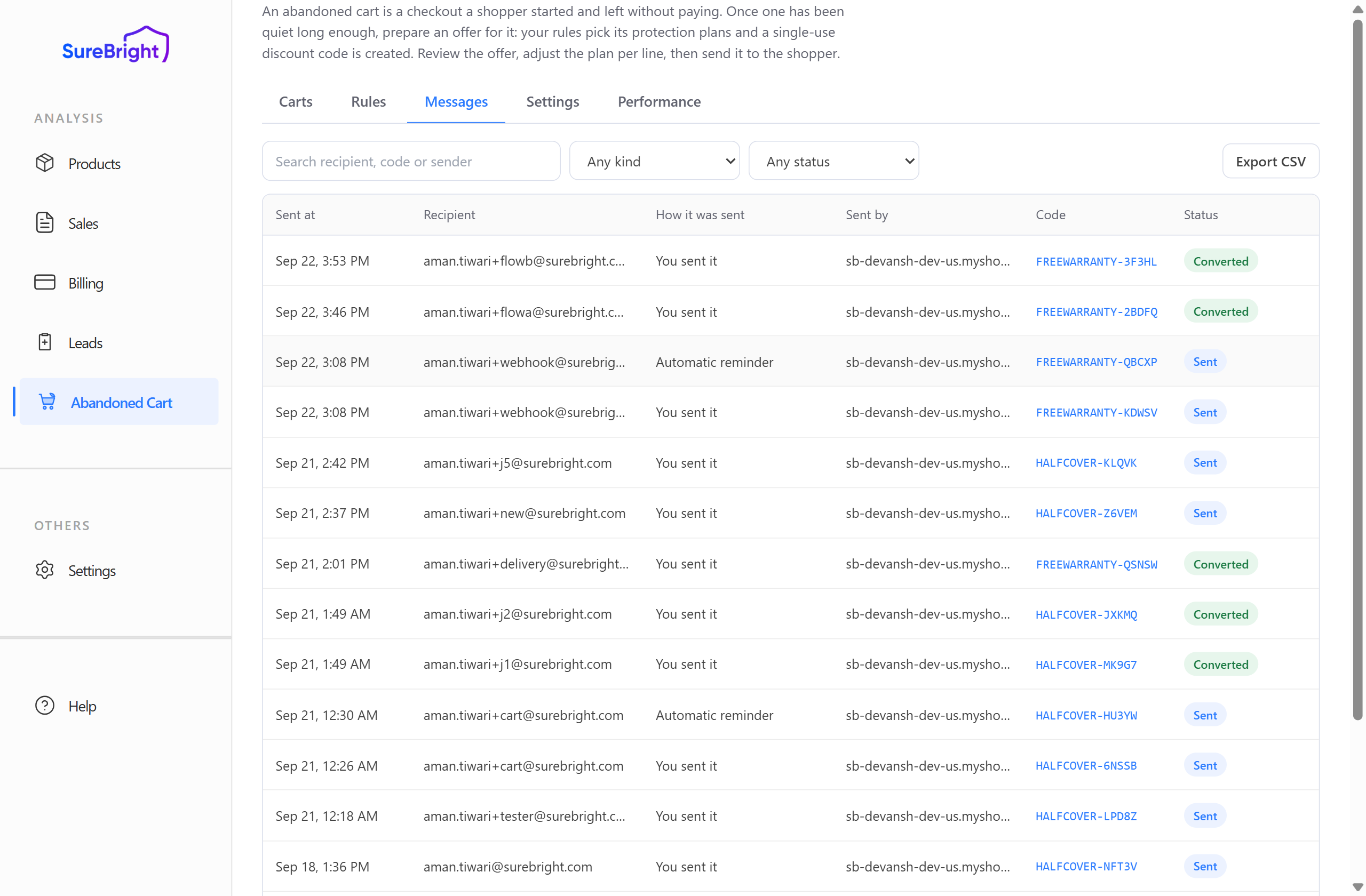
Filter by kind or by status, search by recipient or code, and export to CSV. Open any row to read the message exactly as it was sent. If one failed or bounced, Retry send sends it again and appears as a new row linked to the original.
6. Performance#
What recovery produced, and what it cost you. Switch between 7 days, 30 days and 90 days.
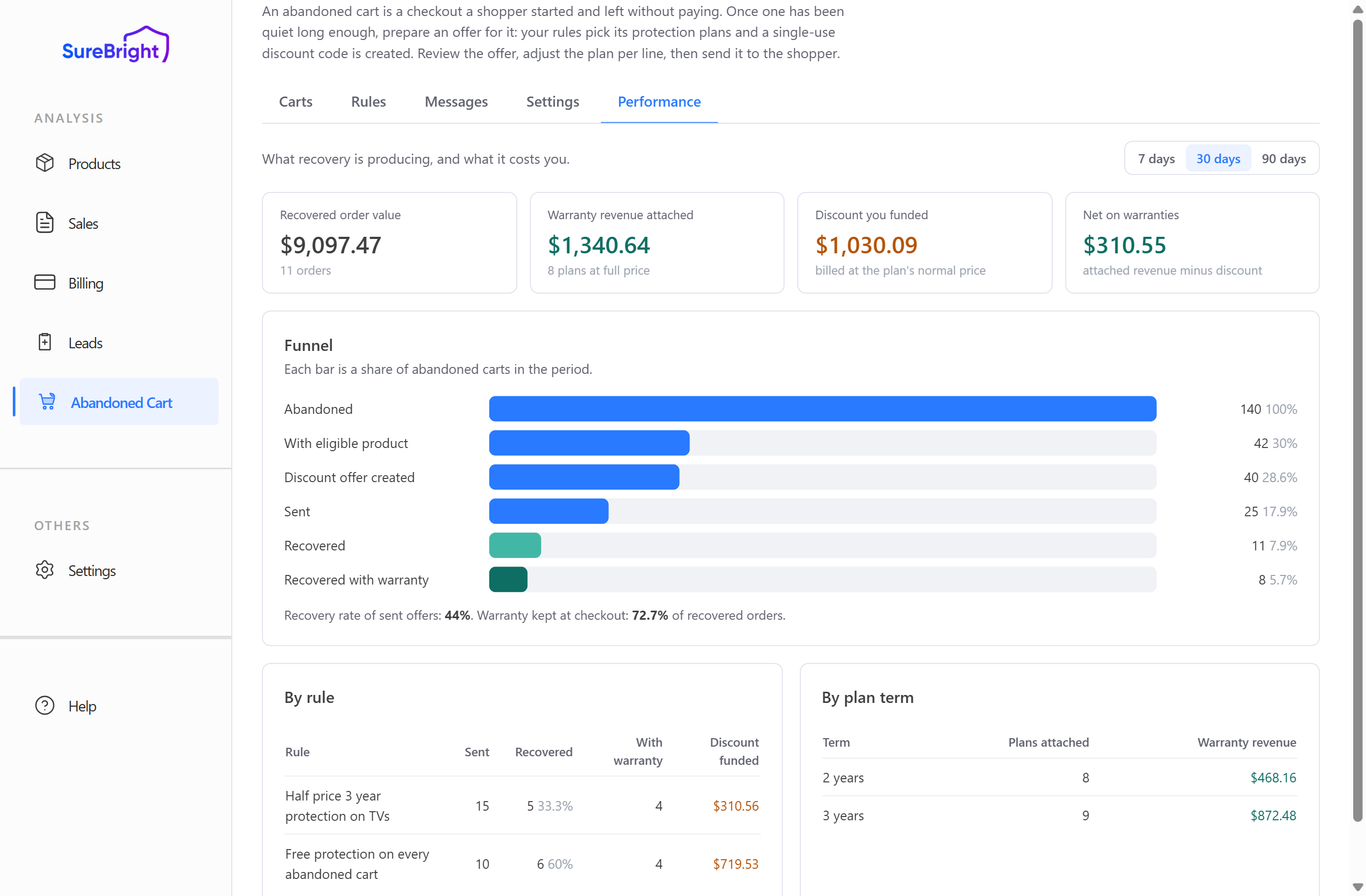
The four figures at the top:
| Figure | Meaning |
| Recovered order value | Total value of orders that came back after an offer |
| Warranty revenue attached | Full price of the plans those orders kept |
| Discount you funded | What your discount cost you, at the plan's normal price |
| Net on warranties | Attached revenue minus the discount you funded |
The Funnel shows each stage as a share of abandoned carts in the period: captured, how many had a product that could be covered, how many got a code, how many were emailed, how many came back, and how many kept the plan. By rule and By plan term show which rule and which warranty duration are actually working.