Manage carts and offers
Find a cart, read its status, and step in when you want to: prepare an offer, change its plan or discount, send it yourself, and check every message that went out.
The Carts tab lists every abandoned checkout SureBright captured, with the offer each one gets and where it stands. With automatic follow-ups on, SureBright prepares and sends the offers for you and this is where you watch them. With them off, this is where you prepare and send each offer yourself.
Work through your carts#
Each row is one captured checkout.
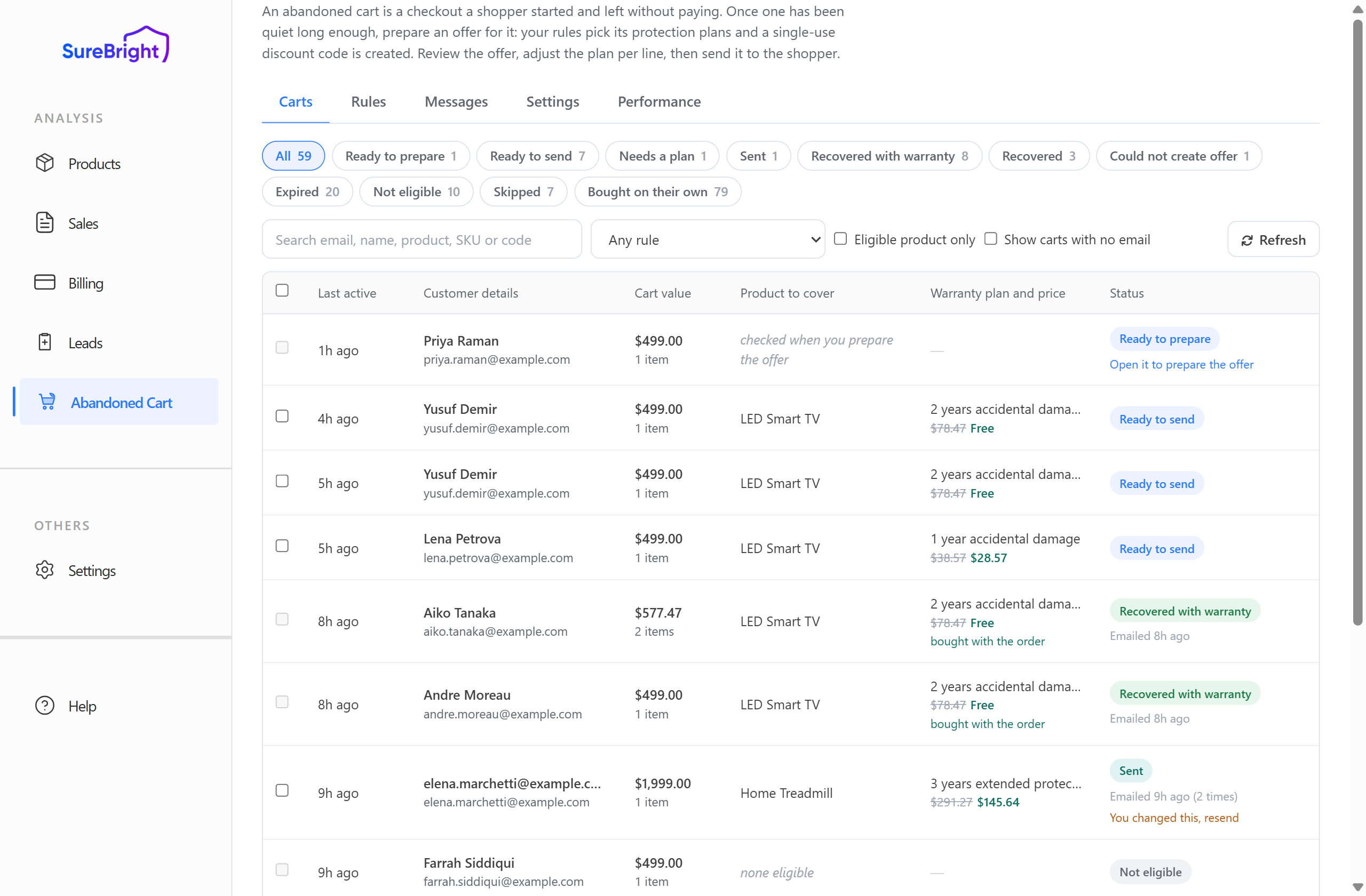
The columns are Last active, Customer details, Cart value, Product to cover (the product that can be covered), Warranty plan and price (the plan being offered and what the shopper pays) and Status.
Under Warranty plan and price you will see two figures, for example $49.99 $25.00. The struck-through price is the plan's retail price. Your discount comes out of your margin; SureBright charges you only its cost for the plan, as usual.
What each cart status means#
The chips across the top filter the list. Click one to see only those carts.
Press the refresh button at the top right of the list to check your carts for new purchases and for codes that have run out. With automatic follow-ups on, or when Klaviyo or Omnisend sends your emails, SureBright also checks about every 10 minutes; otherwise statuses only change when you refresh or open a cart.
Bought on their own carts are hidden from the All list on purpose, because there are usually many of them and there is nothing to do. Click their own chip when you want to see them.
Find a specific cart#
Search by shopper email, name, product, SKU or discount code.
Any rule narrows the list to carts matched by one offer rule. On stores with customer segments it is replaced by Customer segment, Follow-up step, Control group and A/B test.
Eligible product only hides carts where nothing can be covered.
No-email carts reveals carts captured before the shopper entered an email. They count in your reporting, but nothing can be sent to them.
Prepare and send an offer#
With automatic follow-ups on, SureBright prepares and sends your offers for you, so this section is for when you want to step in: send one cart yourself, change its plan or discount before it goes, or send sooner. With automatic follow-ups off, this is how every offer goes out.
Click any cart row to open it.
Prepare the offer#
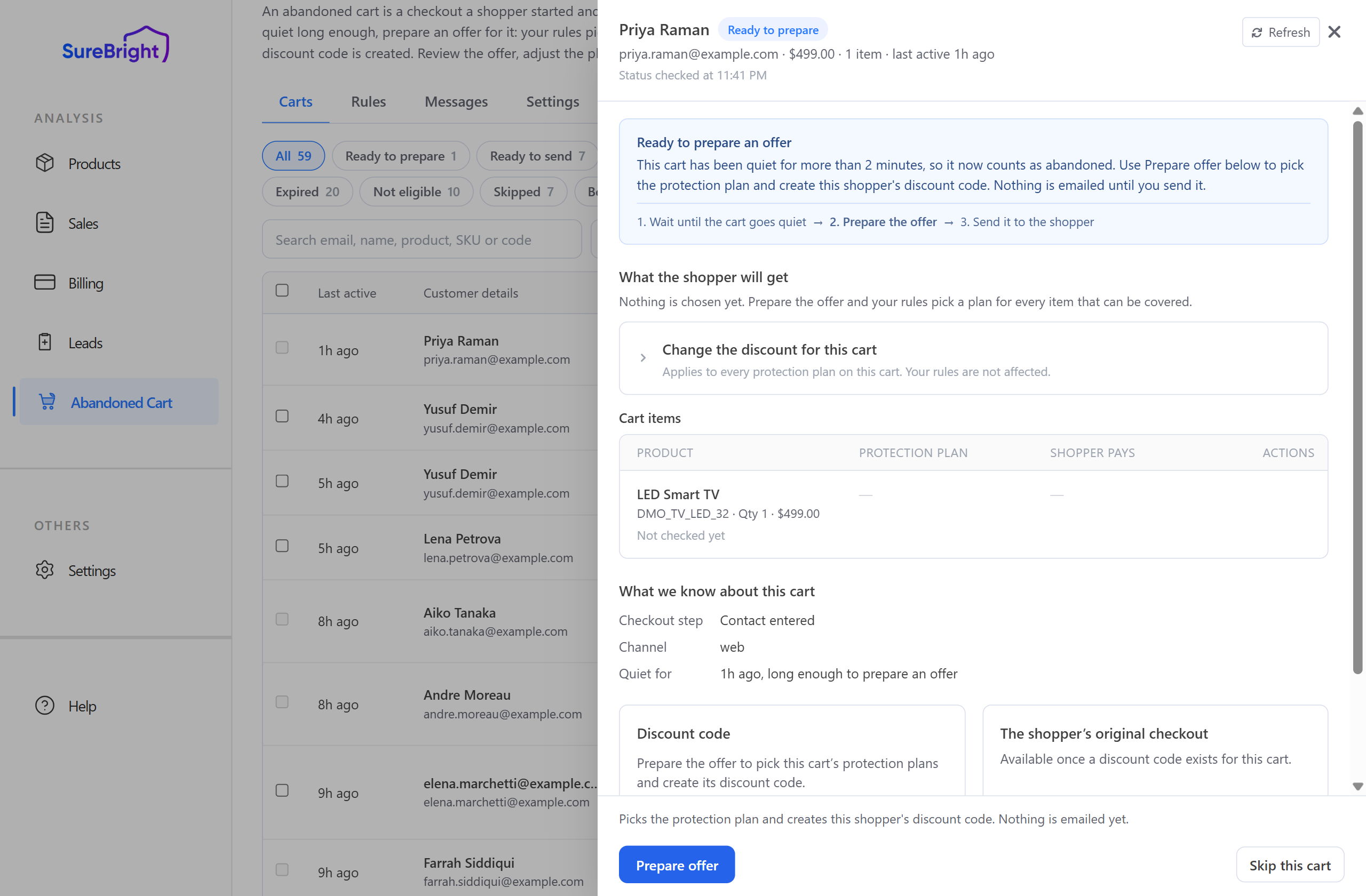
The panel tells you plainly where the cart stands and what the next step is. Nothing has been chosen and nothing has been emailed. Press Prepare offer.
Review what the shopper will get#
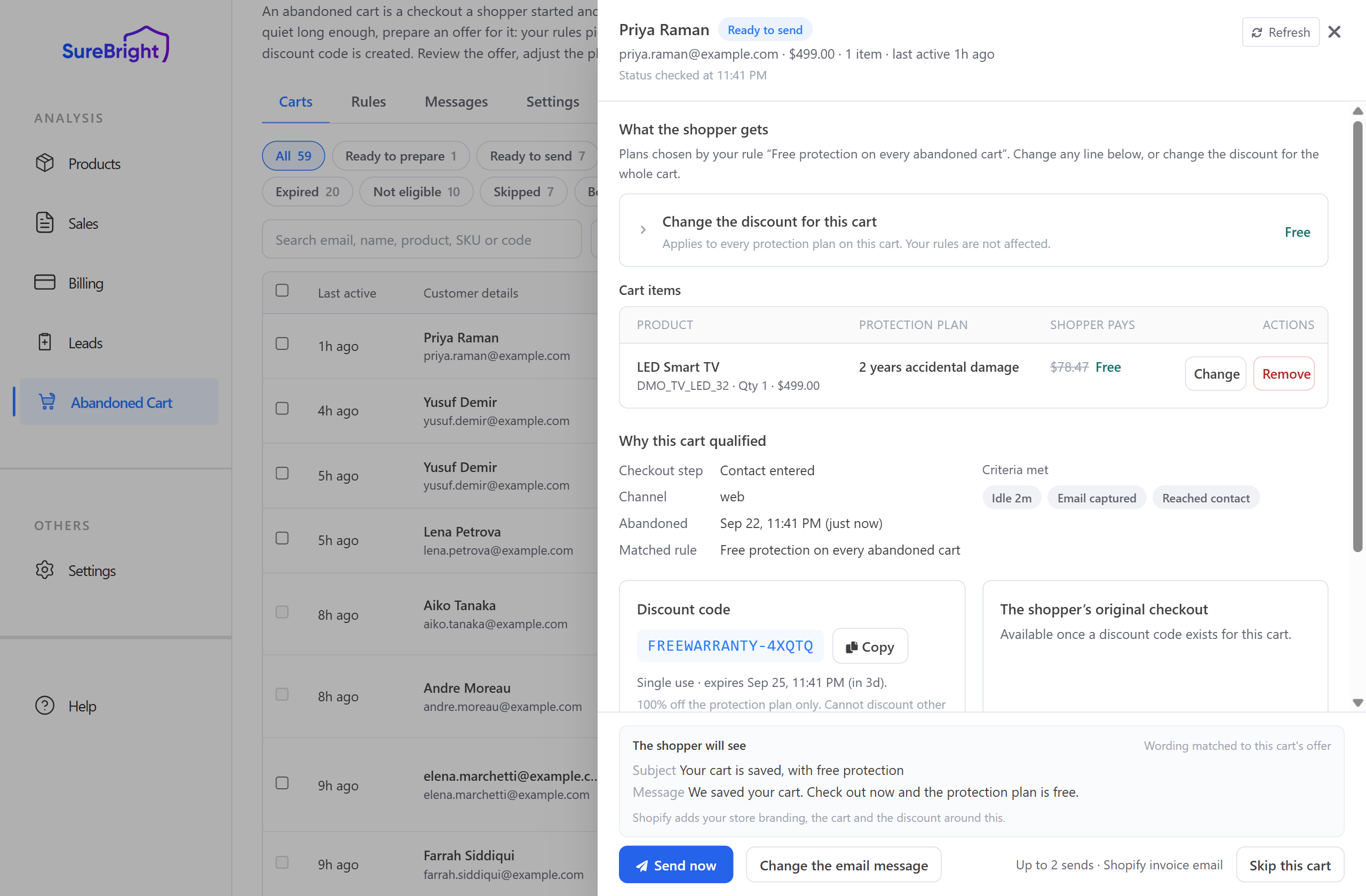
After you prepare, you can see everything the shopper will get:
What the shopper gets and Cart items: each product, the plan chosen for it, and what the shopper pays. If the shopper had picked a plan themselves, the panel says so.
Why this cart qualified: how far the shopper got, when it was abandoned, and which rule or segment matched.
Discount code: the single-use code and when it expires. Expire discount code ends it now; Extend by 24 hours gives the shopper one more day with the same code.
Checkout link with your offer: the same link the shopper gets in the email, with Copy link and Open it. Until that link is made, the card shows The shopper's original checkout instead.
Messages for this cart and Changes made to this cart: every email for this shopper, and every plan or offer you changed by hand.
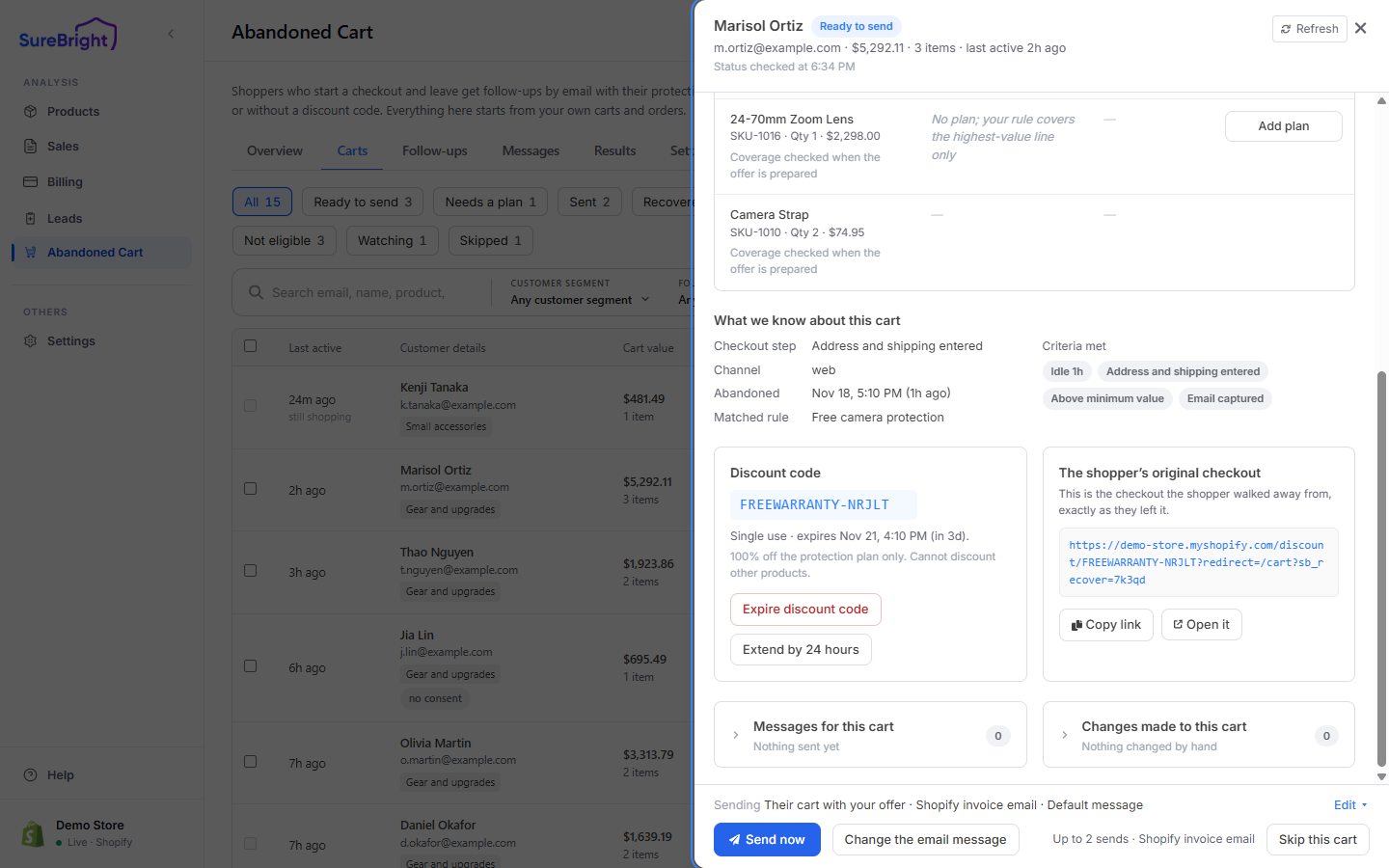
On stores with customer segments, the top of the panel also shows the cart's follow-up timeline; see Follow each cart on its timeline.
Change the plan for a product#
Press Change on any line to see every plan available for that product.
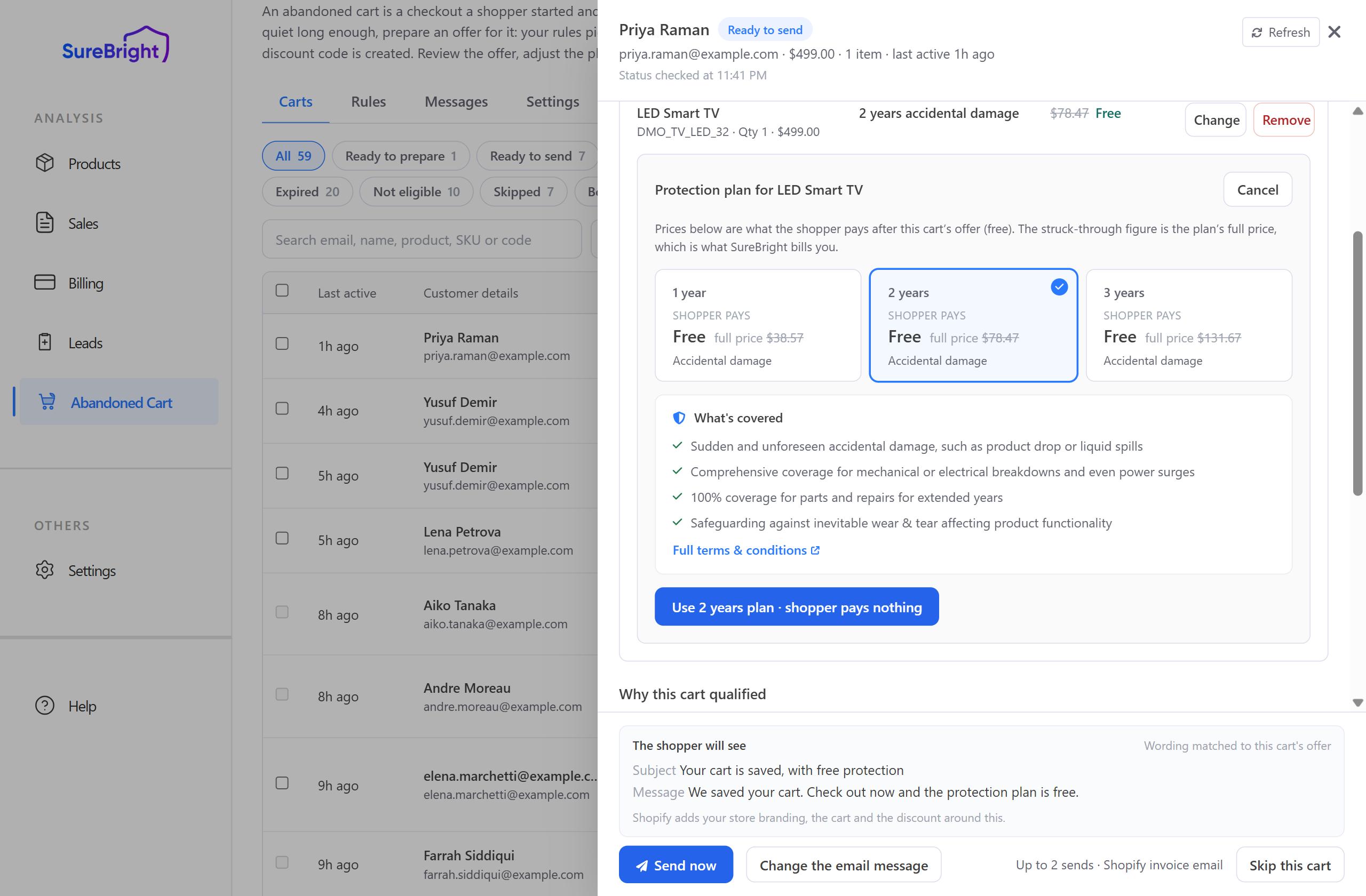
Each card shows what the shopper pays in bold and the plan's retail price struck through beside it. Pick the one you want and confirm. Remove takes the plan off that line.
If your store offers both Accidental damage and Extended protection for a product, the picker shows a tab for each. Stores with only one kind of cover see no tabs.
You can change a plan after the offer was already emailed. The cart then shows You changed this, resend so you know the shopper has the old version. If the shopper changes their own cart after the email, it shows Cart changed, resend.
Change the discount for one cart#
Sometimes one shopper deserves a better offer than everyone else gets. Click Change the discount for this cart to open it.
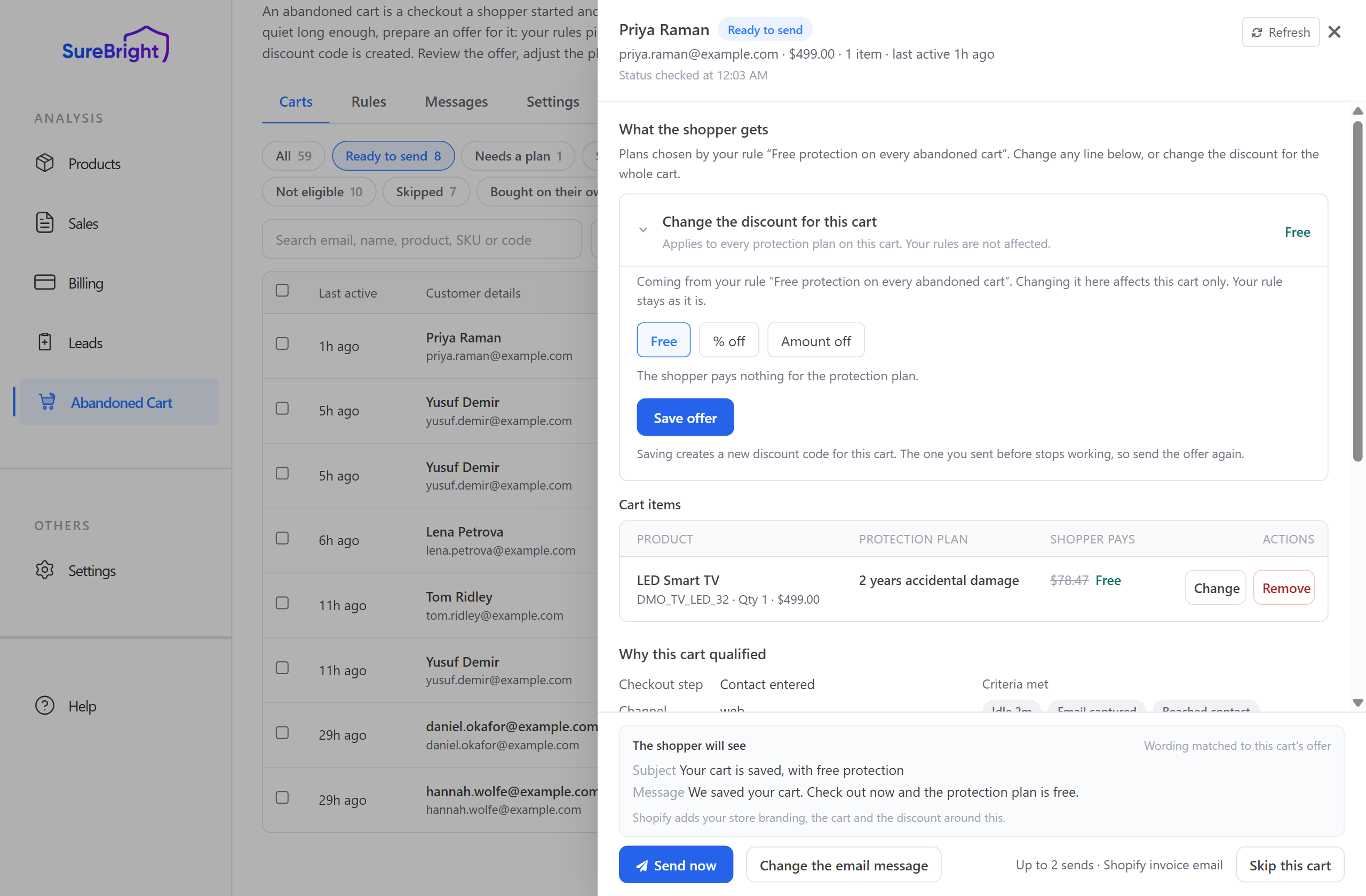
Choose one of three, then press Save offer:
This affects this cart only. Your rule or segment is untouched and no other cart changes. On carts whose offer comes from a rule, Back to the rule's offer undoes it. The heading always shows the offer currently in force, so you can see it without opening the section.
Saving creates a new discount code for this cart. Any code you already sent stops working, so send the offer again afterwards.
Send the offer#
Press Send now. The offer goes out through whoever sends your emails: a Shopify invoice email by default, or your own Klaviyo or Omnisend flow (see Channels and tools). After the first send the button reads Resend now.
Edit, beside Sending, lets you change this one send:
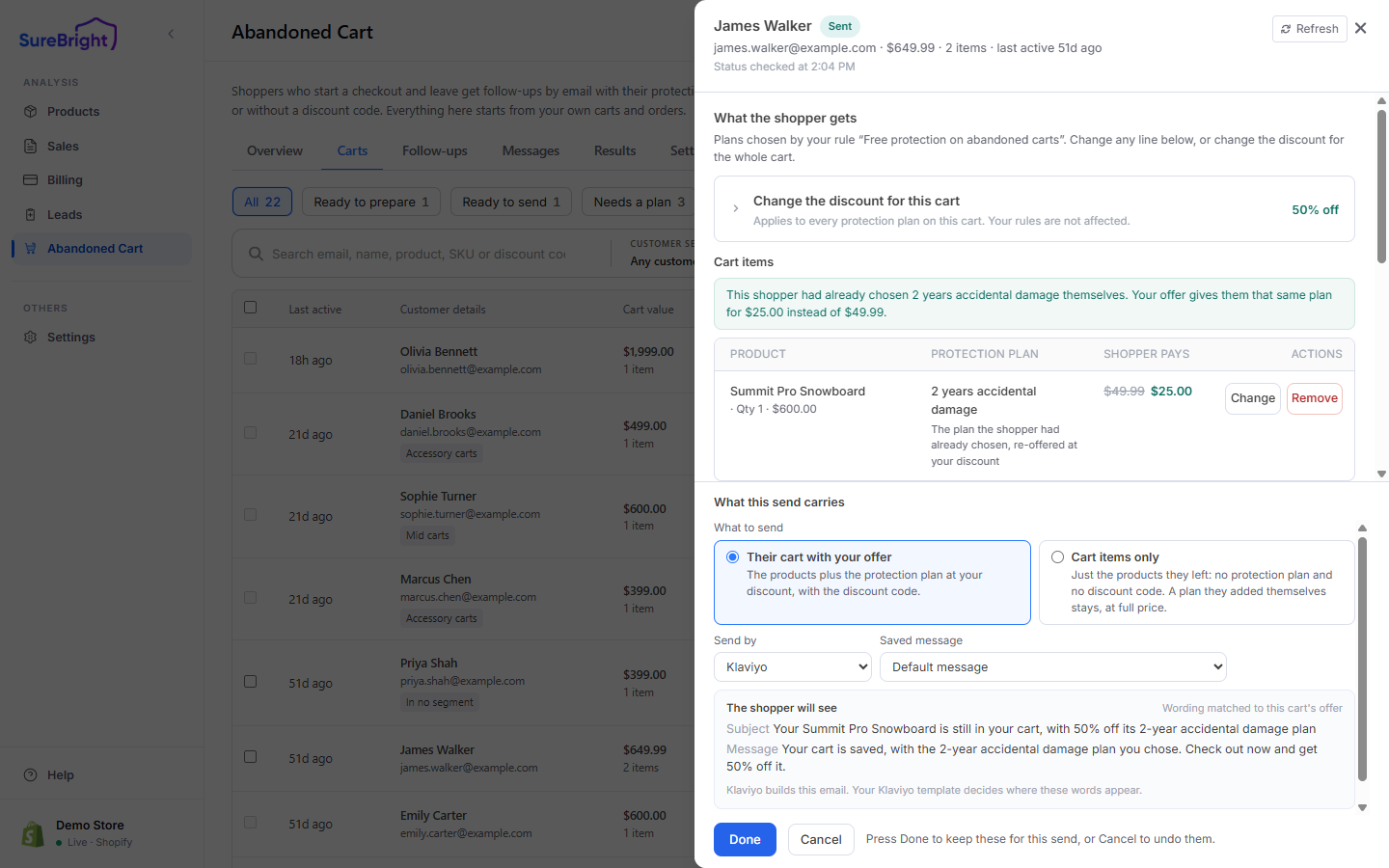
Change the email message lets you write a one-off subject and message for this cart.
The line beside the button tells you how many sends this cart is allowed, for example Sent 1 time, last 21h ago · 6 left.
After an email, you can send to the same shopper again only after Hours between two emails to the same shopper (48 by default, set under Automatic follow-ups). The panel tells you when.
To send several at once, tick the carts in the list and press Send to N selected above the table. A message then lists any carts that were not sent, and why.
Skip this cart marks it as deliberately left alone. Put back in the list undoes it.
If Send now is unavailable, the panel says why in plain words, for example: no email address on the checkout, no plan picked on any line, no discount code created yet, too soon after the last email, no marketing consent where you require it, or the send limit reached.
Check what was sent#
Messages → Message log lists every send, reminder and retry, with its delivery status.
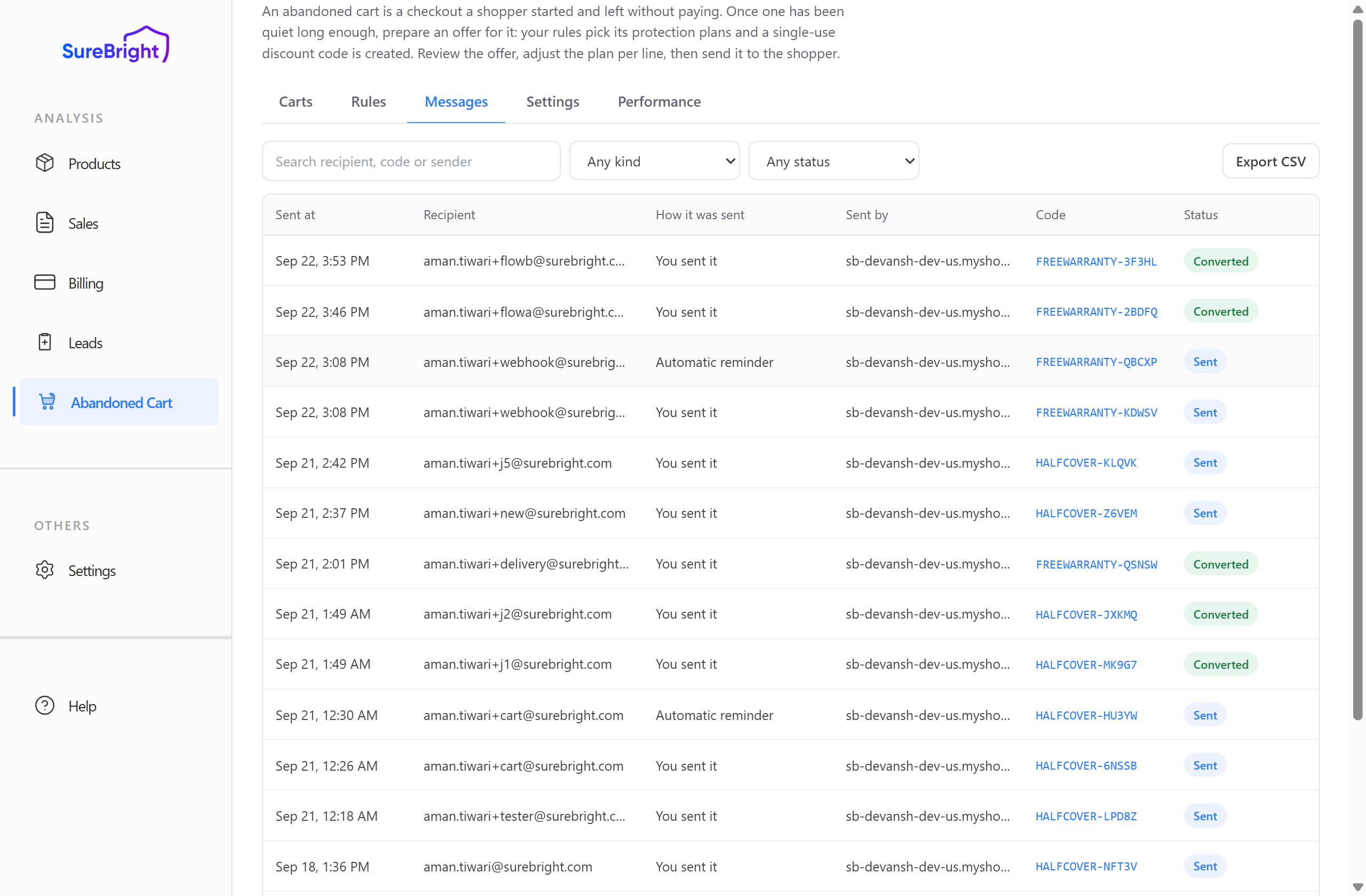
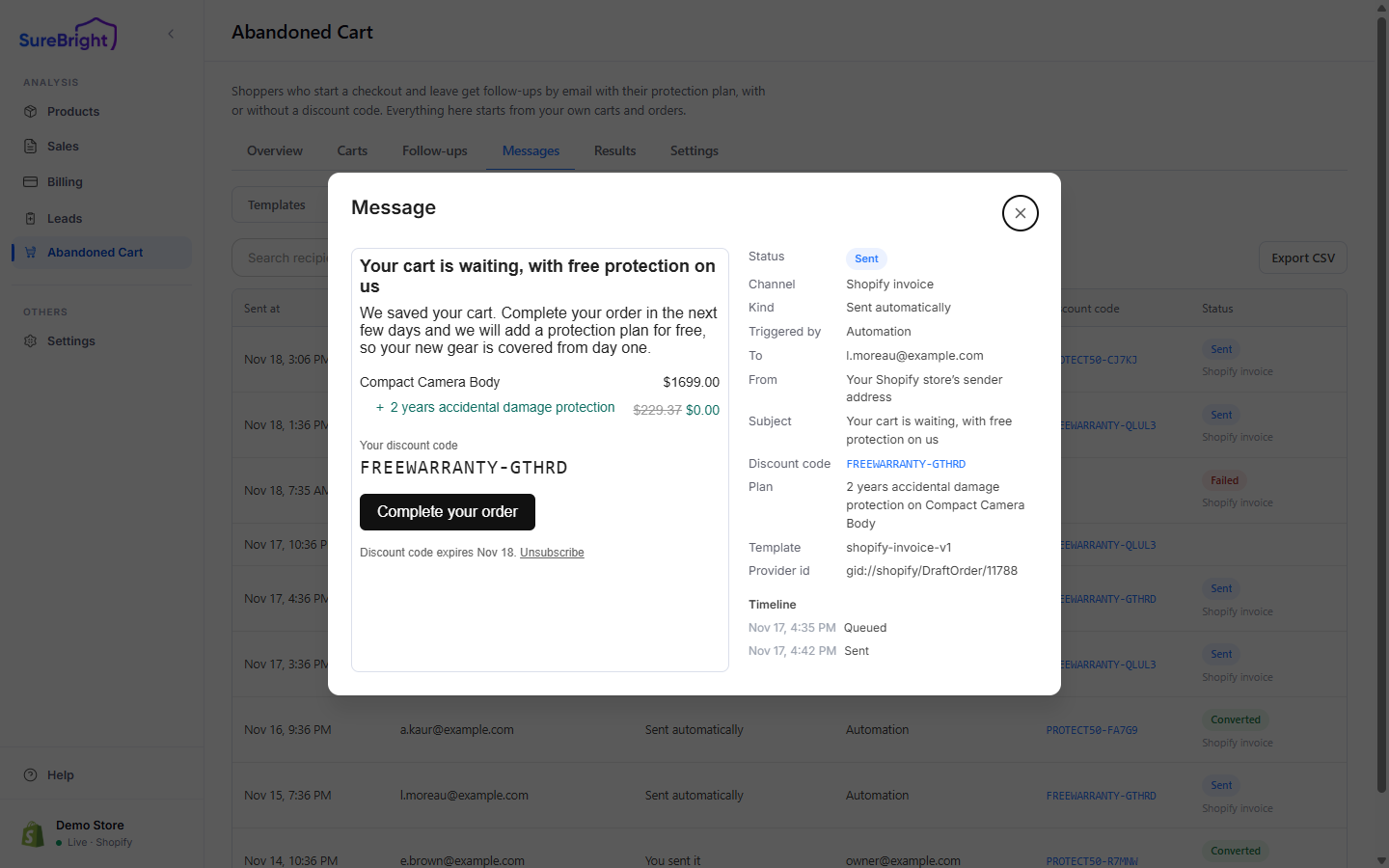
Filter by kind or by status, search by recipient, discount code or sender, and use Export CSV to download the rows on the page. Open any row to read the message exactly as it was sent: the email as the shopper saw it, who sent it, the plan and code it carried, and its timeline. If one failed, Retry send sends it again and appears as a new row linked to the original.