

Offer rules and settings
Set the offer each cart gets on stores without customer segments, and choose your store-wide settings: when a cart counts as abandoned, the default plan, and who can receive an offer.
Offer rules decide the discount and the plan each cart gets on stores without customer segments. The Settings tab holds the store-wide defaults every store uses: when a cart counts as abandoned, which plan is attached, and who can receive an offer.
Set your offer rules#
On stores without customer segments, rules live under Follow-ups → Offer rules. Stores with customer segments get their offers from each segment instead; see Customer segments. A rule answers three questions, in this order:
Which carts qualify. Does this rule apply to the cart at all?
How big the discount is. How much of the plan's price you give away.
Which plan is attached. Which plan each covered product gets.
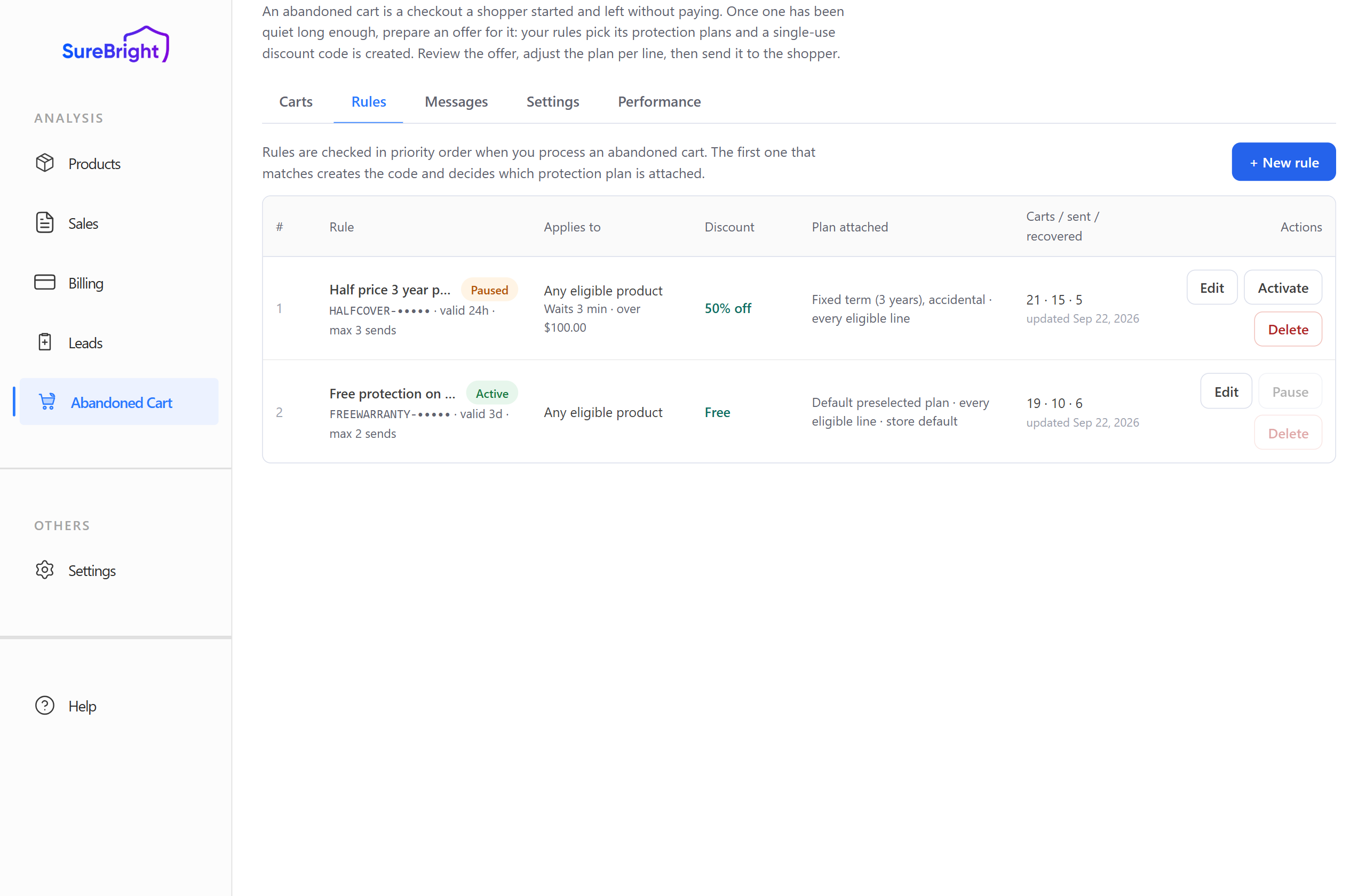
Rules are checked in priority order, lowest number first. The first rule that matches a cart wins and decides its whole offer. No other rule is looked at. One exception: a rule that tightens the abandonment definition. If the cart fails that rule's stricter definition, the next rule is checked; if the cart hasn't been quiet long enough for it yet, the cart waits. A cart matched by no rule ends up Not eligible.
Each rule is Active, Paused or a Draft. Pause stops it matching new carts; codes it already issued keep working. Delete removes it for good.
Press Edit on a rule, or + New rule to add one. A new rule is saved with Save and activate, or Save draft to finish it later.
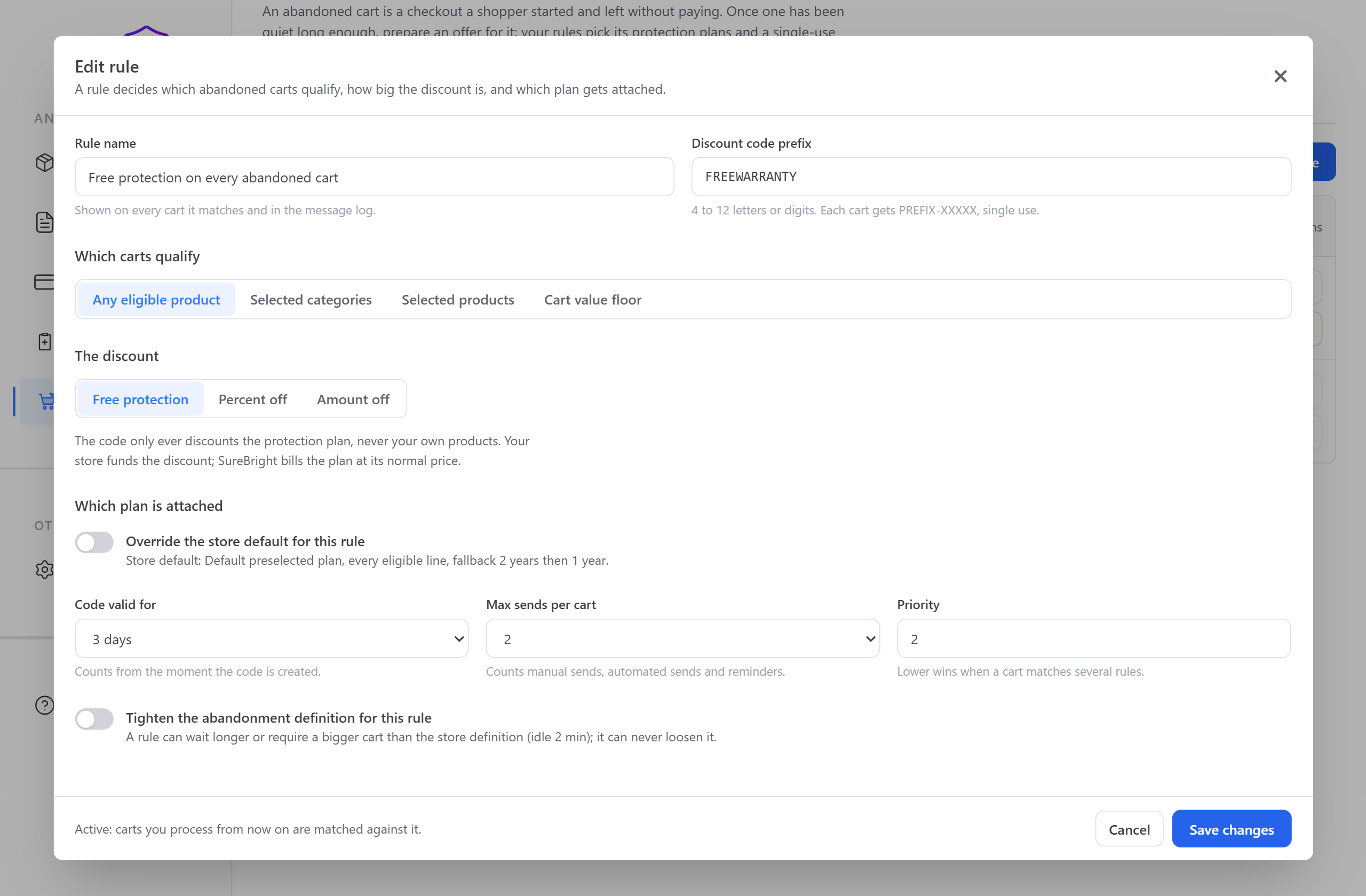
Name the rule and its discount codes#
Choose which carts qualify#
Four choices. Pick the one that describes who the offer is for.
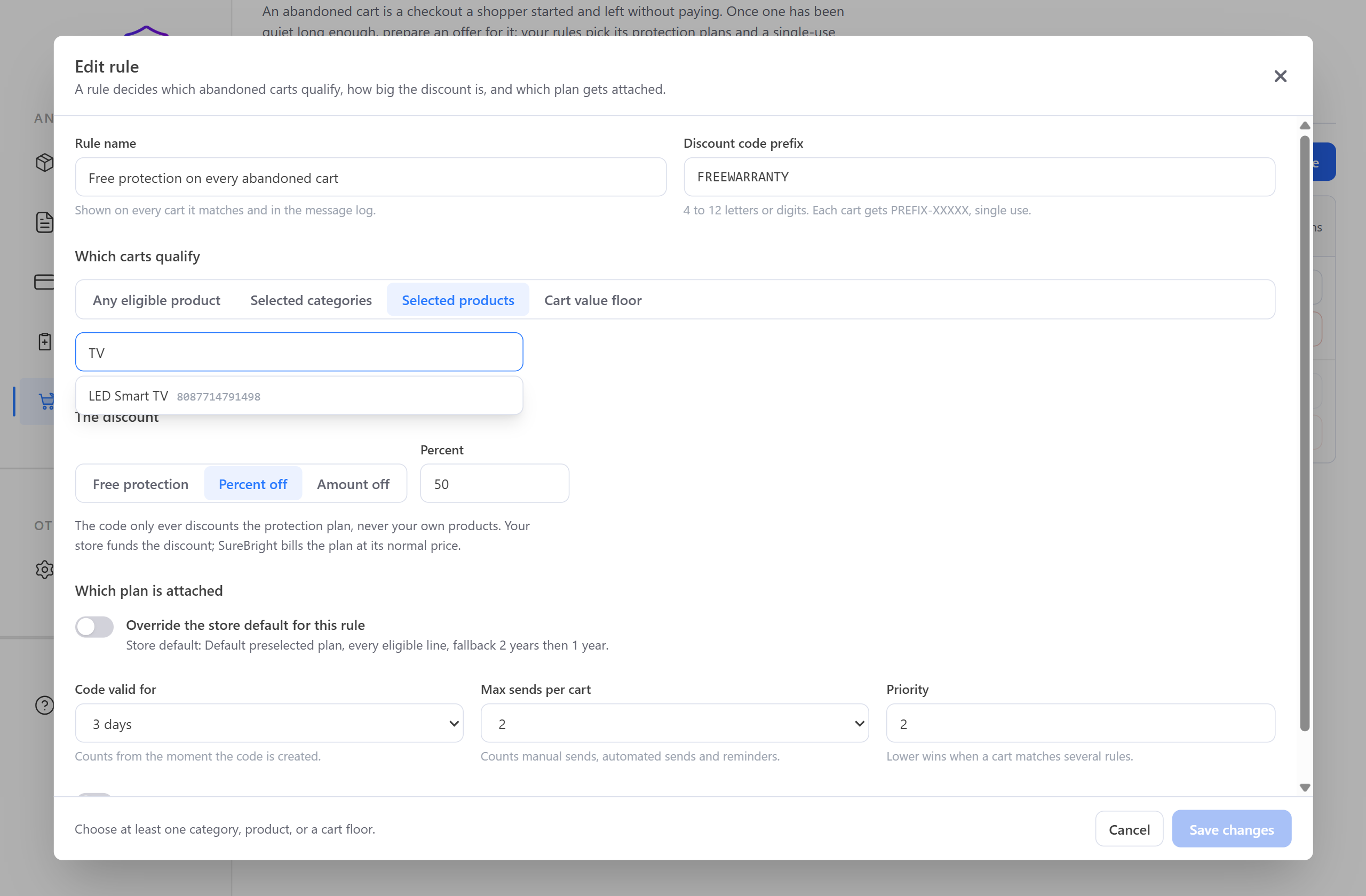
With Selected products you search by title or SKU. The rule follows the product itself (the product ID shown beside each name), so renaming a product later does not break the rule. If you choose a targeted option and add nothing, the save button stays disabled and the footer tells you: "Choose at least one category, product, or a cart floor."
Selected categories needs SureBright categories set up for your store. If none are, the editor says so, and you should use Any eligible product or Selected products instead.
Choose the discount#
This is how much of the protection plan's price you give away. It never touches your own products' prices.
The discount code only applies to the protection plan, never to your own products. The discount comes out of your margin on the plan. SureBright charges you only its cost for the plan, as usual, no matter how much the shopper pays.
Choose which plan is attached#
Left alone, the rule uses your store default from Settings. The closed toggle tells you what that default currently is, for example "Store default: Default preselected plan, every eligible line."
Turn on Override the store default for this rule when this campaign needs a different plan from the rest of the store.
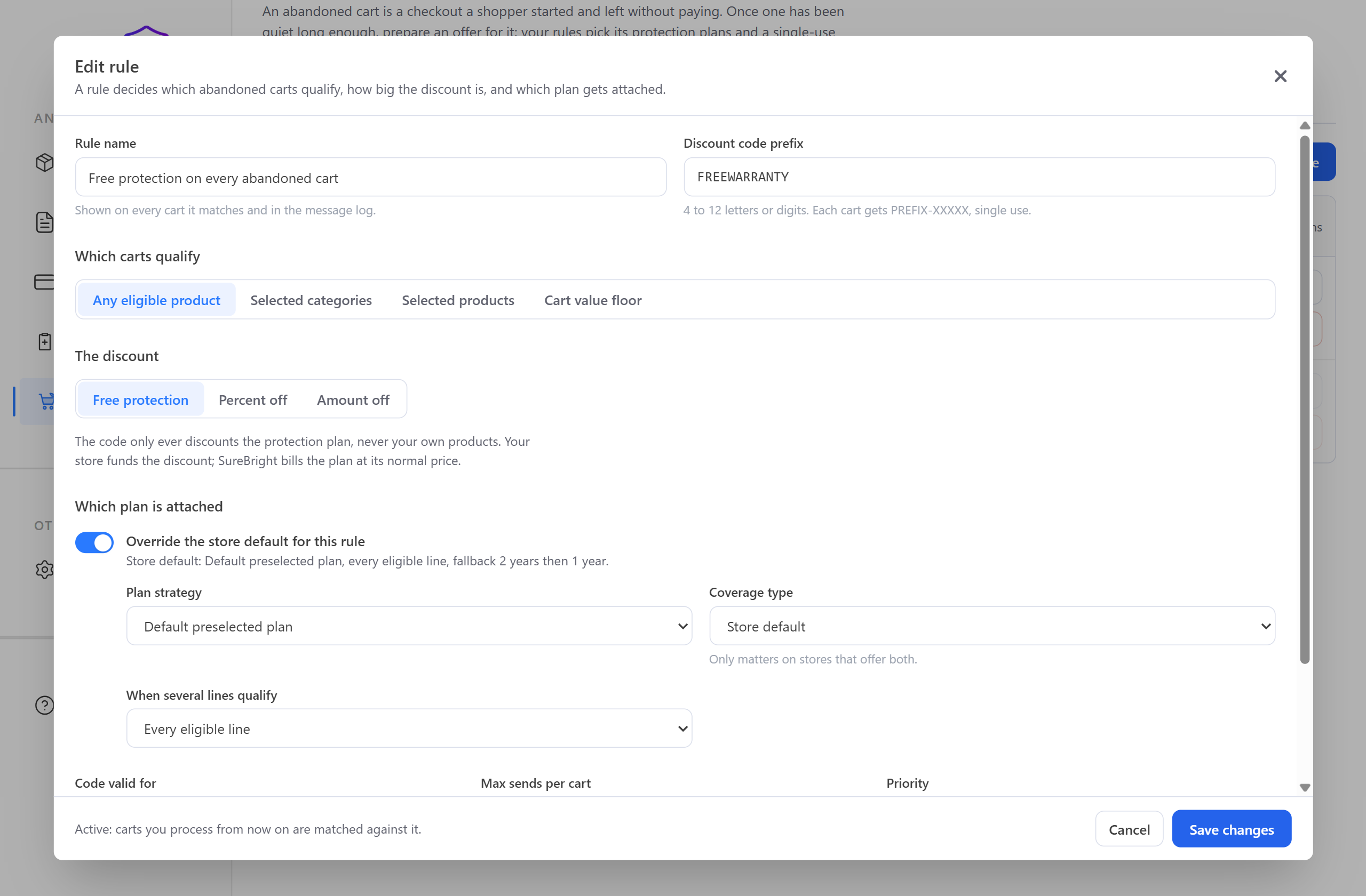
Plan strategy decides how the plan's length is chosen:
Coverage type only matters if your store offers both kinds of cover for a product:
When several lines qualify decides which products get a plan when a cart holds more than one that can be covered:
Your offer's plan replaces a plan the shopper already chose. If they had put a 3-year plan in the cart themselves and your rule says "cheapest", the offer carries the cheapest plan instead, longer or shorter. Choose a strategy that suits shoppers who already picked a plan, or switch on Leave carts that already have a plan in Settings.
Set code validity and send limits#
You cannot pause or delete your only active rule. With none active, no new cart can be prepared. Add or activate another one first.
Choose your store-wide settings#
The Settings tab holds your store-wide defaults. Each row shows the current choice in one sentence; Change opens it and Done closes it. Your changes are kept only when you press Save in the bar at the bottom of the page; Discard drops them. An offer rule or a customer segment can override most of them for its carts.
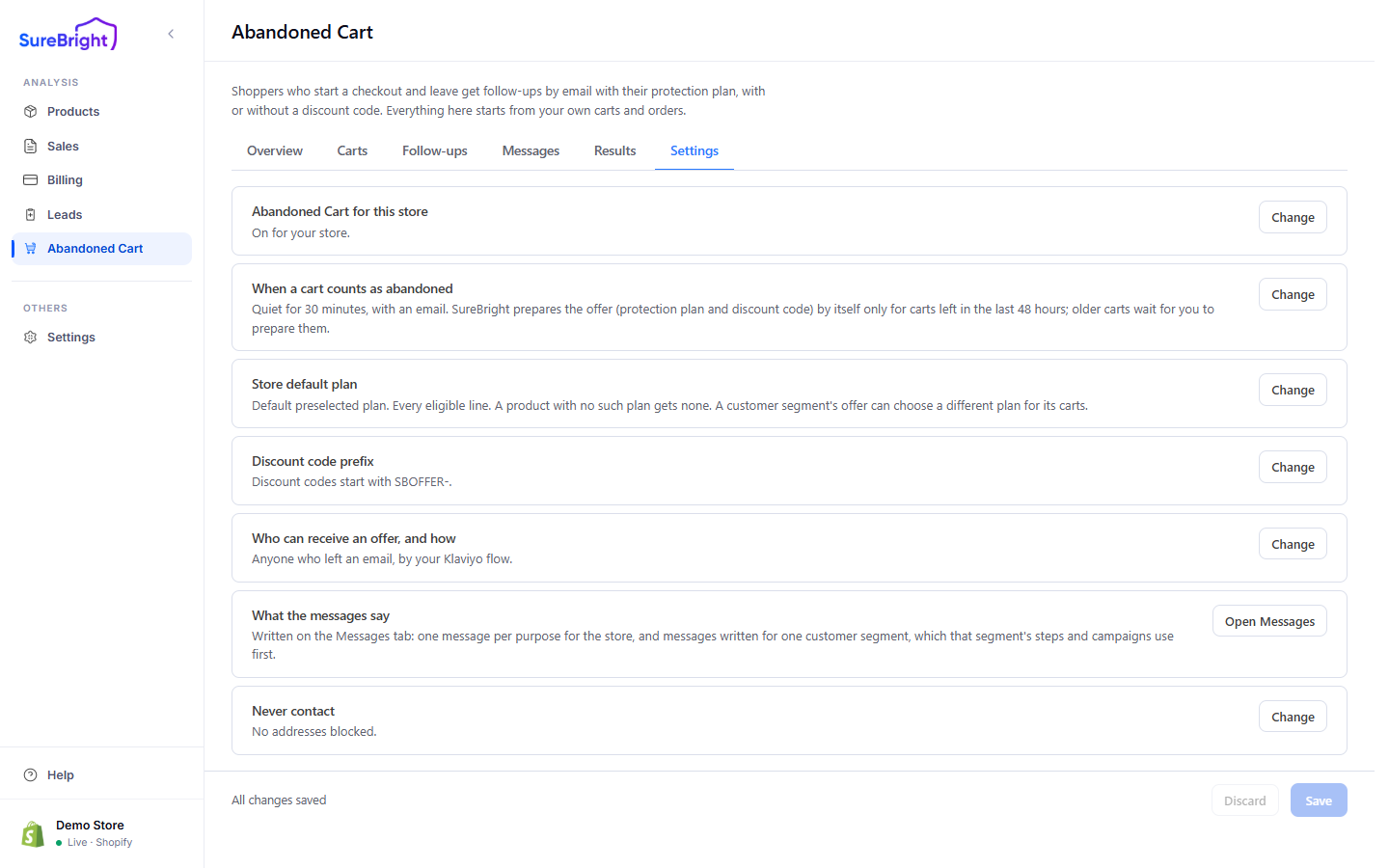
Decide when a cart counts as abandoned#
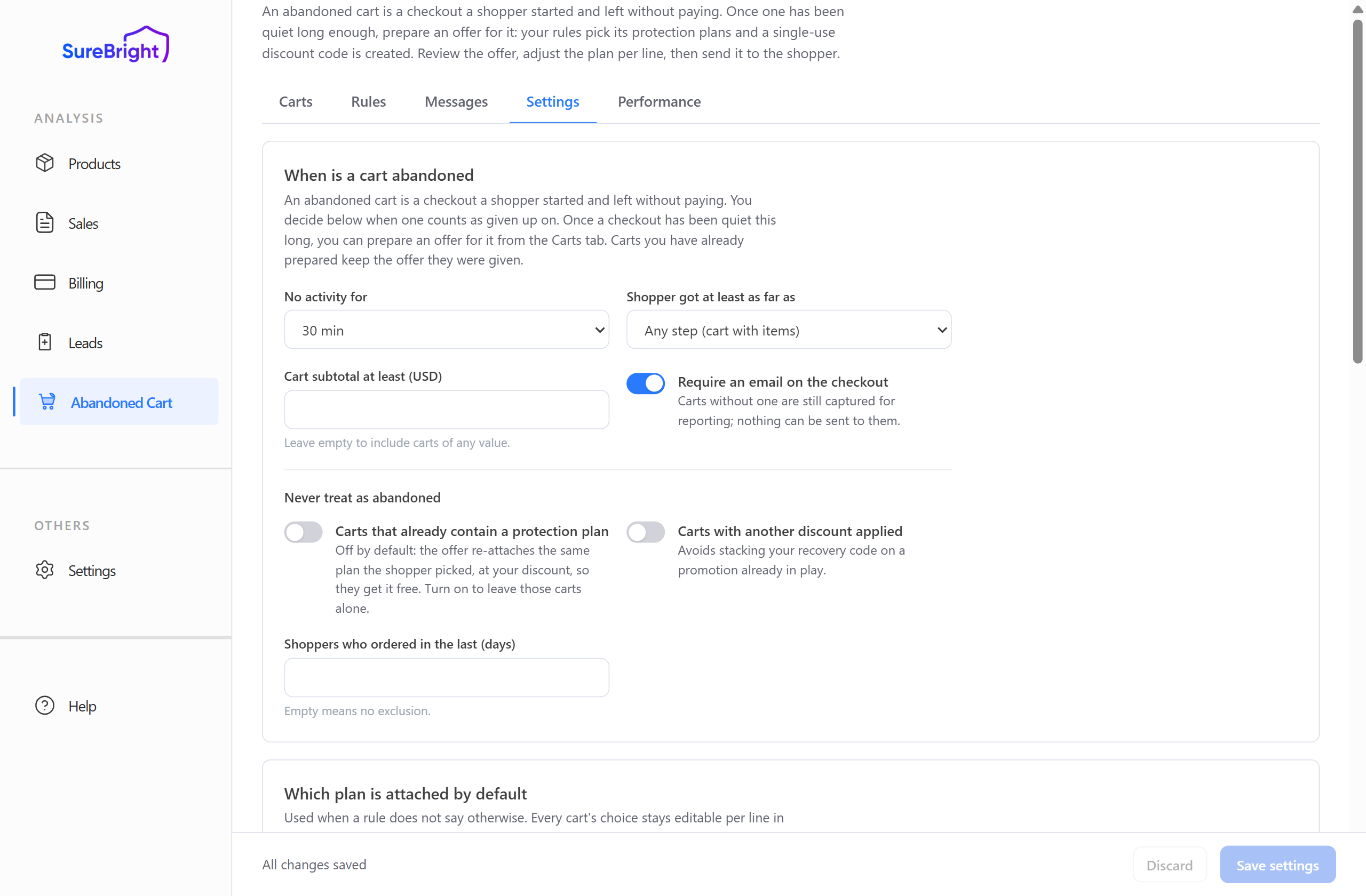
Open When a cart counts as abandoned.
Changing these affects carts from now on. Carts you have already prepared keep the offer they were given.
Choose the default plan#
Open Store default plan.
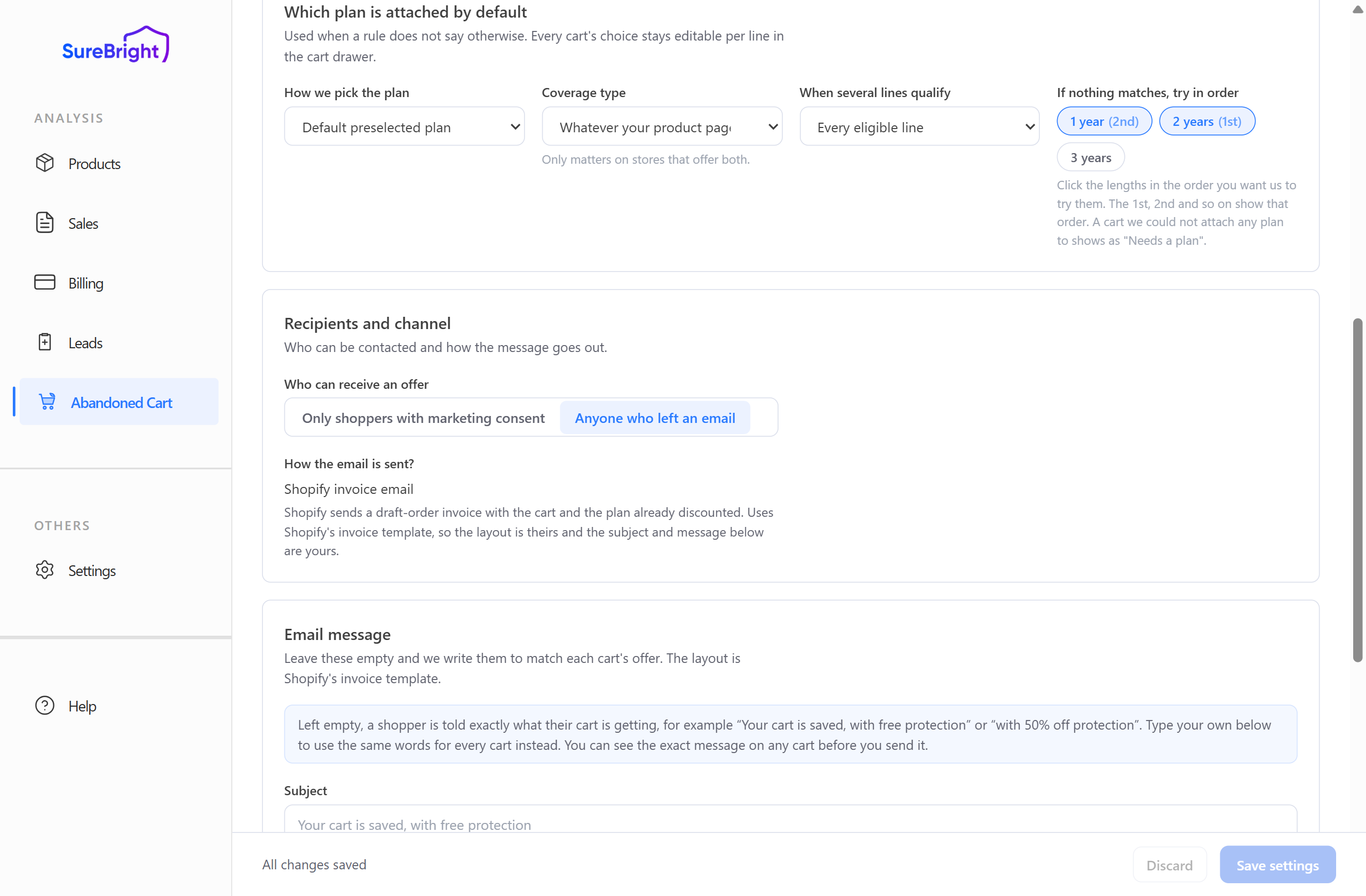
It offers the same choices as a rule: How the plan is picked (plus Term when you choose Fixed term), Coverage and When several lines qualify. They apply whenever a rule or segment does not say otherwise. Every cart's plan still stays editable per line in the cart panel.
If your choice finds no plan for a product, for example a fixed 3-year term the product does not offer, that product gets no plan. Pick one by hand in the cart if you want to add it.
Coverage here reads What the product page offers first rather than "Store default", because at store level there is no higher default to fall back to.
On stores with customer segments, Discount code prefix sets the start of every code, for example SBOFFER-.
Choose who can receive an offer#
Open Who can receive an offer, and how.
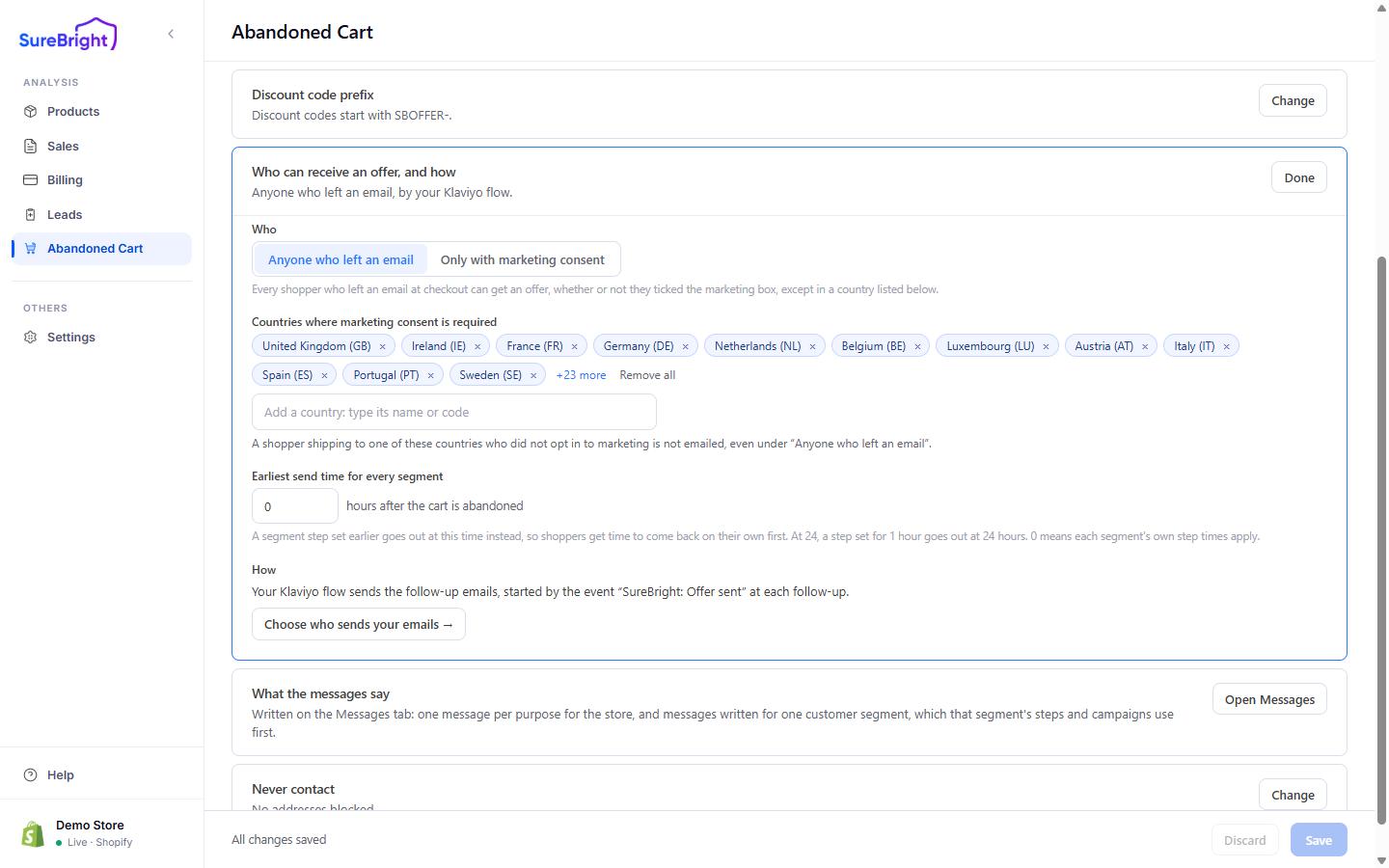
Never contact holds addresses that must never receive an offer, whatever their consent setting. Add them yourself.
Write what the email says#
The words your emails use are written under Messages → Templates; see A/B tests and templates. You can always see the exact message on a cart before you send it, and you can send yourself a test email first.