

Shopify admin housekeeping
The plan products SureBright adds to your Shopify catalogue, and the settings in your Shopify admin that keep the program working: sales channels, discounts, the Cart Validator and keeping plan products out of search and recommendations.
Protection plans are products in your Shopify catalogue, sold through your normal checkout. This page explains those plan products and the settings in your Shopify admin that decide whether shoppers can add a plan, whether your discounts cut its price, whether a plan can be bought on its own, and where plan products show up. You change these in Shopify admin, not in the Merchant Portal.
Online Store sales channel#
A product must be available on the Online Store sales channel to show an offer and for the plan to be added to the cart from its page. New products and products imported from another system are sometimes published only to other channels.
Open the product's publishing menu
In Shopify admin open the product, find the Publishing card and click its three-dot menu.

Select Online Store
Tick Online Store in the list of channels and click Done. Save the product.

The same applies to the plan products themselves (vendor Surebright). If they are unpublished from the Online Store, shoppers cannot add a plan.
Shopify POS#
If you sell protection at the counter with the POS extension, the plan products must also be available on the Point of Sale sales channel. If Shopify POS says the warranty product does not exist, publish the plan products to Point of Sale the same way.
Add warranties in POS from the SureBright tile. A plan product rung up any other way, for example by searching for it in POS, is not linked to the product it covers, and the sale does not become a contract. If that happened, email support@surebright.com with the order number.
Discounts that exclude SureBright products#
Plan prices are set in Warranty Pricing. A store-wide discount code or automatic discount would also apply to the plan line in the cart, so build discounts on a collection that leaves SureBright products out.
Create a smart collection without SureBright products
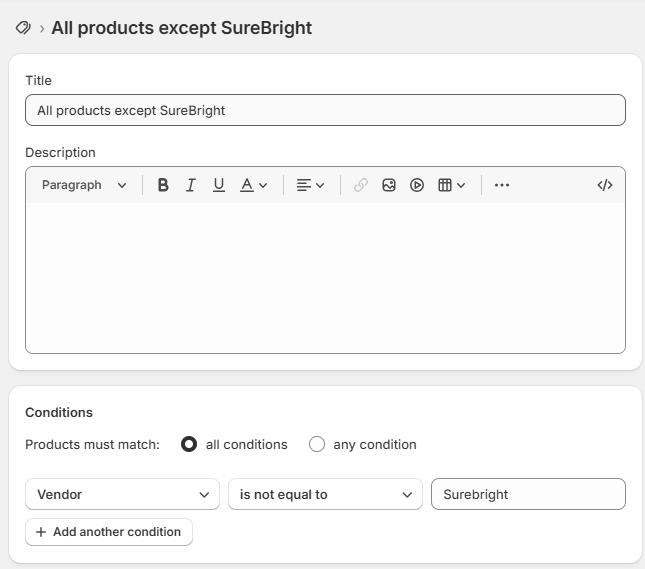
In Products → Collections create a collection, for example All products except Surebright, with the automated condition Product vendor is not equal to Surebright.
Create the discount against that collection
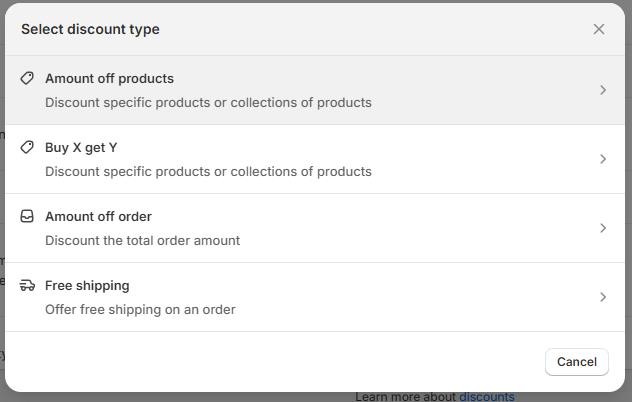
Go to Discounts → Create discount → Amount off products.
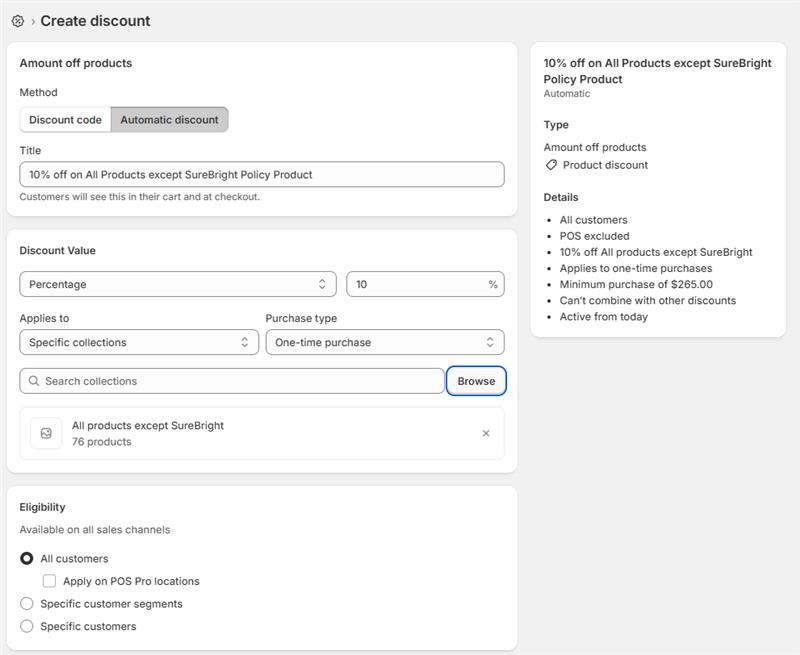
Under Applies to choose Specific collections and pick the collection you just made.
Finish and save
Set the value, dates and limits as usual and save. Repeat the Applies to step for every discount you create while the program runs.
To offer a discount on the plan itself, use Abandoned Cart Recovery, which issues single-use codes scoped to the plan.
Cart Validator#
The SureBright Cart Validator is a Shopify checkout rule that comes with the SUREBRIGHT - EXTENDED WARRANTY app. Switch it on and a plan cannot be bought on its own: checkout is blocked unless every plan in the cart goes with an eligible product in the same cart. This stops plans being bought by mistake, through a shared cart link or through a channel where the SureBright offer does not show.
You switch it on once under Settings > Checkout > Checkout rules. Enable the SureBright Cart Validator has the steps, the test and what to do if it misbehaves.
The plan products in your catalogue#
When your store is set up, SureBright adds products to your Shopify catalogue so that a plan can be added to the cart and paid for at your checkout like any other item. They can appear before you have switched anything on, because they are created at setup, before your offer goes live.
Do not edit, rename, delete, unpublish from the Online Store, or archive the plan products or their variants. The offer adds these exact variants to the cart, so a changed or missing variant means shoppers cannot buy that plan. You can safely fill in Cost per item for your own reporting, and mark the products Unlisted (see below).
Need the list of plan SKUs for an ERP or your accounts? Download it from the Merchant Portal: Download your plan SKUs. For step-by-step ERP guides (Acumatica, NetSuite, Dynamics 365, SAP Business One, Odoo), see Supported platforms.
Hide plan products from search and recommendations#
SureBright hides the plan products from your collection pages and hides the add-to-cart form on a plan product's own page. Your theme and other apps can still show them elsewhere: in storefront search, in "You may also like" recommendations, or in a review app's widgets.
Mark the plan products Unlisted
In Shopify admin open each plan product (vendor Surebright) and set its status to Unlisted. Unlisted products stay buyable, so the offer keeps working, but Shopify leaves them out of search, recommendations and collections.
Check your apps
If a review, search or recommendation app still shows them, exclude the vendor Surebright in that app's settings.
Check again after a theme change
A new theme can bring its own search and recommendation sections. After you publish one, search your storefront for "warranty" and look at the recommendations on a product page.
If a plan product still shows somewhere, tell support@surebright.com which page and which part of it.
Orders with a plan and no product#
An order that bought only a SureBright plan, often the cheapest one, with no product, is usually one of these: a shopper reaching the plan product through search or a shared link, or bots testing stolen cards on a low-priced item.
Can someone buy a plan for a product they do not own?#
On your registration page the shopper must enter a purchase date within your store's registration window, 30 days by default, and the plan is priced for that date. See Product registration. Every claim is then reviewed by SureBright before it is approved. See Claims overview. If you see registration purchases you do not recognise, send SureBright the order numbers.
Related#
Turning the app embed on and confirming it from the Merchant Portal.
App permissions, collaborator requests and SureBright staff accounts.
What each contract status means and how a contract moves between them.
See also: Checkouts with only a plan in them.