
Enable SureBright Cart Validator
Prevent unauthorized warranty purchases with built-in fraud protection by enabling the SureBright Cart Validator in your Shopify store.
Prevent Unauthorized Warranty Purchases with Built-in Fraud Protection#
The SureBright Cart Validator acts as a fraud prevention layer within your Shopify store, designed to block the purchase of warranty products through unauthorized or unintended channels.
Warranty plans are meant to be purchased alongside their corresponding products. However, in certain cases, customers may attempt to add and purchase warranty policies independently — leading to invalid coverage, operational challenges, and potential misuse.
To address this, SureBright establishes intelligent checkout validation rules that enforce correct purchase behavior.
Once enabled, the Cart Validator ensures that:
Warranty products cannot be purchased as standalone items
Each warranty policy is always tied to an eligible product in the cart
Invalid or suspicious checkout attempts are automatically blocked
By enforcing these rules at checkout, you not only maintain data integrity but also protect your store from misuse, ensuring that every warranty sold is valid and compliant.
Follow the steps below to enable this validation in your store.#
Open Settings
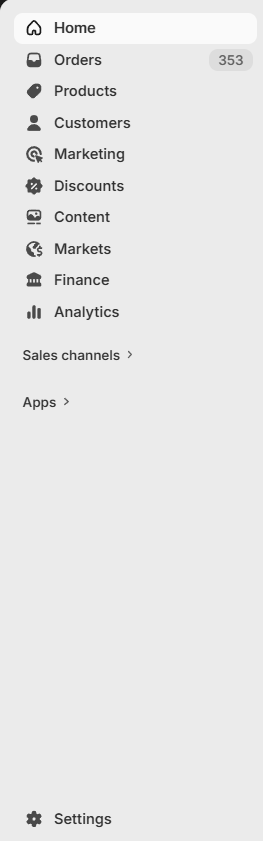
Navigate to your Shopify Admin dashboard and click on Settings from the bottom-left corner of the sidebar.
Navigate to Checkout Settings
In the Settings menu, click on Checkout from the left-hand navigation panel. Scroll down to the bottom of the page to locate the Checkout rules section.

Select the SureBright Cart Validator
In the Checkout rules section, click the Add rule button. A list of available checkout rule extensions will appear. Locate the SUREBRIGHT - EXTENDED WARRANTY section and click on sb-cart-validator to select it.

Configure the Rule
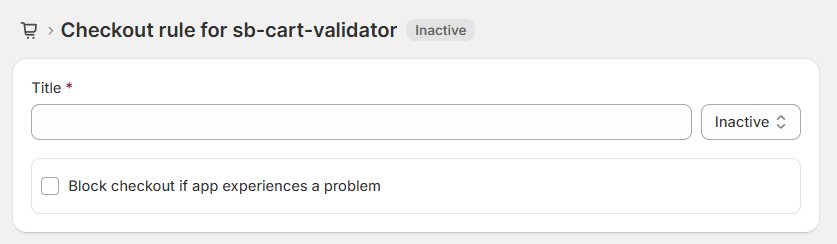
The Checkout rule for sb-cart-validator page will open with an Inactive status. Enter a Title for the rule. Leave the Block checkout if app experiences a problem option unchecked, so that orders are still processed even if the validation app encounters an issue.
Activate the Rule
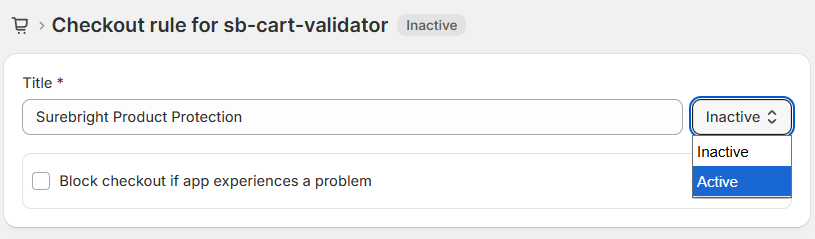
Click the status dropdown next to the Title field and change it from Inactive to Active.
Save the Changes
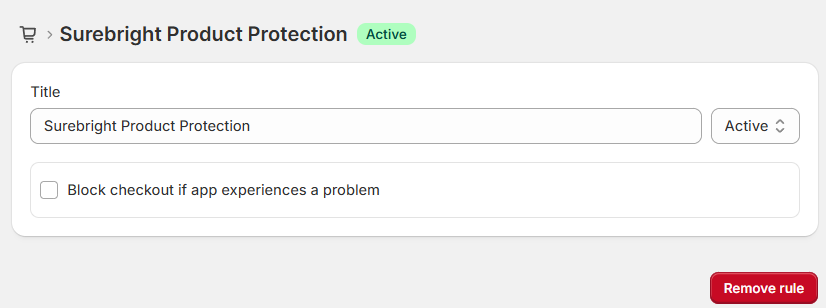
Click Save changes to apply the rule. Once saved, the page header will display the rule title with an Active status badge.
Verify the Setup
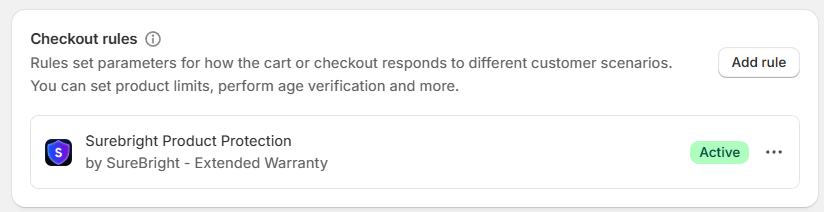
Navigate back to the Checkout rules section in your Checkout settings. The rule will now appear with an Active status badge. To confirm everything is working correctly, perform a test by completing a basic user journey through to the checkout page. Attempt to add a SureBright warranty product without its associated product to verify that the validation is triggered as expected.
If the cart validator app encounters an error, the checkout will still proceed normally as long as the "Block checkout if app experiences a problem" option is left unchecked. This ensures a seamless customer experience at all times.