
Over the Phone Sales using Draft Order Extension
This document describes how to use Shopify’s Draft Orders to record over the phone sales
A Draft Order in Shopify allows merchants to manually create orders for custom or over the phone sales outside the regular checkout process. It benefits merchants by providing personalized orders, flexible payment options, and the ability to review an invoice before payment. Draft orders reserve inventory, enabling quick adjustments like adding items or modifying quantities. They also allow for special discounts and act as quotations, offering transparency in pricing.
Sales Use Cases/ Scenarios#
We have listed the common scenarios/use cases below. Please feel free to directly jump to the scenario which is applicable to you.
Selling product and the warranty plan in one single order through Draft Orders
Selling a warranty plan for a customer who has already bought the product that he wants to cover using Shopify
Selling a warranty plan for the case when the customer had already bought the product but not on Shopify. Though the product is listed in your Shopify store.
Selling a warranty plan for the case when the customer had already bought the product but not on Shopify. Though the product is NOT listed on your Shopify store.
Prerequisite#
Installing SureBright Extension for Draft Orders#
Note: The SureBright Draft Order extension for Shopify requires permission to create draft orders.
Follow these steps to access the SureBright Draft Order extension:
Open any one of your existing draft orders or created orders.
If you don’t have an existing draft order, simply click on ‘Create order’ and add any product to it. Click ‘Save’ — only then will the next step become available.

On the order page, click on the More actions dropdown (located at the top of the page).
From the dropdown, select SureBright - Product Protection Draft Order.
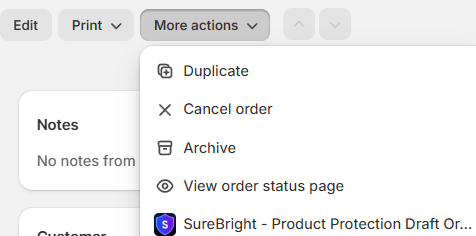
On first use, you will be redirected to a Shopify authentication screen for sharing necessary permissions. Please proceed with the same.
Once authenticated, the SureBright popup will open and you can begin adding warranty plans to your line items.
#
Sales Use Case 1: Selling a Product and Warranty Plan in a Single Order through Draft Orders#
You can create a draft order that sells both a product and its associated warranty plan in single transaction.
Create a New Draft Order
In your Shopify admin, go to Orders > Drafts > Create Order.
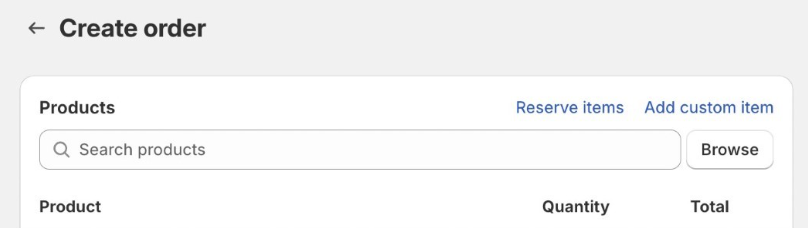
Add the Product
Search for the product by clicking “Browse” button and add it to the draft order.
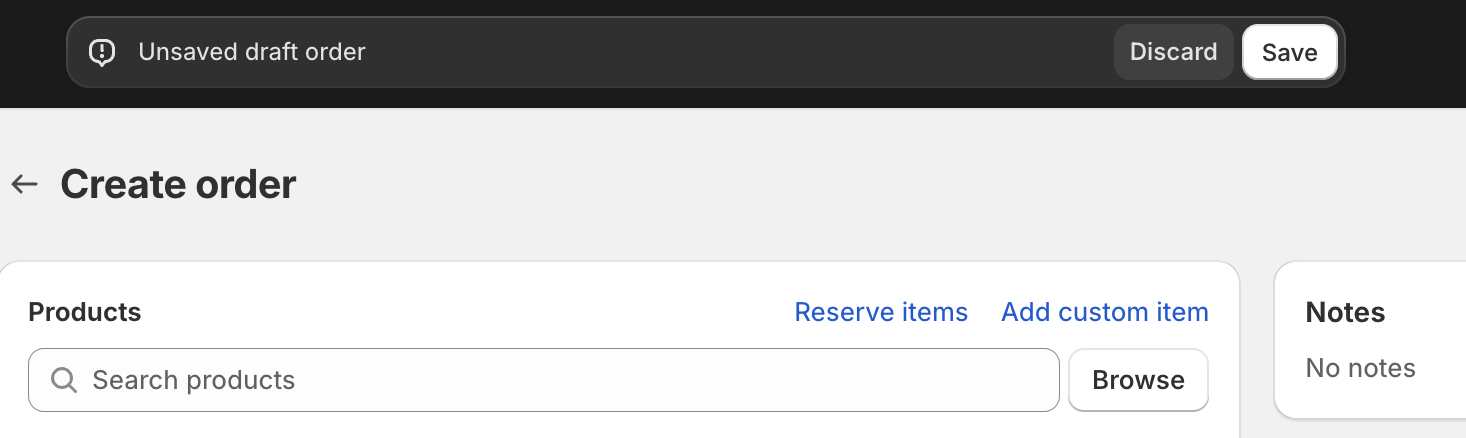
Save the Draft Order
Click Save on the top.
Add Warranty Plan
In the draft order page, click on the More actions dropdown (located at the top of the order page).
From the dropdown, select SureBright - Product Protection Draft Order.
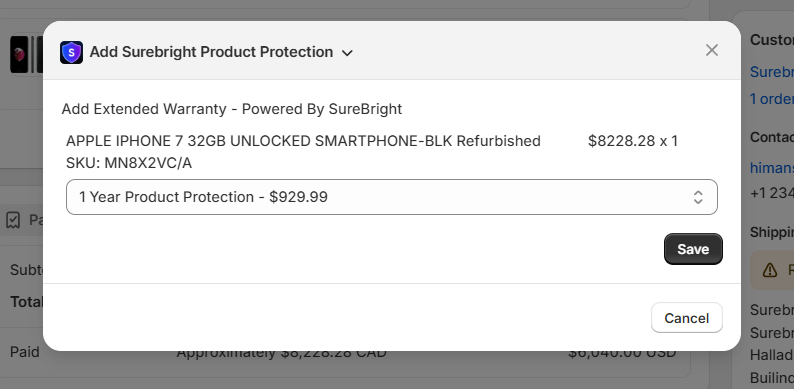
A popup will open. For the respective line items, select the appropriate warranty plan from the drop-down menu and click Save.
Complete the Draft Order:
Confirm the product and warranty are added.
Choose the payment method or send an invoice to the customer.
Fulfill the order once payment is completed.
Sales Use Case 2: Selling a Warranty Plan for a Customer Who Already Bought the Product via Shopify#
If a customer previously purchased a product from your Shopify store and now wants to buy a warranty:
Open the order page
Open Order page with the product sale for which policy is to be purchased.
Add the Warranty Plan
Click on the More actions dropdown and select SureBright - Product Protection Draft Order.
A popup will open. For the respective line items, select the appropriate warranty plan from the drop-down menu and click Save.
If the Product is Uncategorized
If the product has not been auto-categorized yet, the warranty options dropdown will display "No Extended Warranty Options Available".
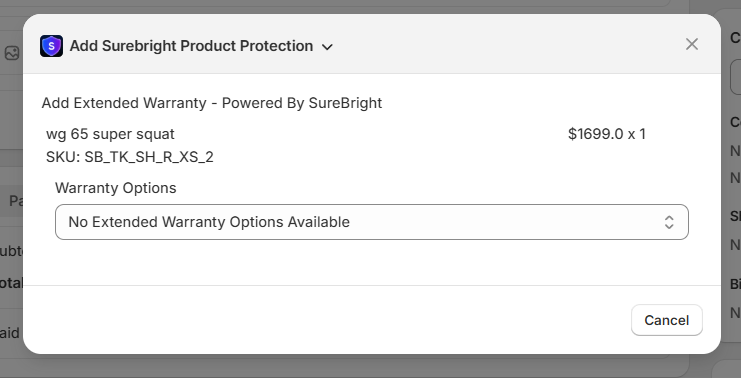
Click on the dropdown and select "No, I will categorize the product". A Select Category dropdown will appear below.
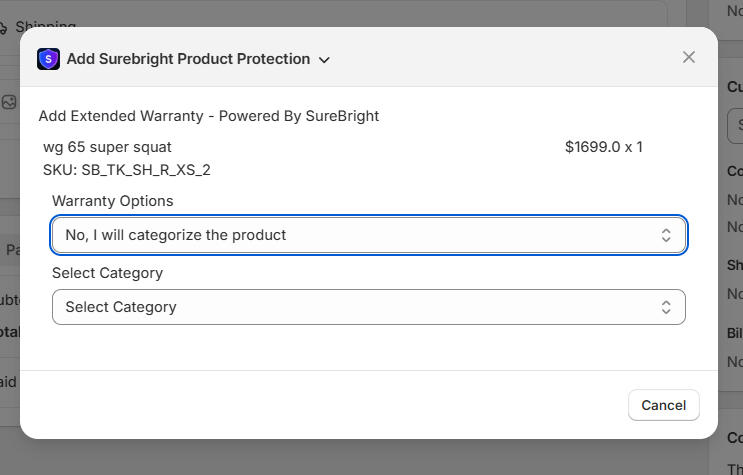
Choose the appropriate category for the product. A Fetch Quotes button will appear — click it to retrieve available warranty policies.
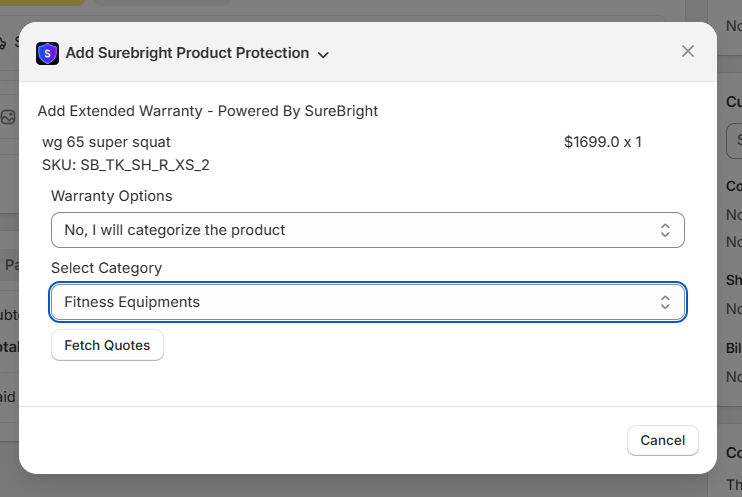
Once quotes are fetched, a Select Policy dropdown will appear.
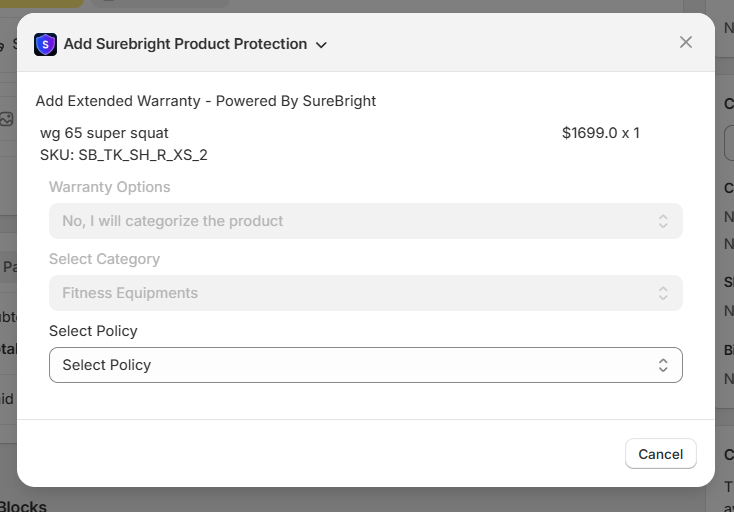
Choose your preferred warranty policy from the list and click Save to complete the process.
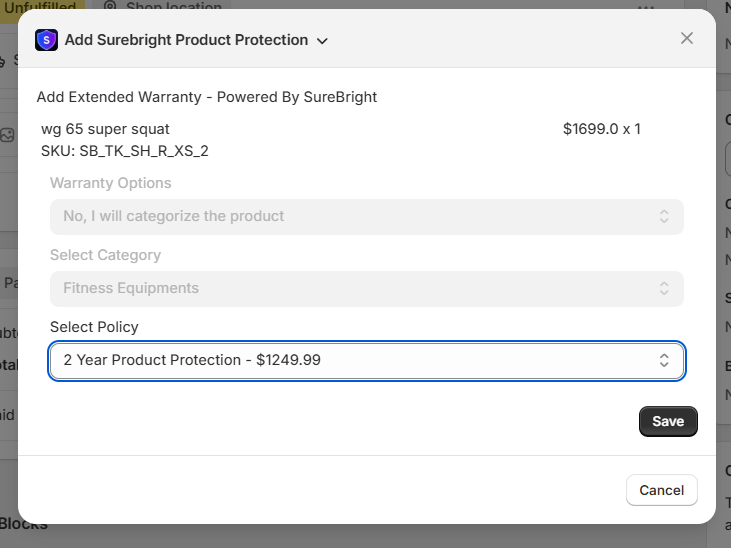
Complete the Draft Order
Set the payment terms or send an invoice.
Sales Use Case 3: Selling a Warranty Plan for a Customer Who Bought the Product Elsewhere, But It’s Listed in Your Shopify Store#
If a customer bought a product from another platform but the product is present in your Shopify store, you can still sell them a warranty plan.
Create a New Draft Order
In your Shopify admin, go to Orders > Drafts > Create Order.
Add the Product
Search for the product by clicking “Browse” button and add it to the draft order. You can add it for record-keeping purposes, even if they already own the product.
Save the Draft Order
Click Save on the top.
Add the Warranty Plan
Click on the More actions dropdown and select SureBright - Product Protection Draft Order.
Select Product Purchase Date
A popup will open prompting you to select the product purchase date. Click on Select Product Purchase Date to open the date picker.
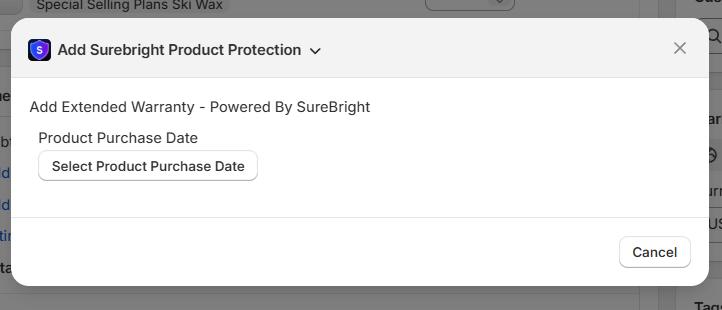
Choose Purchase Date
The date picker calendar will appear. Select the product purchase date.
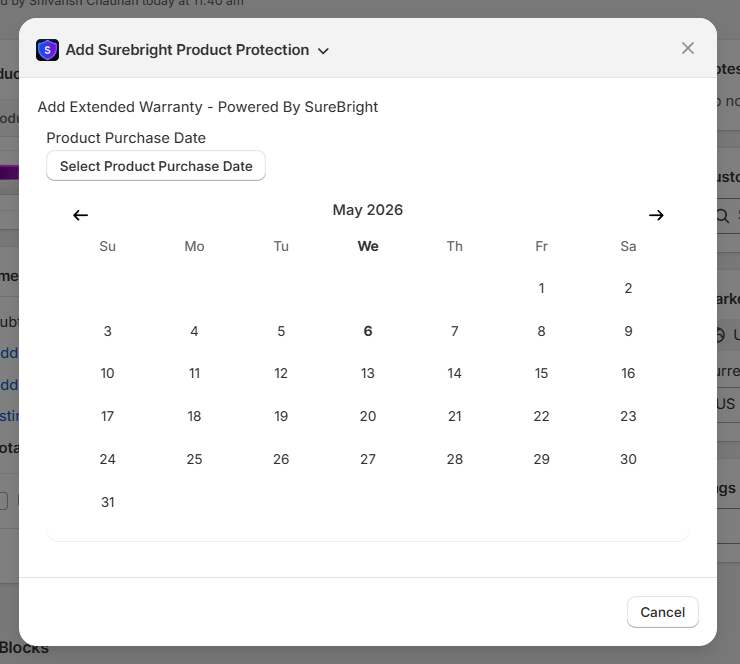
Once selected, the chosen date will be displayed. Click Next to proceed.
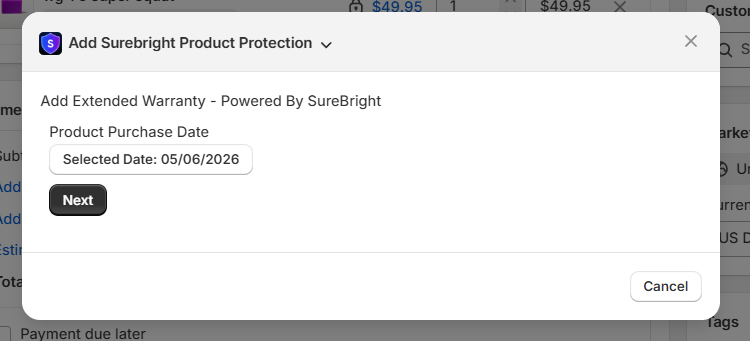
Select Warranty Plan
For the respective line items, select the appropriate warranty plan from the drop-down menu and click Save.
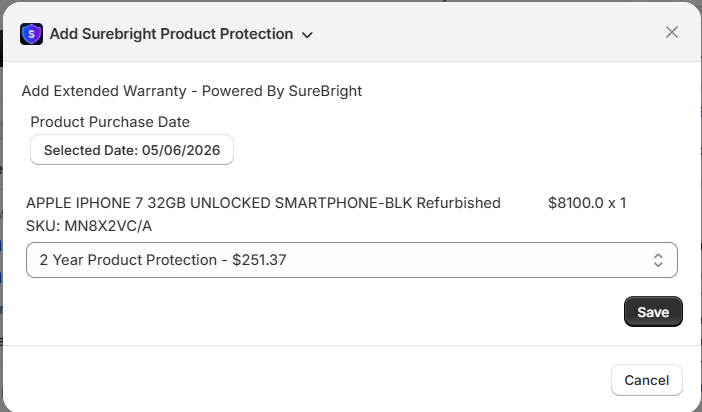
Remove previously purchased product/line item
The warranty will be added to the draft order alongside the product.
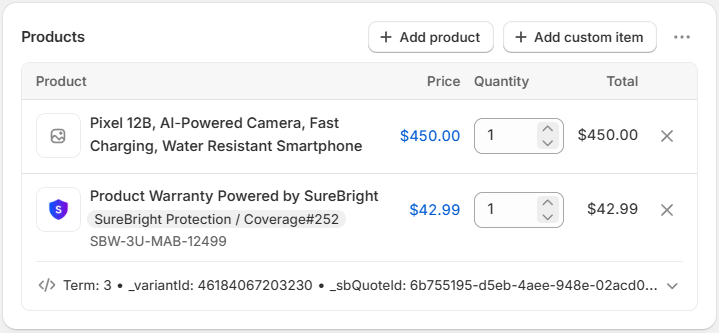
To remove the line item associated with the selected warranty, click on the ‘Delete’ icon next to the original product. (This step ensures the product is not purchased twice.)
Complete the Draft Order:
The bill will only contain the warranty for the associated product. Set the payment terms. Finalize and fulfill the order once the warranty payment is processed
Sales Use Case 4: Selling a warranty plan for the customer who bought the product outside Shopify, and the product SKU is not listed in your Shopify Store#
In cases where the product is not listed on your Shopify store, but a customer wants to buy a warranty for it:
Add Product SKU in your Shopify Store
If the product SKU selected is not present in your Shopify store, then add it in your Shopify store.
After adding SKU, please wait a few hours for auto-categorization to work. Only then will the policy options become visible. For immediate assistance, feel free to contact us at support@surebright.com.
Create a Draft Order
Navigate to Orders > Drafts > Create Order
Add the Product
Search for the product for which the warranty is to be selected by clicking Browse (which is listed on your Shopify store) and add it to the draft order.
You can add it for record-keeping purposes, even if they already own the product.
Save the Draft Order
Click Save on the top.
Add the Warranty Plan
Click on the More actions dropdown and select SureBright - Product Protection Draft Order.
Select Product Purchase Date
A popup will open prompting you to select the product purchase date. Click on Select Product Purchase Date to open the date picker.
Choose Purchase Date
The date picker calendar will appear. Select the product purchase date.
Once selected, the chosen date will be displayed. Click Next to proceed.
No Warranty Options Available
The system will show "No Extended Warranty Options Available" in the warranty options dropdown.
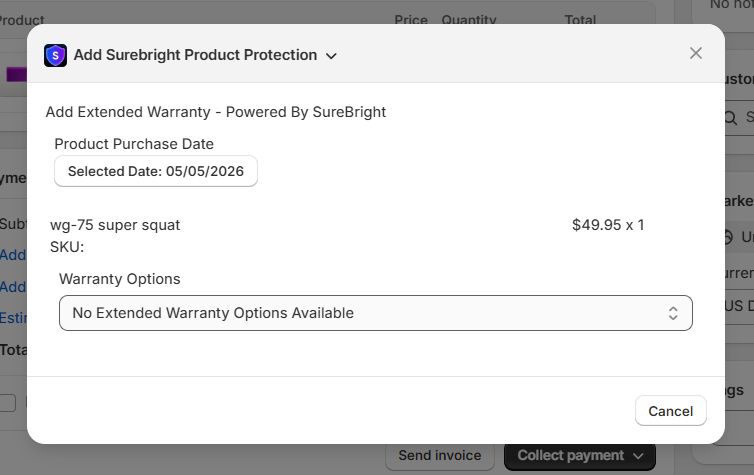
Select Categorization Option
Click on the dropdown and select "No, I will categorize the product" to enable manual categorization.
A Select Category dropdown will appear below.
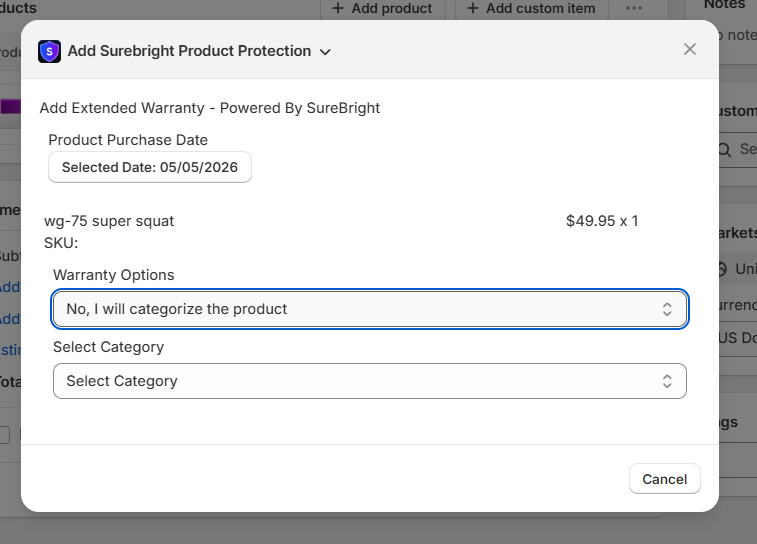
Category Selection & Fetch Quotes
Choose the appropriate category for your product from the available options.
After selecting the category, a Fetch Quotes button will appear. Click Fetch Quotes to retrieve available warranty policies for the selected category.
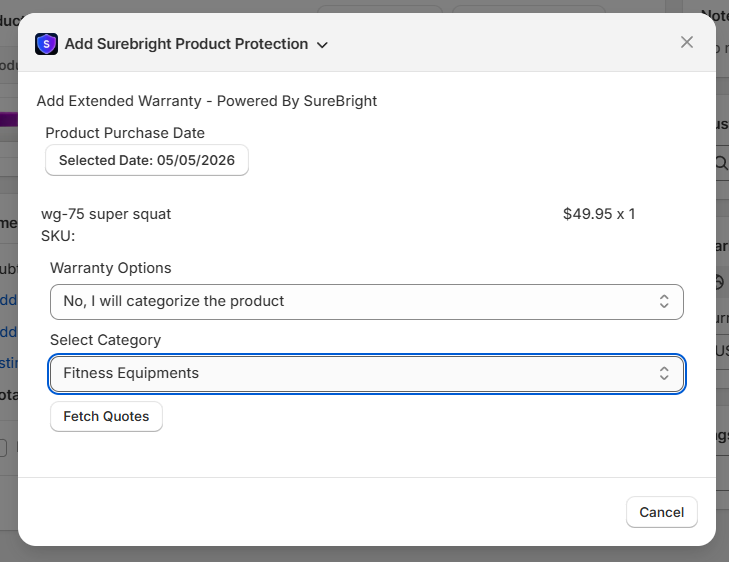
Select Policy
Once quotes are fetched, a Select Policy dropdown will appear.
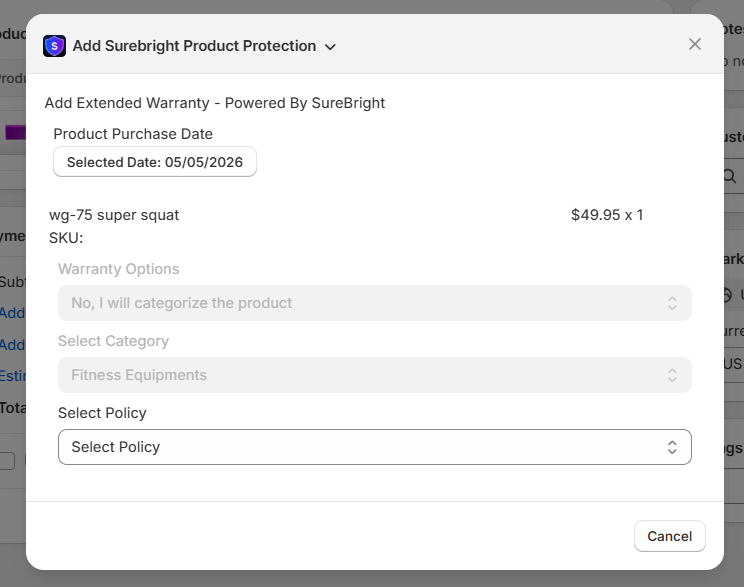
Choose your preferred warranty policy from the list and click Save to complete the process.
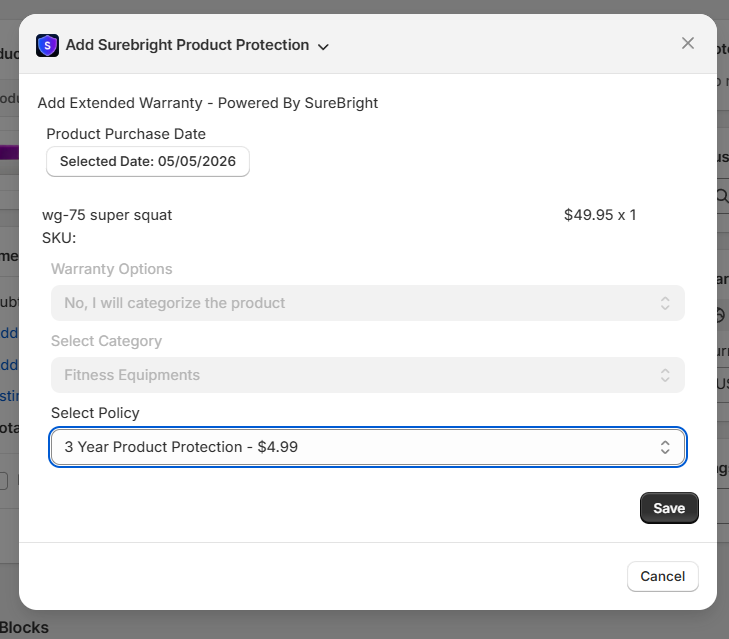
Remove previously purchased product/line item
The warranty will be added to the draft order alongside the product.
To remove the line item associated with the selected warranty, click on the ‘Delete’ icon next to the original product. (This step ensures the product is not purchased twice.)
Complete the Draft Order
Set the payment terms or send an invoice. Finalize and fulfill the order once the warranty payment is processed.
E-Commerce Platform Apps
Shopify
WooCommerce
BigCommerce
Shift4Shop
Brick and Mortar Store and Over the Phone Sales
Shopify POS
Lightspeed POS
Dedicated POS portal
Missed Point of Sales and Marketplace (e.g., Amazon) Sales
Dedicated Online Portal
QR Code-based warranty cross-selling
1-click checkout dynamic web links for retailer's post-purchase campaigns
Follow up email campaigns
Independent Websites
Integration via two simple APIs
Website widget