---
title: "Uninstall or reinstall SureBright on Wix"
description: "What happens when you remove the SureBright app from your Wix site, what is kept, and how a reinstall picks up where you left off."
---
Removing the SureBright app stops new plans being offered and sold on your Wix site. Plans already sold stay in force, and SureBright keeps your store, settings and contracts, so a reinstall picks up where you left off.
## Removing the app
SureBright has an element on your site (the offer on your product page), so Wix removes it from the **Editor**. If you start from **Apps > Manage Apps** in your Wix dashboard, Wix sends you to the Editor to finish.
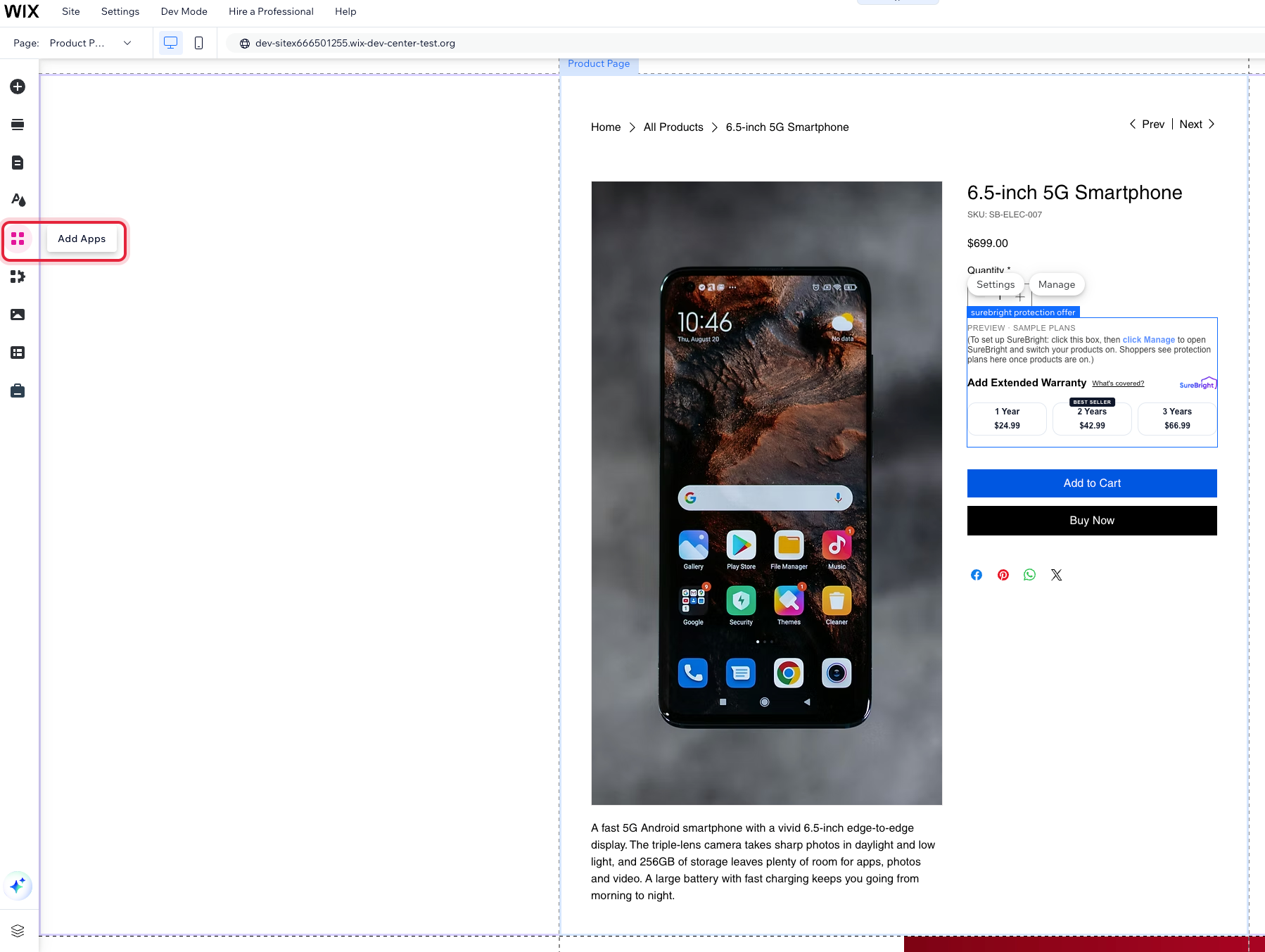
Open your site in the Wix Editor and click **Add Apps** in the left panel.
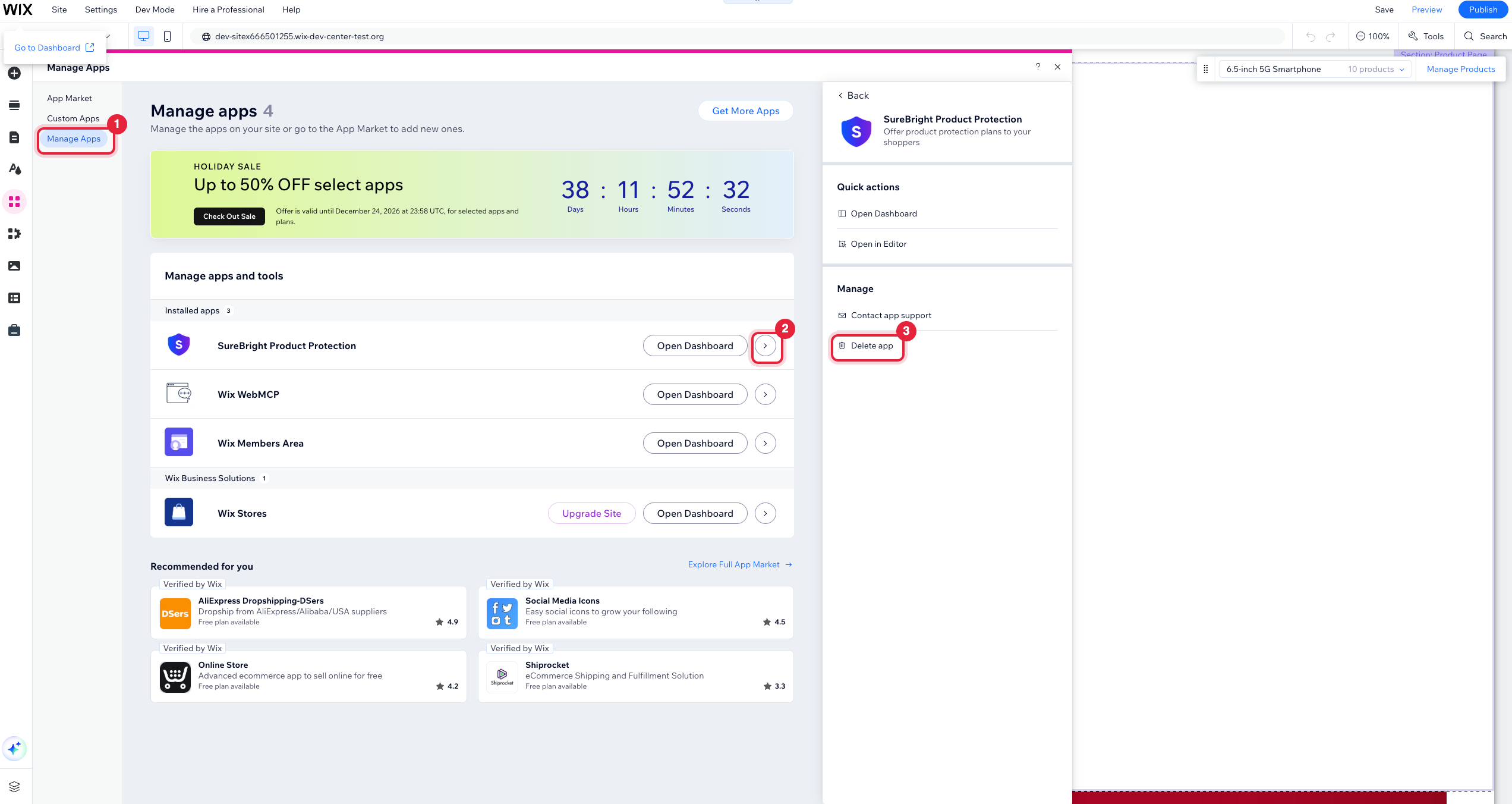
 In the panel that opens, click **Manage Apps** (1). Next to **SureBright Product Protection**, click the arrow (2), then **Delete app** (3).
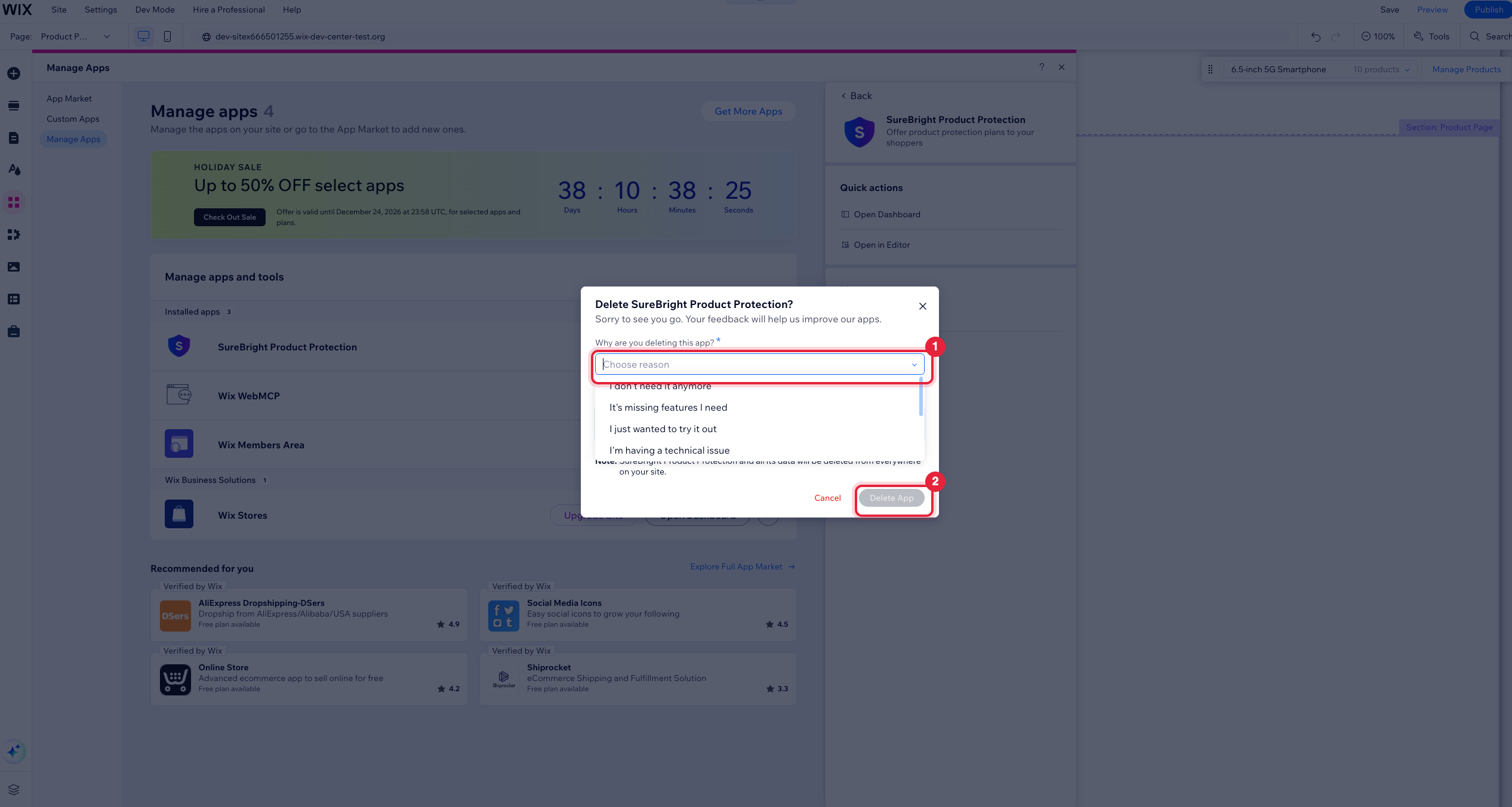
 In the window that opens, choose a reason (1) and click **Delete App** (2).
 Click **Publish** so the removal goes live.
When the app is removed:
- **The offer stops showing** on your product pages, and shoppers can no longer add plans to their carts.
- **Contracts already sold stay in force.** Your customers keep their cover and can still make claims.
- **Your SureBright records are kept**: your store, products, settings, contracts and billing details. Nothing is deleted.
- **SureBright stops reading your store.** It no longer receives your product changes or new orders.
Orders placed after the app is removed are not sent to SureBright, so no contracts are created for them.
If you only want to stop offering plans for a while, you do not need to remove the app. Ask your SureBright contact to switch the offer off for your store instead, or turn individual products off in the merchant portal. See [Pause or remove SureBright](/platforms/pause-or-remove).
## Reinstalling
Install **SureBright** on the same Wix site again. SureBright recognises the site and picks up your existing store instead of creating a new one:
Install **SureBright** on your site again, as you did the first time.
SureBright reconnects your existing store, keeps your offer design and settings (including which products are switched on), and copies your products again so any changes you made while the app was removed are picked up.
In the Editor, click the SureBright box, then **Manage** (or [open SureBright in your Wix dashboard](https://manage.wix.com/account/site-selector?actionUrl=https%3A%2F%2Fmanage.wix.com%2Fdashboard%2F%7BmetaSiteId%7D%2Fapp%2F34437ddf-6008-4e38-9988-395394e32b82)), and click **Open SureBright**. The first sign-in after a reinstall takes you through onboarding again, so you can check your payment method and products.
Click **Publish** in the Editor. The offer only appears on your live site again once you publish.
Your past contracts and reports are still in the merchant portal after a reinstall.