---
title: "Testing"
description: "Check on your SFCC storefront that shoppers see the SureBright offer on product pages, can add a plan to the cart and can check out with it."
---
Once everything is set up, check on your storefront that a shopper can see a plan, add it to the cart and check out with it.
- **What you get:** confidence that the offer, cart and checkout work before you go live.
- **What you do:** make sure the product catalogue has been exported and SureBright Product Protection is enabled on the product from the Merchant Portal, then run the checks below.
**Before you start**: complete the [Business Manager Setup](./business-manager-setup), [Configuration](./configuration), and [Jobs](./jobs) phases before running tests.
---
## See the offer on a product page
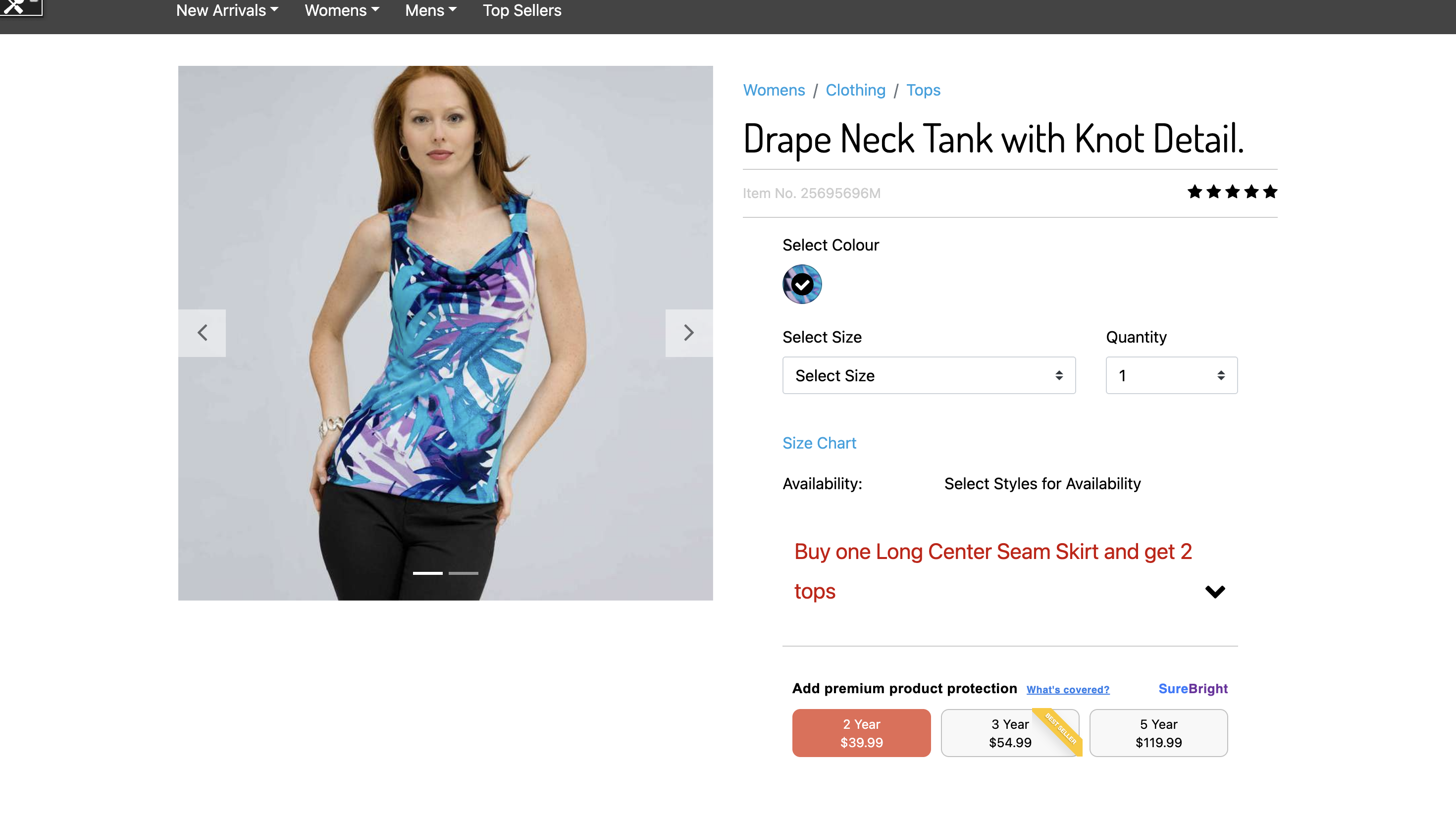
Go to any SureBright covered Simple or Variant Product and select a variant. The SureBright offering widget appears, with the plan options to choose from.
## Check the product page, cart and checkout
Run these in order on a test order. The expected result is what you should see when the integration works.
| Where | What to do | Expected result |
|---|---|---|
| Merchant Portal | After the **SureBright Products Export** job has run once, ask SureBright to confirm the sync | SureBright confirms your products were received. Only Simple and Variant Products that were online and in stock when the job ran are included |
| Product page | Open a covered product that was in the export and pick a variant | The SureBright offer appears with plan options and prices |
| Product page | Open a product that is offline, out of stock or not covered | No offer appears |
| Product page | Pick a plan and add the product to the cart | The product and the plan reach the cart together |
| Cart | Look at the plan line | The plan shows as its own line with its term and price, next to the product it covers |
| Checkout | Place the order | Checkout completes with the plan, and the order summary lists the plan line with its price |
| Merchant Portal | Wait for the **SureBright Orders Creation** job to run (hourly by default), then open **Sales** | The order and its plan appear, and the plan has become a contract |
| Customer email | Check the inbox of the email address on the order | The customer receives the plan confirmation email. See [Emails your customers receive](/customer-emails/overview) |
Not yet documented, so confirm with your SureBright contact before go-live: how the plan line is named and priced in the cart, whether a plan follows its product when the shopper changes quantity or removes the product, and how to keep a test order from being billed.
If a check fails, contact your SureBright representative for immediate assistance or email [support@surebright.com](mailto:support@surebright.com) for technical support.
**Next**: when every check passes, the integration is ready for production deployment. See the [FAQs](./faqs) for any questions.