---
title: "Brand Managed Campaign"
description: "Follow the steps below to configure a Klaviyo Flow that targets customers eligible for warranty upsell emails using your own email templates and messaging"
---
Access credentials must be shared and initial configuration steps completed as outlined in the [Klaviyo Integration Guide](/klaviyo-integration/integration-guide). Once setup is complete, you may proceed with this guide.
## Seamless Integration
To power these campaigns, SureBright automatically sends enriched customer and order data to your Klaviyo account once you have shared access as mentioned in integration guide. This includes:
- Warranty plan details
- Order and product information
- Coverage summary
- Personalized post-purchase journey links
This enables you to craft dynamic, timely, and relevant messages to drive conversions and enhance customer trust.
## Flow Configuration
### Overview
To engage customers with eligible warranty options, you'll set up a custom flow in Klaviyo based on SureBright's eligibility events. This involves:
- Creating a new flow tailored for warranty outreach.
- Selecting the specific **SureBright: Eligible Order** event as the trigger.
- Filtering the trigger to target only eligible orders.
- Designing email steps that leverage SureBright Event data for personalized messaging.
- Inserting dynamic links and details from the events to enhance relevance.
- Test the functionality end-to-end by creating an order with SureBright Warranty Eligible product.
All post-purchase emails must be approved by the SureBright team to ensure brand and compliance alignment.
### 1. Navigate to the Flow Builder
- Log in to your Klaviyo account.
- Go to **Flows** from the left-hand menu.
- Click [**Create Flow**](https://help.klaviyo.com/hc/en-us/articles/115002774932-Getting-Started-with-Flows).
- Choose **Build your own**, and name your flow something like `SureBright Post-Purchase Warranty`.
---
### 2. Set the Trigger
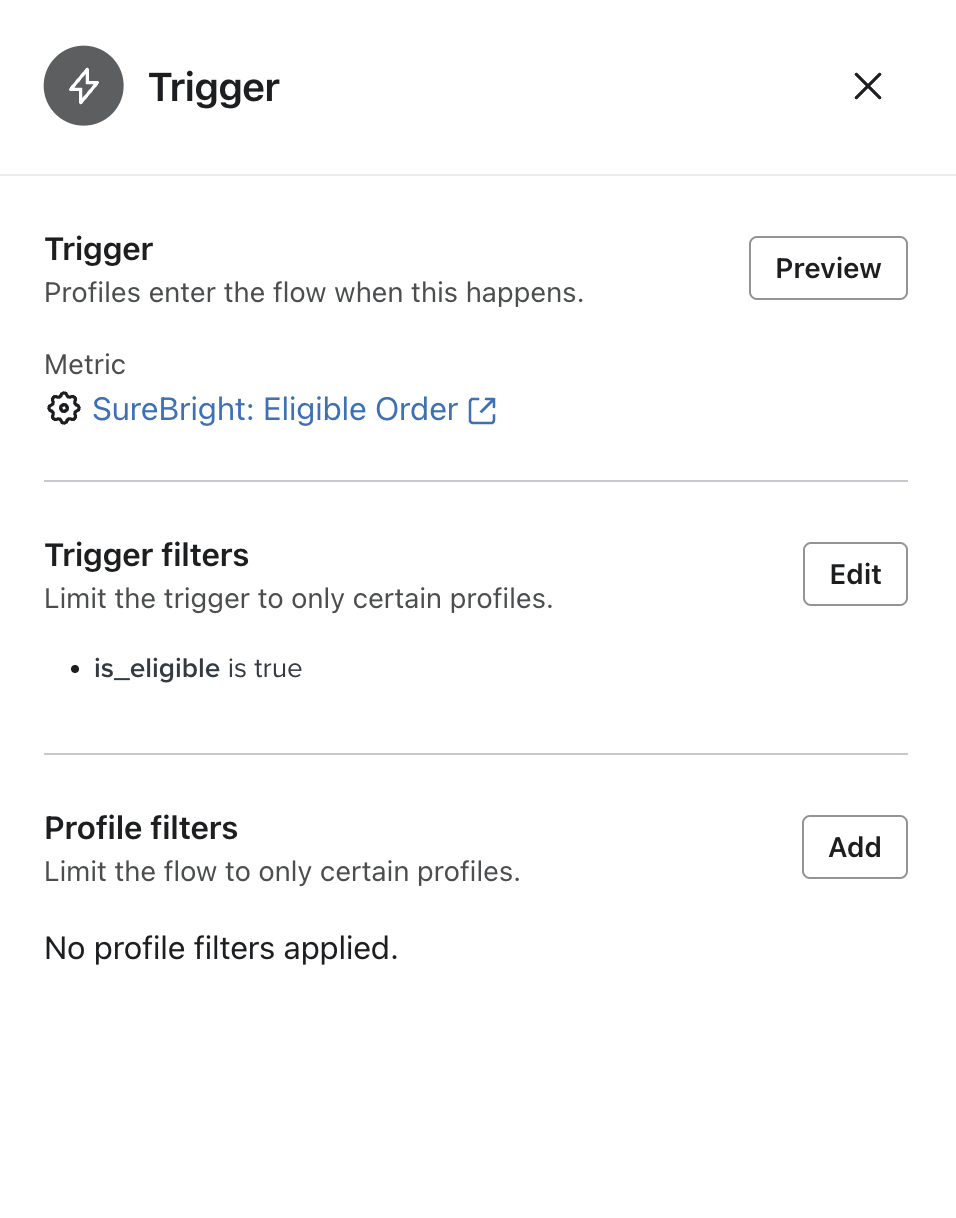
- For the **Trigger**, select **Metric**.
- In the dropdown, \*\*choose \*\*`SureBright: Eligible Order`.
_Do not use the generic "Placed Order" trigger—this will not capture warranty-eligible events._
---
### 3. Add a Trigger Filter
- After selecting the trigger, click **"Trigger Filters"**.
- Add a condition:
- **Field:** `is_eligible`
- **Condition:** `equals`
- **Value:** `true`
This ensures that only orders eligible for a post-purchase warranty offer are included.
---
 **4. Build Your Flow**
- Add your **email step(s)** to the flow as desired.
- Use **SureBright event data** to personalize your messaging.
### 5. Personalize Using Event Attributes
In your email content, you can dynamically insert values from the SureBright event payload. One key attribute to include is:
- `{{ event.post_purchase_url }}` – This is a unique, customer-facing link where protection plans can be directly purchased.
You can also use additional attributes like:
- `{{ event.order_id }}`
- `{{ event.product_title }}`
- `{{ event.coverage_options }}`
- `{{ event.person.first_name }}`
### 6. Submit for Review
Before activating the flow, please submit a preview or test email to the SureBright team for compliance review and approval.
## Event Details
### **Event - SureBright: Eligible Order**
This event is triggered when a customer purchases a product that is eligible for a SureBright warranty. Here are the attributes available to you in Klaviyo about SureBright eligibility on your store's orders:
Platform Order Id (Example: Shopify Order Id)
Total Order Amount
Currency code (Example: "USD")
Timestamp of order creation
URL of the merchant's logo
Url for SureBright's Logo
Name of the merchant
URL for post-purchase warranty actions
Title of the purchased product
Whether the order is warranty eligible
Indicates type of coverage
Coverage based dynamic title
Array of Coverage options provided with the warranty.
Icon for the particular coverage text
Coverage text
**Example Payload:**
```json SureBright: Eligible Order [expandable]
{
"order_id": "1234567890",
"order_amount": "199.99",
"currency": "USD",
"created_at": "2025-04-10T14:57:11.451046",
"merchant_logo_url": "https://yourstore.com/logo.png",
"merchant_name": "Your Store Name",
"post_purchase_url": "https://yourstore.com/?quoteLeadId=1234567890",
"product_title": "Sample Product Name",
"is_eligible": true,
"coverage_type": "AD",
"coverage_option_title": "Your Accidental Damage Protection Plan ensures:",
"coverage_options": [
{
"icon_url": "https://cdn.example.com/icons/damage.png",
"text": "Protection against unforeseen damage such as drops, spills, and falls."
},
{
"icon_url": "https://cdn.example.com/icons/breakdown.png",
"text": "Coverage for mechanical and electrical breakdowns, including power surges."
},
{
"icon_url": "https://cdn.example.com/icons/repair.png",
"text": "Full coverage for parts, labor, and repairs."
},
{
"icon_url": "https://cdn.example.com/icons/wear.png",
"text": "Protection against wear and tear impacting functionality."
},
{
"icon_url": "https://cdn.example.com/icons/replace.png",
"text": "If it can't be repaired, it will be replaced."
}
]
}
```
### **Event - SureBright: Policy Purchased**
This event is triggered when a customer successfully purchases a warranty for their product. Most merchants use this event to stop further warranty marketing once coverage has been bought.
Here are the attributes available in Klaviyo when a policy is purchased:
Platform Order Id (Example: Shopify Order Id)
Unique identifier for the SureBright warranty contract
Title of the product covered by the warranty
Duration of the warranty coverage (e.g., 1 year, 2 years)
Price paid by the customer for the warranty
Timestamp when the warranty was purchased
Type of warranty coverage (e.g., AD for Accidental Damage, B for Breakdown)
**Example Payload:**
```json SureBright: Policy Purchased [expandable]
{
"order_id": "1234567890",
"contract_id": "4efcf6ce8f7b465da14fe1d65c64dsd",
"product_title": "Sample Product Title",
"policy_tenure": "1 year",
"policy_price": "29.99",
"warranty_purchase_date": "2025-04-10T15:00:41.301007",
"coverage_type": "AD"
}
```
## Implementation Use Cases
### SureBright: Eligible Order
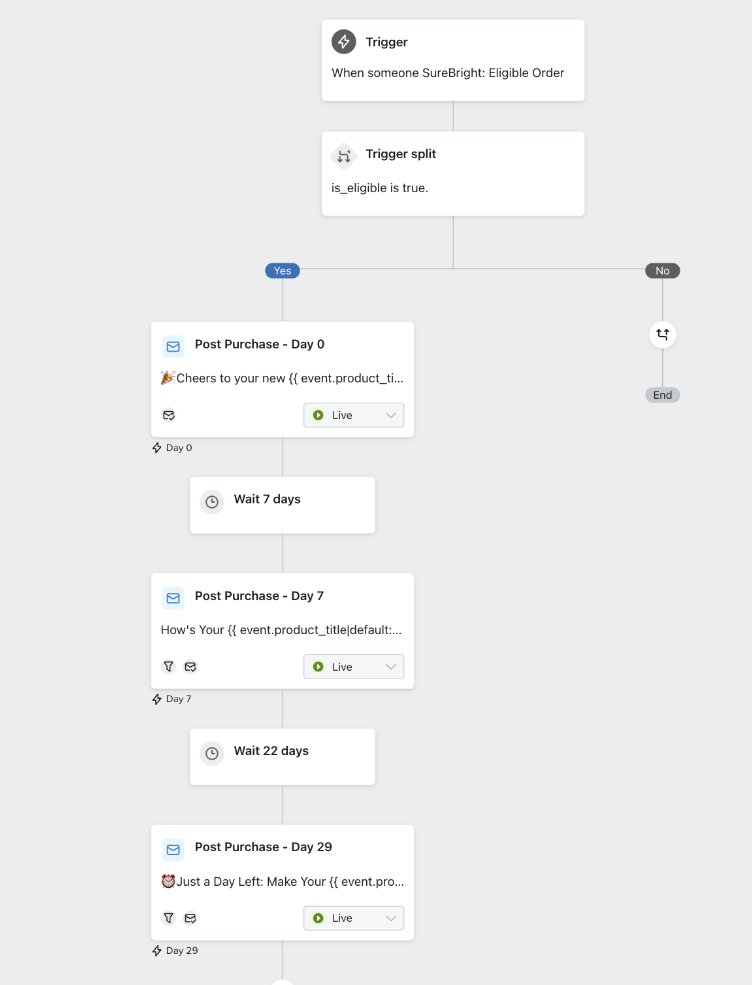
Use this event to drive engagement and conversion among customers who didn't buy a warranty at checkout:
- **Timed Drip Flows:** Create flows that trigger based on time elapsed since purchase, nudging non-buyers at key intervals.
- **Follow-up Campaigns:** Send reminder emails prompting customers to purchase protection for eligible products.
- **Direct to Purchase:** Use the `post_purchase_url` to guide customers to a pre-filled, personalized warranty offer page.
### SureBright: Policy Purchased
Leverage this event to build customer trust and extend your brand experience post-purchase:
- **Acknowledge and Appreciate Your Customers:** Brand's customized thank-you message.
- **Stop further communications:** Scheduled communications can be terminated based on this event.
## Flow Example
## Best Practices
Ensure your campaign delivers maximum value and conversion by following these recommendations:
- **Dynamic Personalization:** Use attributes like `product_title`, `coverage_type`, and `policy_price` to tailor messaging.
- **Contextual Journeys:** Differentiate your flows based on warranty type—e.g., breakdown vs. accidental damage—to increase relevance.
### FAQs
Event Data from SureBright begins flowing into Klaviyo only after the integration is enabled. This means that any historical SureBright Data—captured prior to activation—will not be available within Klaviyo.
Once SureBright has completed the configuration on your account, the relevant events (e.g., SureBright: Eligible Order, SureBright: Policy Purchased) and associated data will appear in Klaviyo. If you've already shared access but still don't see the events, please wait for confirmation from the SureBright team or contact support for an update.
## [****](https://surebrighttechnologiesinc.mintlify.app/klaviyo-integration/klaviyoIntegrationGuide#implementation-use-cases)Support
Need help with setup or strategy? Reach out to your **SureBright Representative**, email us at [support@surebright.com](mailto:support@surebright.com), or your **Klaviyo account manager** for hands-on support.
**4. Build Your Flow**
- Add your **email step(s)** to the flow as desired.
- Use **SureBright event data** to personalize your messaging.
### 5. Personalize Using Event Attributes
In your email content, you can dynamically insert values from the SureBright event payload. One key attribute to include is:
- `{{ event.post_purchase_url }}` – This is a unique, customer-facing link where protection plans can be directly purchased.
You can also use additional attributes like:
- `{{ event.order_id }}`
- `{{ event.product_title }}`
- `{{ event.coverage_options }}`
- `{{ event.person.first_name }}`
### 6. Submit for Review
Before activating the flow, please submit a preview or test email to the SureBright team for compliance review and approval.
## Event Details
### **Event - SureBright: Eligible Order**
This event is triggered when a customer purchases a product that is eligible for a SureBright warranty. Here are the attributes available to you in Klaviyo about SureBright eligibility on your store's orders:
Platform Order Id (Example: Shopify Order Id)
Total Order Amount
Currency code (Example: "USD")
Timestamp of order creation
URL of the merchant's logo
Url for SureBright's Logo
Name of the merchant
URL for post-purchase warranty actions
Title of the purchased product
Whether the order is warranty eligible
Indicates type of coverage
Coverage based dynamic title
Array of Coverage options provided with the warranty.
Icon for the particular coverage text
Coverage text
**Example Payload:**
```json SureBright: Eligible Order [expandable]
{
"order_id": "1234567890",
"order_amount": "199.99",
"currency": "USD",
"created_at": "2025-04-10T14:57:11.451046",
"merchant_logo_url": "https://yourstore.com/logo.png",
"merchant_name": "Your Store Name",
"post_purchase_url": "https://yourstore.com/?quoteLeadId=1234567890",
"product_title": "Sample Product Name",
"is_eligible": true,
"coverage_type": "AD",
"coverage_option_title": "Your Accidental Damage Protection Plan ensures:",
"coverage_options": [
{
"icon_url": "https://cdn.example.com/icons/damage.png",
"text": "Protection against unforeseen damage such as drops, spills, and falls."
},
{
"icon_url": "https://cdn.example.com/icons/breakdown.png",
"text": "Coverage for mechanical and electrical breakdowns, including power surges."
},
{
"icon_url": "https://cdn.example.com/icons/repair.png",
"text": "Full coverage for parts, labor, and repairs."
},
{
"icon_url": "https://cdn.example.com/icons/wear.png",
"text": "Protection against wear and tear impacting functionality."
},
{
"icon_url": "https://cdn.example.com/icons/replace.png",
"text": "If it can't be repaired, it will be replaced."
}
]
}
```
### **Event - SureBright: Policy Purchased**
This event is triggered when a customer successfully purchases a warranty for their product. Most merchants use this event to stop further warranty marketing once coverage has been bought.
Here are the attributes available in Klaviyo when a policy is purchased:
Platform Order Id (Example: Shopify Order Id)
Unique identifier for the SureBright warranty contract
Title of the product covered by the warranty
Duration of the warranty coverage (e.g., 1 year, 2 years)
Price paid by the customer for the warranty
Timestamp when the warranty was purchased
Type of warranty coverage (e.g., AD for Accidental Damage, B for Breakdown)
**Example Payload:**
```json SureBright: Policy Purchased [expandable]
{
"order_id": "1234567890",
"contract_id": "4efcf6ce8f7b465da14fe1d65c64dsd",
"product_title": "Sample Product Title",
"policy_tenure": "1 year",
"policy_price": "29.99",
"warranty_purchase_date": "2025-04-10T15:00:41.301007",
"coverage_type": "AD"
}
```
## Implementation Use Cases
### SureBright: Eligible Order
Use this event to drive engagement and conversion among customers who didn't buy a warranty at checkout:
- **Timed Drip Flows:** Create flows that trigger based on time elapsed since purchase, nudging non-buyers at key intervals.
- **Follow-up Campaigns:** Send reminder emails prompting customers to purchase protection for eligible products.
- **Direct to Purchase:** Use the `post_purchase_url` to guide customers to a pre-filled, personalized warranty offer page.
### SureBright: Policy Purchased
Leverage this event to build customer trust and extend your brand experience post-purchase:
- **Acknowledge and Appreciate Your Customers:** Brand's customized thank-you message.
- **Stop further communications:** Scheduled communications can be terminated based on this event.
## Flow Example

## Best Practices
Ensure your campaign delivers maximum value and conversion by following these recommendations:
- **Dynamic Personalization:** Use attributes like `product_title`, `coverage_type`, and `policy_price` to tailor messaging.
- **Contextual Journeys:** Differentiate your flows based on warranty type—e.g., breakdown vs. accidental damage—to increase relevance.
### FAQs
Event Data from SureBright begins flowing into Klaviyo only after the integration is enabled. This means that any historical SureBright Data—captured prior to activation—will not be available within Klaviyo.
Once SureBright has completed the configuration on your account, the relevant events (e.g., SureBright: Eligible Order, SureBright: Policy Purchased) and associated data will appear in Klaviyo. If you've already shared access but still don't see the events, please wait for confirmation from the SureBright team or contact support for an update.
## [****](https://surebrighttechnologiesinc.mintlify.app/klaviyo-integration/klaviyoIntegrationGuide#implementation-use-cases)Support
Need help with setup or strategy? Reach out to your **SureBright Representative**, email us at [support@surebright.com](mailto:support@surebright.com), or your **Klaviyo account manager** for hands-on support.