---
title: "Channels and connected tools"
description: "Choose who sends your abandoned-cart follow-up emails, connect Klaviyo, Omnisend or a webhook, test the connection, and see the events your tool can build automations on."
---
By default SureBright sends every abandoned-cart offer as a Shopify invoice email, as described in [Abandoned Cart Recovery](/abandoned-cart-guide/abandoned-cart). If you already email shoppers from your own tool, you can have that tool send the offers instead. SureBright still finds the cart, picks the plan and, when the follow-up carries a discount, creates the single-use code. Your tool sends the message with your design, your sending domain and your reporting.
You set this up in the Merchant Portal under **Abandoned Cart → Messages → Connected tools**, on stores where Abandoned Cart is switched on.
## Who sends your follow-up emails
The first card asks **Who sends your abandoned-cart follow-up emails?**
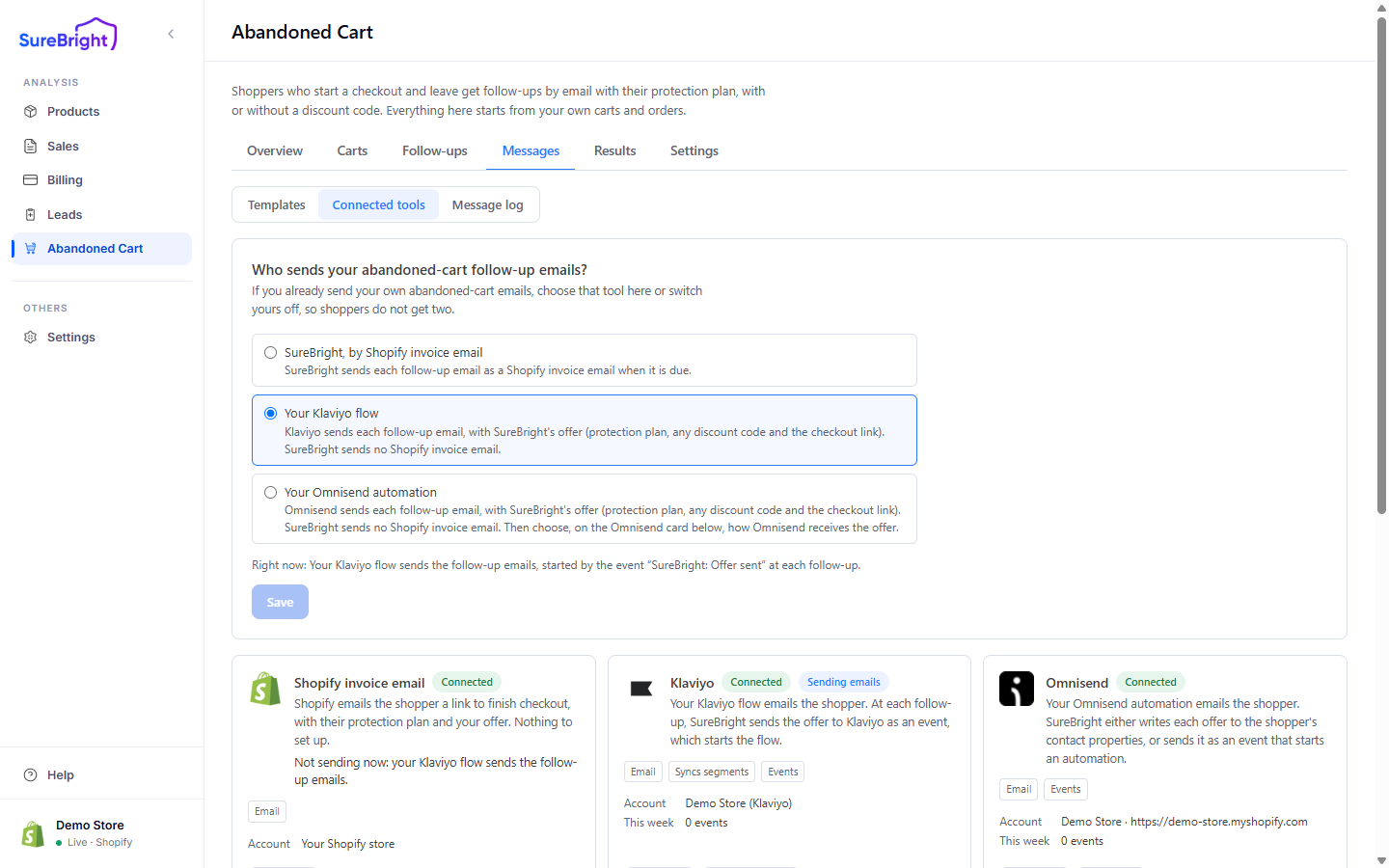
| Choose | What happens |
|---|---|
| **SureBright, by Shopify invoice email** | SureBright sends each follow-up as a Shopify invoice email when it is due. Nothing to set up |
| **Your Klaviyo flow** | Each follow-up reaches your Klaviyo account as the event **SureBright: Offer sent**, which starts your flow. Connect Klaviyo first |
| **Your Omnisend automation** | SureBright adds the offer to the shopper's Omnisend contact, or sends the same event. You choose which on the Omnisend card. Connect Omnisend first |
Press **Save** after choosing. If you disconnect the tool that sends your follow-up emails, no follow-up email goes out until you choose a sender again.
If you keep your own abandoned-cart emails running, choose your tool here or switch yours off, so shoppers do not get two emails. When your Klaviyo flow or Omnisend automation sends them, a **Right now:** line under the choice says how offers reach shoppers. Your tool gets offers automatically only while automatic follow-ups are switched on; an offer you send from a cart still goes to it (see [Automatic follow-ups](/abandoned-cart-guide/automatic-follow-ups)). If SureBright finds live Klaviyo flows that already email abandoned carts, it lists them here, so you can avoid two emails.
## What each connected tool does
| Tool | What it does for you | What you need |
|---|---|---|
| **Shopify invoice email** | Shopify emails the shopper a checkout link with their protection plan and your offer | Nothing |
| **Klaviyo** | Your flow emails the shopper. SureBright sends events while your Klaviyo flow sends your follow-up emails, and can keep your segments as Klaviyo lists | A **Private API key** with **Events: Full access** (required); **Accounts**, **Flows** and **Metrics: Read-only**; **Lists** and **Profiles: Full access** only if you sync segments; **Campaigns** and **Templates: Full access** only if you send campaigns |
| **Omnisend** | Your automation emails the shopper. SureBright sends events or adds the offer to the contact | An **API key** from Omnisend's store settings, with access to Contacts, and to Events if Omnisend gets the offer as an event |
| **Webhook** | SureBright posts each event to a web address you own, for Zapier, Make or your own system | An https **Endpoint URL** that answers with a success response |
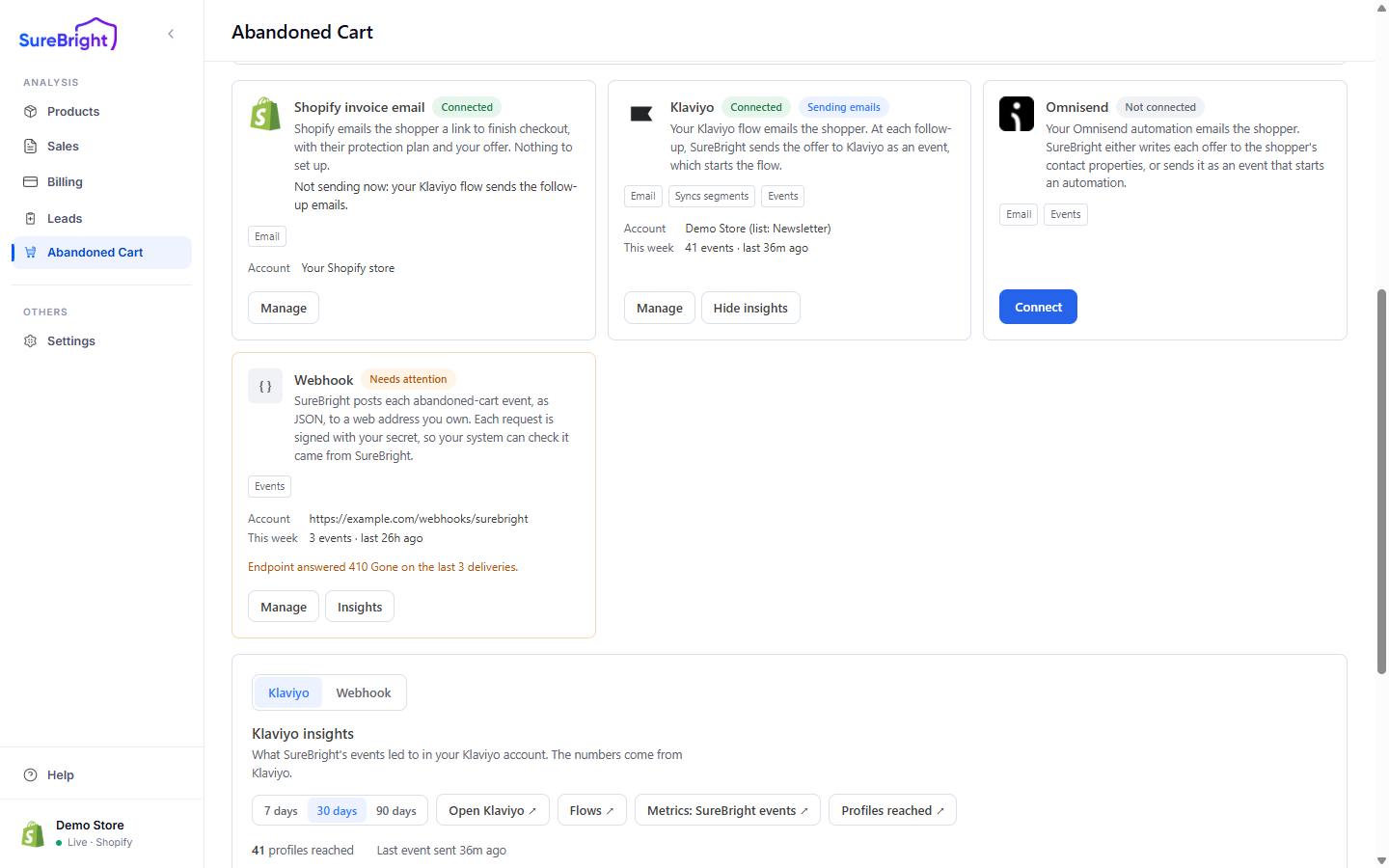
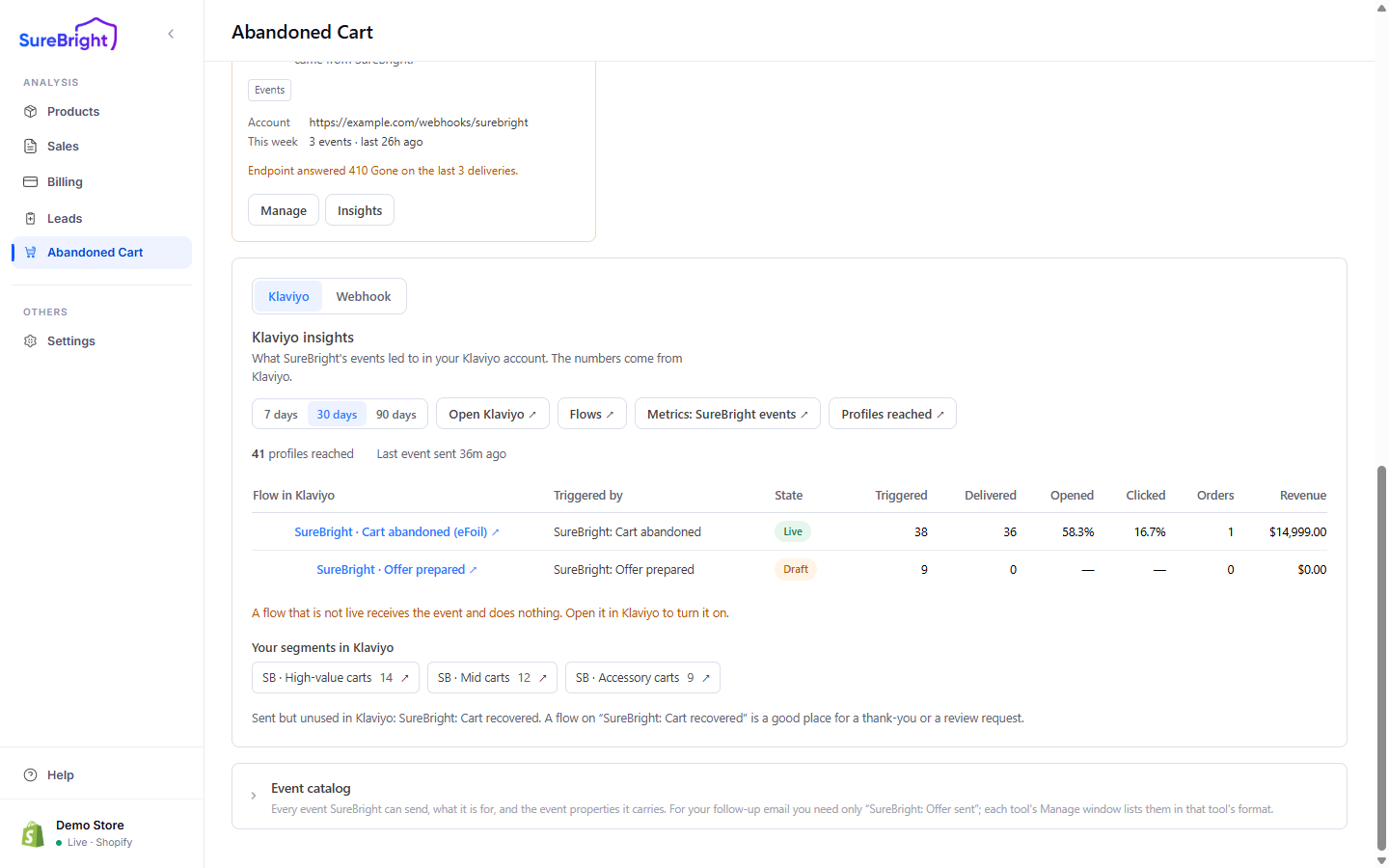
Each card shows the tool's status (**Connected**, **Not connected**, **Needs attention**) and the account it is connected as. Once connected, an **Insights** section lists the flows in your tool triggered by SureBright events in the last 7, 30 or 90 days with **Triggered**, **Delivered**, **Opened**, **Clicked**, **Orders** and **Revenue**, using the tool's own numbers.
## Connect a tool
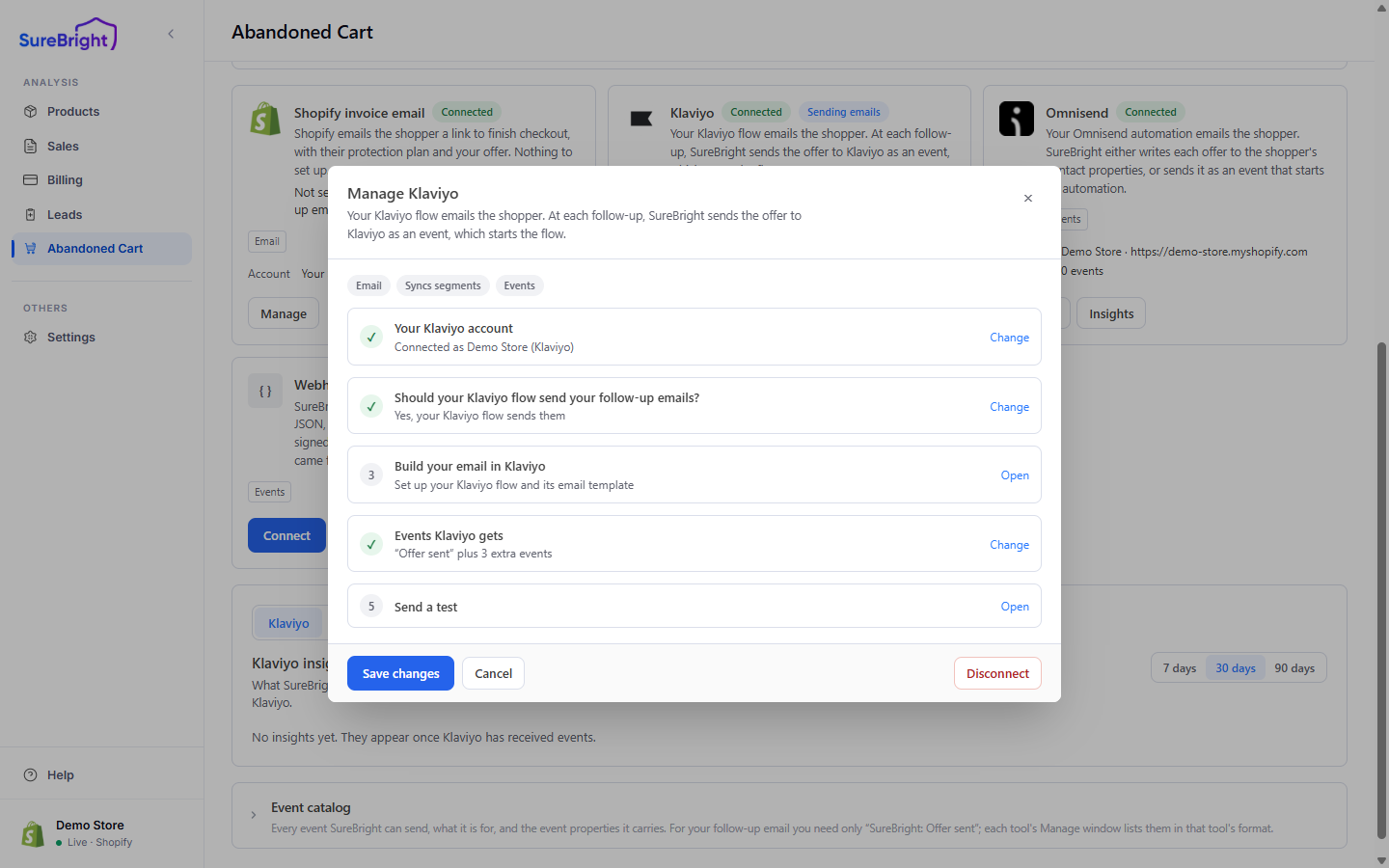
**Manage** on a connected tool's card opens its window, with each step and a tick once it is done.
Press **Connect** on the tool's card, paste the key or endpoint URL and follow **Where to find it in** the tool.
Klaviyo's window asks **Should your Klaviyo flow send your follow-up emails?** Answer **Yes, my Klaviyo flow sends them** to make it the sender. For Omnisend, choosing how it gets the offer makes it the sender; see [How Omnisend gets the offer](#how-omnisend-gets-the-offer) below. You can change this later under **Who sends your abandoned-cart follow-up emails?**
For Klaviyo, and Omnisend with **Send as event**, **SureBright: Offer sent** is always on: it starts your follow-up email. Tick an optional extra event only if you will build a flow on it. For the Webhook, tick the events you want posted.
With customer segments on, **Keep your segments in Klaviyo** turns each enabled segment into a Klaviyo list named **SB · segment name**, updated every hour while Klaviyo sends your follow-up emails. Its key needs Lists and Profiles full access.
Press **Connect Klaviyo**, **Connect Omnisend** or **Connect Webhook** at the bottom of the window. Connecting sends nothing to shoppers.
Open the tool's window again with **Manage**. **Send a test** (button **Send test**) sends one **SureBright: Offer sent** event (Klaviyo, Omnisend's event path) or **SureBright: Offer prepared** event (Webhook) for an email address you enter, so the event appears in the tool. When Omnisend gets the offer on the contact, this step is **Try it on a contact** instead. Save changes first so the test runs the way you just chose.
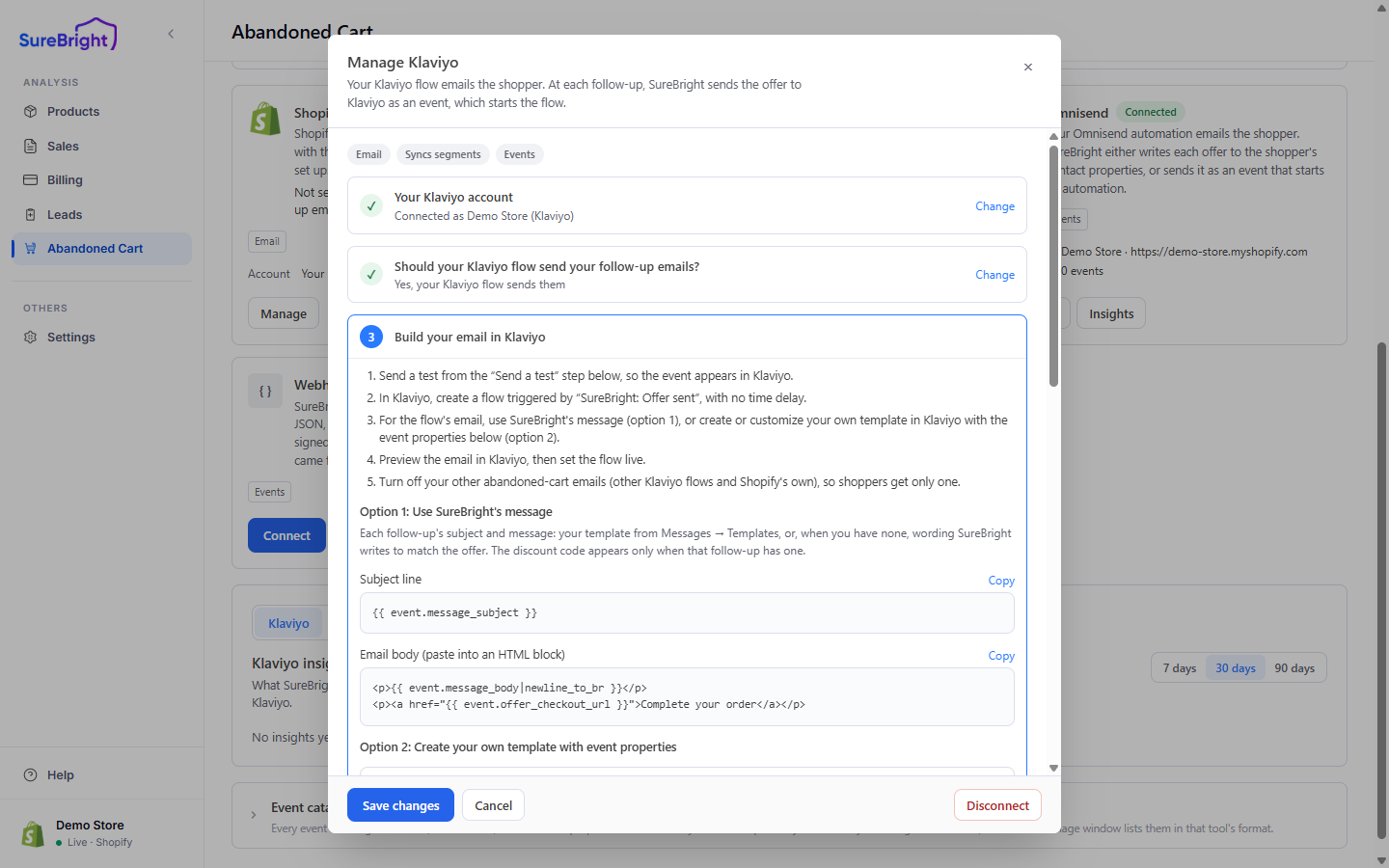
In Klaviyo's window, **Build your email in Klaviyo** lists the steps to build the flow on **SureBright: Offer sent**, the subject line and email body to paste, and every event property you can use in your own template.
### Connect a webhook
Press **Connect** on the **Webhook** card to open **Connect Webhook**. SureBright posts each abandoned-cart event, as JSON, to a web address you own.
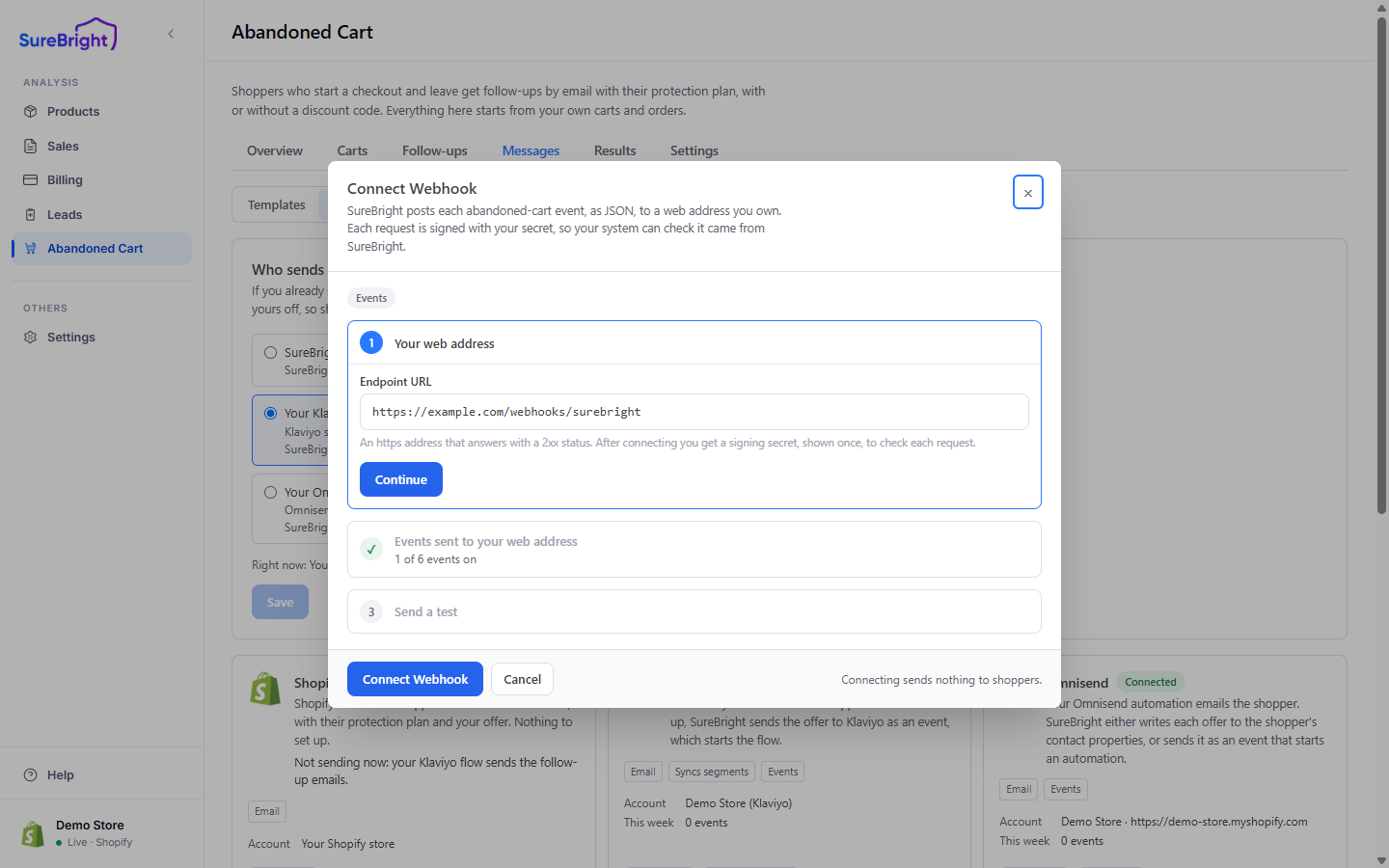
1. **Your web address**: paste your https **Endpoint URL** and press **Continue**. It must answer with a success (2xx) response.
2. **Events sent to your web address**: tick the events you want posted.
3. Press **Connect Webhook**. Connecting sends nothing to shoppers.
4. **Send a test** opens once you are connected: it posts one sample event so you can check your endpoint receives it.
After you connect, a signing secret is shown **once**, so copy it then. If it is lost, **Replace secret** in the webhook's window makes a new one. Give it to your developer so your endpoint can check that each request came from SureBright. The request format is on [Notifications and webhooks](/api-reference/notifications-and-webhooks).
## How Omnisend gets the offer
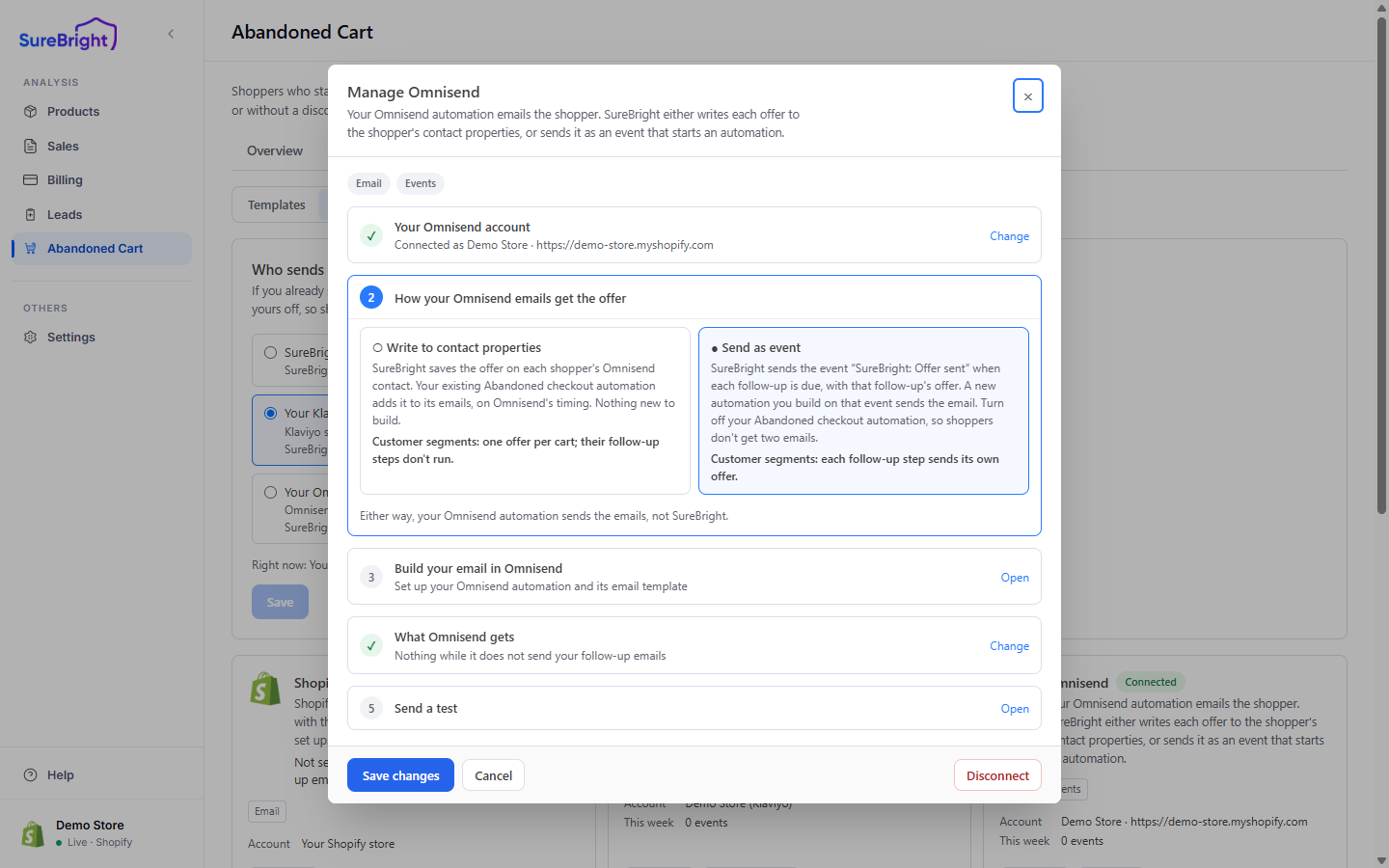
Omnisend can carry the offer in two ways. Press **Manage** on the Omnisend card; step 2 of its window, **How your Omnisend emails get the offer**, holds the choice. Either way, your Omnisend automation sends the emails, not SureBright.
| Choose | What you do |
|---|---|
| **Write to contact properties** (use your existing Abandoned checkout automation) | Keep your automation and its timing. SureBright adds the offer to each shopper's Omnisend contact as `sb_` fields: the code, a checkout link with the plans already added, the discount, the plans and their prices, and when the code ends. Paste the personalization tags the card gives you into your email. The card also gives you a block that shows nothing when an email goes out before the offer is ready. SureBright sends no email of its own. With customer segments, each cart gets one offer and the segment's follow-up steps don't run |
| **Send as event** (start a new automation from SureBright's event) | Build an automation in Omnisend triggered by the custom event **SureBright: Offer sent**, which arrives each time a follow-up step is due. Set the trigger's frequency so it can start every time, and write the email with the event's tags (code, checkout link, plan, discount, prices, code end, which follow-up, and SureBright's subject and message for the step). With customer segments, each follow-up step sends its own offer. Turn off your Abandoned checkout automation, or shoppers get two emails |
The rest of the window walks you through building your email in Omnisend, the events it gets, and a test. Press **Save changes** when you are done.
Omnisend automations started by a custom event also email contacts who are not subscribed, unless you change that in the trigger's channel settings.
Either way, switch off Shopify's own abandoned checkout email in Shopify. **Try it on a contact** (**Add sample properties**) puts sample offer fields on a contact you name, ideally your own, so you can preview the email. Remove them with **Remove the sample properties** when you are done. When you disconnect Omnisend you choose **Remove the offers first, then disconnect** or **Disconnect and leave them**. The step-by-step version is on [Omnisend](/integrations/omnisend).
## Events your tool receives
Klaviyo and Omnisend receive these events only while they send your follow-up emails, and never **Reminder due**; with **Write to contact properties**, Omnisend receives none. The Webhook receives every event. The names match what appears in the tool. **Cart abandoned**, **Offer prepared**, **Reminder due** and **Code expiring** go out only while automatic follow-ups are on, never for a cart in a control group, and never for a shopper without marketing consent when Settings asks for it.
| Event | Arrives when |
|---|---|
| **SureBright: Cart abandoned** | A checkout has been quiet long enough to count as abandoned. Carries the cart value, checkout step, checkout link, segment and items |
| **SureBright: Offer prepared** | A plan and a single-use code were made for the cart. Carries the code, when it expires, the plan, what the shopper pays and the offer link |
| **SureBright: Offer sent** | A follow-up went out through this tool. Carries the step number, the offer, and the subject and body for the step. The Webhook hears of every send on any channel |
| **SureBright: Reminder due** | SureBright sent the cart's automatic reminder in the code's last day |
| **SureBright: Code expiring** | Once per cart, when an unused offer has 24 hours or less left |
| **SureBright: Cart recovered** | A shopper who was sent an offer placed the order, with or without the plan. Carries the order number and value and whether the plan was attached |
The full field list for each event is in the **Event catalog** at the bottom of the Connected tools screen. Open it to see, for each event, what to use it for, when it is sent and every field it carries, so you know which tags you can put in your email or automation.
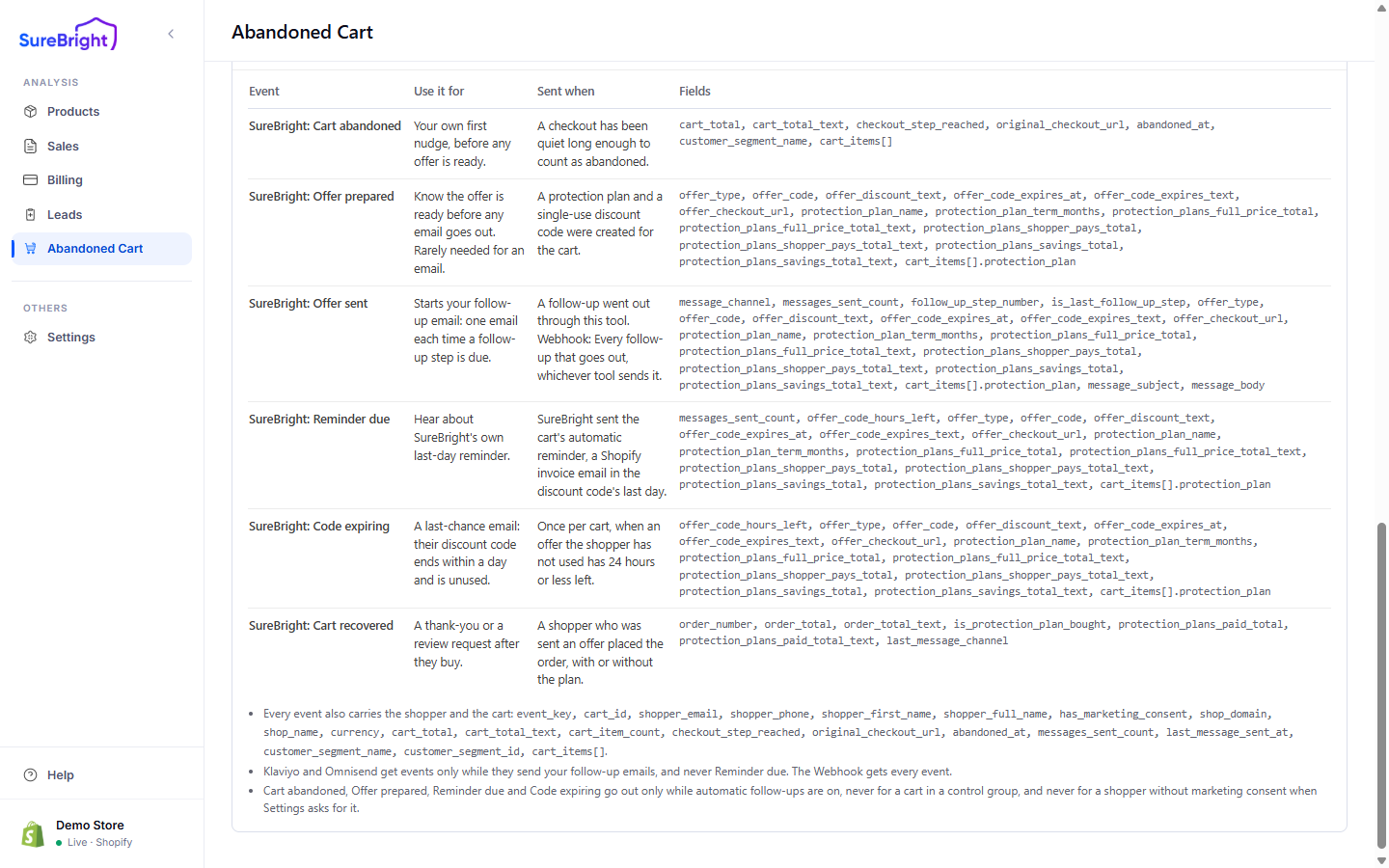
Every event also carries the shopper and the cart: their email, phone and name, marketing consent, your shop name and currency, the cart total and items, the checkout step reached, the customer segment, and how many messages were sent so far.
## Send a campaign to a segment
With customer segments on and Klaviyo connected, a segment's panel (open it with **Insights**) offers **Send a campaign** under **Campaigns to this segment**: one message to everyone in the segment at once, created in your Klaviyo account on a synced list. The Klaviyo key needs Campaigns, Templates, Lists and Profiles full access.
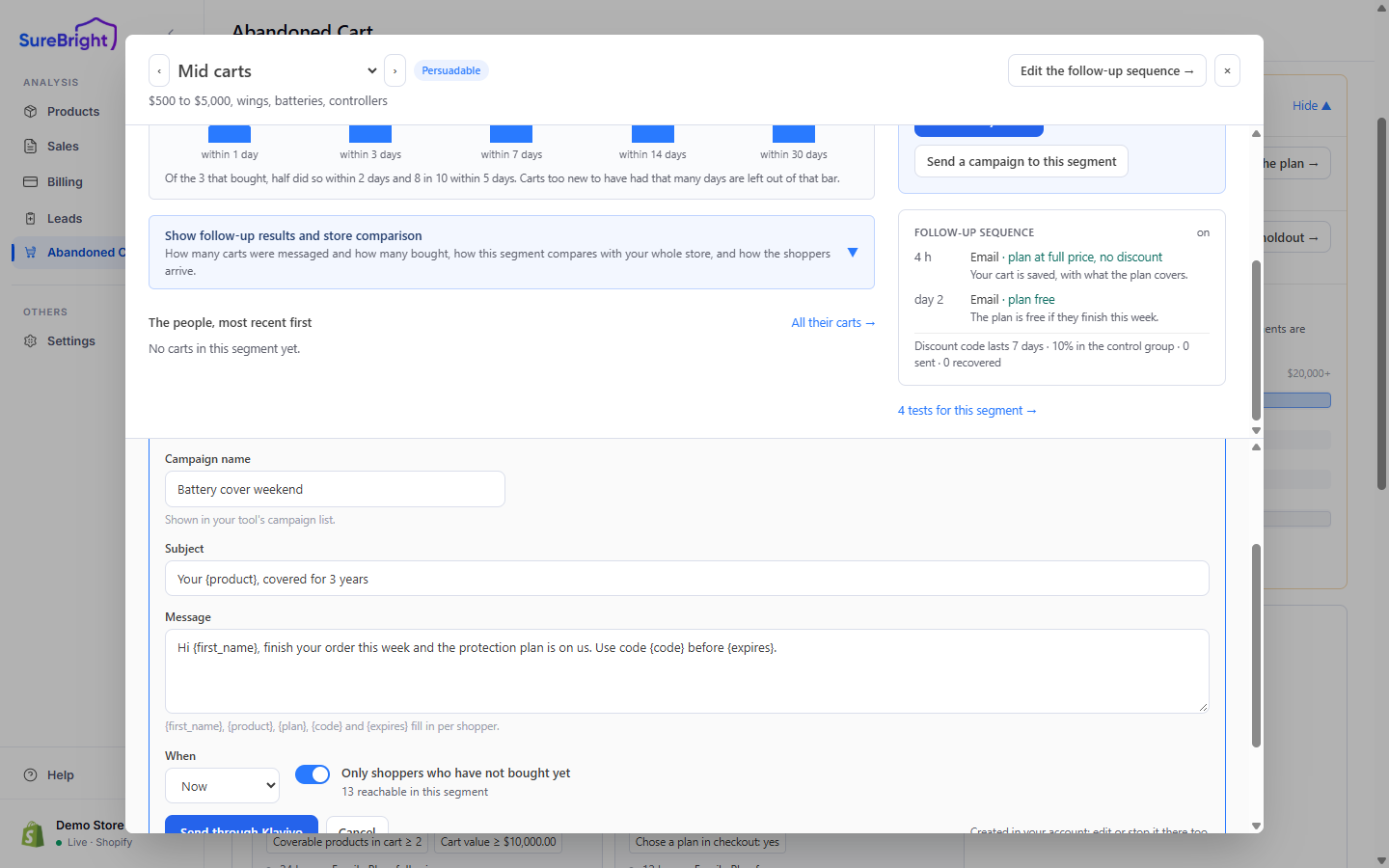
Write the subject and message. `{first_name}`, `{product}`, `{plan}`, `{code}` and `{expires}` fill in per shopper, each with their own single-use code.
Choose **Now** or **Schedule**, and optionally **Only shoppers who have not bought yet**.
For **Now**, the confirmation names the tool, the segment and how many shoppers it will reach. A scheduled campaign can also be cancelled here in the portal. The campaign then appears in Klaviyo's campaign list, where you can also edit or stop it.
Only Klaviyo can keep your segments as lists and send campaigns from here.
A campaign cannot be recalled once sent.
## Related
- [Customer segments](/abandoned-cart-guide/customer-segments)
- [Omnisend](/integrations/omnisend)
- [Email integrations](/klaviyo-integration/integration-guide)
- [Automatic follow-ups](/abandoned-cart-guide/automatic-follow-ups)
- [Offer tests and templates](/abandoned-cart-guide/offer-tests-and-templates)